PCIe Bottleneck Fix (2026): GPU Running at x8 Instead of x16
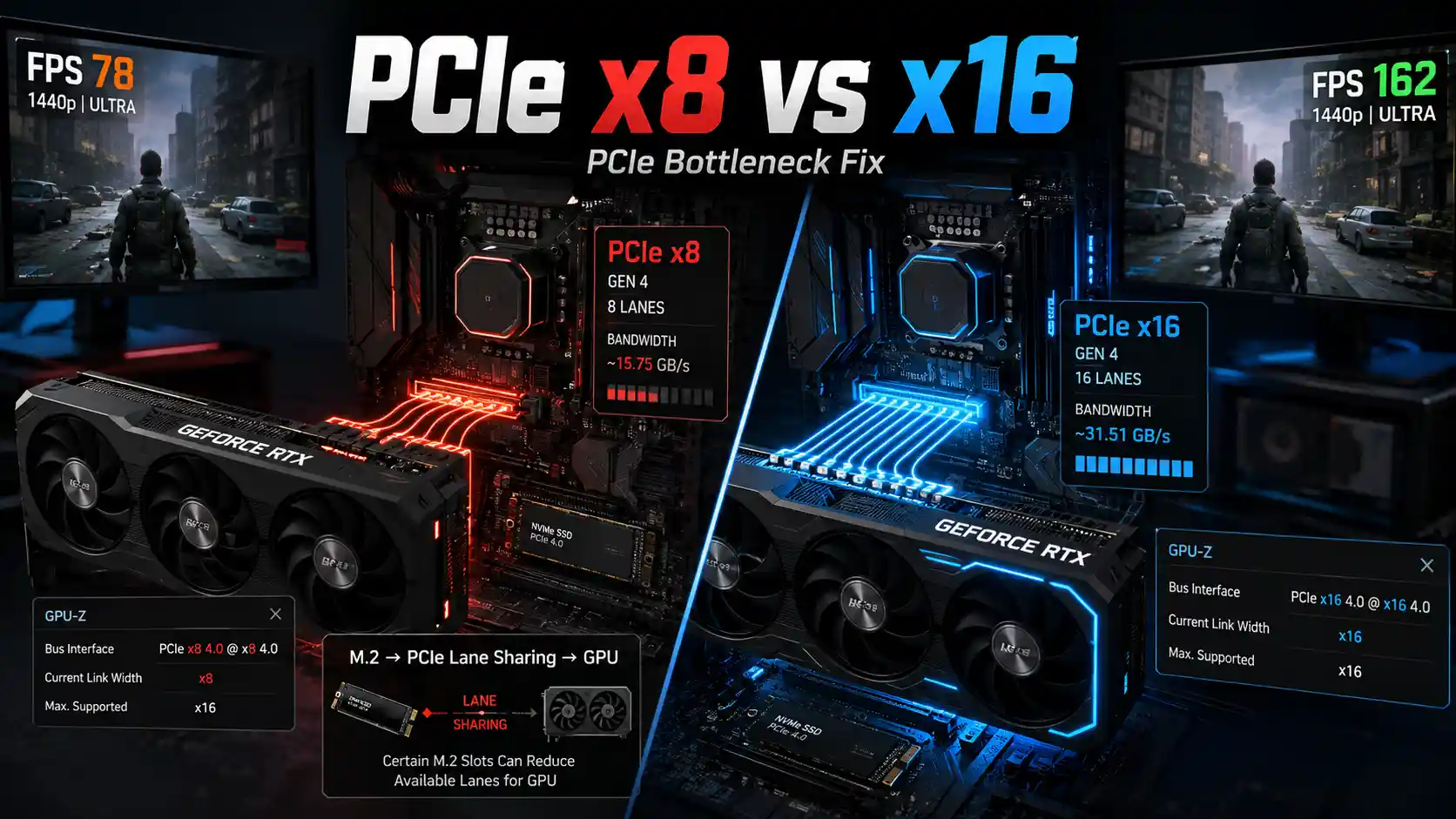
You open GPU-Z, glance at Bus Interface, and see something like “PCIe x16 4.0 @ x8 4.0.” Your first instinct is that your $800 GPU is only running at half power. For the vast majority of systems, that instinct is wrong.
A GPU running at PCIe x8 is not automatically experiencing a bottleneck. The PCIe generation and workload matter just as much as the lane count. A PCIe 4.0 x8 connection carries roughly the same bandwidth as a PCIe 3.0 x16 connection, and most GPUs — including high-end cards — don’t come close to saturating even that, let alone a full x16 Gen 4 or Gen 5 link during normal gaming.
That said, x8 can matter in specific situations: older PCIe 3.0 boards paired with a flagship GPU, motherboards that silently drop to x8 the moment you install a second NVMe drive, or a genuinely misconfigured BIOS. This guide walks through why your GPU might be running at x8, how to verify it correctly instead of guessing from an idle reading, when it’s actually worth fixing, and the exact steps to fix it when it is.
Key Takeaways
- PCIe x8 is often normal — especially with PCIe 4.0/5.0 GPUs, secondary slots, or idle power states.
- PCIe generation affects bandwidth more than lane count alone. x8 on a newer generation can outperform x16 on an older one.
- GPU-Z frequently shows a reduced link state (even x1) while the GPU is idle. Always check under load using the Render Test.
- Populating certain M.2/NVMe slots can reduce GPU lanes on some motherboards — this is motherboard-specific, not universal.
- Real FPS impact from x8 vs x16 is usually small (often under 5%) on high-bandwidth PCIe generations, but can be larger on older PCIe 3.0 boards with high-end GPUs.
- The fix, if one is needed, usually involves slot placement, BIOS settings, or M.2 configuration — not a new GPU.
Why is my GPU running at x8 instead of x16, and how do I fix it?
Your GPU most likely negotiates x8 because it’s installed in a secondary PCIe slot, an M.2 drive is sharing lanes with the primary slot, the GPU is idle (power-saving link state), or your CPU/motherboard simply doesn’t route x16 to that slot. To fix it: confirm the reading under load in GPU-Z, install the GPU in the primary CPU-connected slot, check your motherboard manual for lane-sharing rules tied to M.2 slots, and reseat the card if the slot still shows an unexpected link width.
What Is a PCIe Bottleneck?
PCI Express (PCIe) is the high-speed interface that connects your GPU, NVMe SSDs, and other expansion cards to the CPU and motherboard chipset. Data moves between the GPU and the rest of the system over a set of PCIe lanes, and each lane carries a fixed amount of bandwidth per clock cycle depending on the PCIe generation.
- PCIe x16 means 16 lanes are active for that device — the maximum most consumer GPUs use.
- PCIe x8 means only 8 lanes are active, effectively cutting theoretical bandwidth in half at the same generation.
GPUs communicate with the CPU constantly — sending render commands, streaming textures, and moving frame data — but most of that traffic fits comfortably within x8 bandwidth on modern PCIe generations. A PCIe bottleneck only happens when the GPU actually needs more bandwidth than the link provides, causing it to wait on data transfers instead of rendering. This is a different kind of bottleneck than a CPU bottleneck (CPU can’t feed draw calls fast enough) or a GPU bottleneck (GPU compute/render capacity is maxed out) — PCIe bottlenecks are specifically about data transfer bandwidth between GPU and system.
Why Is My GPU Running at x8 Instead of x16?
Several different things can cause a GPU to negotiate x8 instead of x16, ranging from completely normal motherboard design choices to genuine misconfigurations. Here’s every common cause, starting with the most likely.
GPU Is Installed in the Wrong PCIe Slot
Motherboards often have multiple PCIe x16-sized slots, but only the top slot is usually wired for a full x16 electrical connection to the CPU. Secondary slots that look identical are frequently wired at x8, x4, or even routed through the chipset. If your GPU is in a secondary slot, x8 is expected — not a fault.
M.2 Slot Is Sharing PCIe Lanes With the GPU
On many motherboards, certain M.2 NVMe slots are wired to share lanes with the primary GPU slot. Populating one of these specific M.2 slots can drop the GPU from x16 to x8 automatically. This is a deliberate design trade-off by the motherboard manufacturer, not a malfunction.
CPU PCIe Lane Limitations
Consumer CPUs provide a limited number of PCIe lanes total — often around 20-28 depending on platform and generation. Those lanes are divided between the GPU slot, M.2 storage, and chipset connectivity. If enough lanes are already allocated elsewhere, the GPU may not get a full x16 allocation.
Motherboard Lane Sharing
Beyond CPU lanes, the motherboard chipset itself provides additional lanes for secondary slots, extra M.2 ports, and onboard controllers. Chipset lane sharing rules vary significantly between motherboard models, even within the same CPU platform, which is why two “identical spec” boards can behave differently.
BIOS or UEFI Configuration
BIOS settings control PCIe generation (forcing Gen 3 instead of Gen 4/5) and PCIe bifurcation (splitting a x16 slot into multiple smaller electrical links, e.g., x8/x8). An incorrect bifurcation setting can unintentionally cap the GPU slot at x8.
GPU or PCIe Slot Contact Problems
Dust, debris, a partially seated card, or damaged slot contacts can cause the motherboard to negotiate a lower link width as a fallback. This is less common but worth ruling out if reseating fixes the issue.
PCIe Power Management
PCIe links can downshift width and speed automatically when the GPU is idle to save power, then renegotiate a wider/faster link once a real workload starts. This is normal behavior, not a hardware problem.
Is PCIe x8 a Bottleneck for a GPU?
Not automatically. Whether x8 is a bottleneck depends almost entirely on the PCIe generation and the GPU’s actual bandwidth needs, not the lane count in isolation.
| Configuration | Relative Bandwidth | Typical Bottleneck Risk |
|---|---|---|
| PCIe 3.0 x8 | Lowest | Higher risk with high-end GPUs |
| PCIe 3.0 x16 | Moderate | Low risk |
| PCIe 4.0 x8 | Moderate (≈ PCIe 3.0 x16) | Low risk for most GPUs |
| PCIe 4.0 x16 | High | Very low risk |
| PCIe 5.0 x8 | High | Very low risk |
| PCIe 5.0 x16 | Highest | Essentially no risk today |
A PCIe 4.0 GPU running at x8 has roughly the same bandwidth as a PCIe 3.0 GPU running at x16 — which is why generation matters as much as lane width.
PCIe Generation Matters More Than x8 vs x16
“PCIe x8 is not automatically a bottleneck because PCIe generation determines how much bandwidth each lane provides.” Each new PCIe generation roughly doubles per-lane bandwidth, so a narrower link on a newer generation can still outperform a wider link on an older one.
| PCIe Generation | x8 Bandwidth | x16 Bandwidth |
|---|---|---|
| PCIe 3.0 | ~7.9 GB/s | ~15.8 GB/s |
| PCIe 4.0 | ~15.8 GB/s | ~31.5 GB/s |
| PCIe 5.0 | ~31.5 GB/s | ~63 GB/s |
These are theoretical, one-direction bandwidth figures. Real-world GPU performance depends on the workload, driver behavior, and how much data actually needs to move across the bus at any given moment — not just the theoretical ceiling.
PCIe x16 vs x8 FPS Difference
How much FPS do you lose using PCIe x8 instead of x16? There’s no single universal percentage — the difference ranges from negligible to noticeable depending on several factors:
- PCIe generation (Gen 3 vs Gen 4 vs Gen 5)
- GPU model and how bandwidth-hungry it is
- Game engine and how it streams assets
- Resolution (higher resolutions often shift load toward compute, not bandwidth)
- Texture/asset streaming intensity
- VRAM capacity (data spilling over the PCIe bus more often when VRAM is tight)
- CPU performance and whether the system is already CPU-limited
- In-game settings
- Whether the specific workload is bandwidth-sensitive at all
It also helps to separate average FPS from 1% lows and frame time. A PCIe-limited system might show a similar average FPS to a full x16 link but noticeably worse 1% lows and more stuttering, because bandwidth-starved moments (asset streaming spikes, texture loads) show up as inconsistent frame time rather than a lower average.
Resizable BAR, Above 4G Decoding, and PCIe Link Width
Resizable BAR (Base Address Register) and Above 4G Decoding are BIOS features that change how the CPU addresses GPU memory — not how many PCIe lanes are active. They’re worth understanding here because people frequently confuse “Resizable BAR isn’t working” with “my GPU is stuck at x8,” when the two issues are unrelated.
- Resizable BAR lets the CPU access the GPU’s entire VRAM in one large block instead of small 256MB windows, which can modestly improve performance in supported games by reducing overhead on data transfers across the PCIe bus.
- Above 4G Decoding is the underlying BIOS setting that must be enabled for Resizable BAR to function, since it allows the system to allocate memory addresses above the 4GB boundary.
- Neither setting changes the negotiated lane width (x16/x8/x4) or PCIe generation — a GPU running at x8 can still have Resizable BAR fully enabled and working correctly.
- If Resizable BAR shows as “disabled” or “not capable” in GPU-Z, check Above 4G Decoding in BIOS first — it’s the most common cause, and it’s a separate issue from PCIe link width entirely.
“Resizable BAR and Above 4G Decoding affect how GPU memory is addressed, not how many PCIe lanes are negotiated — a GPU can run at x8 with Resizable BAR fully functional, and at x16 with it disabled.”
Real-World Benchmark Context: What Independent Testing Actually Shows
Independent GPU reviewers (including outlets like TechPowerUp and Gamers Nexus) have repeatedly tested high-end GPUs across PCIe 3.0 x16, PCIe 4.0 x8/x16, and PCIe 5.0 configurations. The consistent pattern across this kind of testing:
- On PCIe 4.0 and PCIe 5.0 platforms, dropping from x16 to x8 typically costs low single-digit percentage FPS on most GPUs at 1080p/1440p, and often less at 4K where the GPU itself becomes the limiting factor.
- On PCIe 3.0 platforms, the gap between x16 and x8 becomes more visible with flagship-tier GPUs, particularly in 1% lows and frame-time consistency rather than average FPS.
- Older or lower-tier GPUs almost never show a meaningful difference between x8 and x16 on any generation, because they don’t generate enough data throughput to saturate even an x8 Gen 3 link.
Exact percentages vary by GPU model, driver version, game, and test methodology, so treat any single number you see online as a snapshot rather than a universal rule. The takeaway that holds consistently: the newer the PCIe generation, the less the lane count matters.
How to Check GPU PCIe Speed With GPU-Z
- Download and open GPU-Z.
- Find the Bus Interface field on the main tab.
- Read the GPU’s maximum supported interface (e.g., “PCIe x16 4.0”).
- Read the current negotiated interface shown alongside it (e.g., “@ x8 4.0”).
- Run the GPU-Z Render Test (right-click the Bus Interface field, or use the built-in test button).
- Check the Bus Interface reading again immediately after the test.
- Compare the result against your GPU’s and motherboard’s rated specifications.
For example, a reading of PCIe x16 4.0 @ x8 4.0 means: the GPU supports up to PCIe 4.0 at x16, but is currently negotiated at PCIe 4.0 speed with only 8 lanes active. The generation (4.0) is unchanged — only the lane width has dropped.
Why GPU-Z Shows PCIe x8 or x1 at Idle
“GPU-Z may display a lower PCIe link state while the GPU is idle because PCIe power management reduces link resources when full bandwidth is unnecessary.” This is expected behavior on virtually all modern GPUs and is not a fault.
Always run the GPU-Z Render Test — or check the reading while a game or benchmark is running — before concluding your GPU is genuinely stuck at x8.
M.2 Slot Sharing Lanes With GPU
“An M.2 SSD can reduce GPU PCIe lane width on some motherboards, but this is motherboard-specific and must be confirmed in the motherboard manual.”
Relevant factors include:
- CPU PCIe lanes vs chipset PCIe lanes
- Which specific M.2 slot is populated (not all M.2 slots affect the GPU)
- Lane bifurcation settings
- SATA ports that get disabled when certain M.2 slots are used
- Manufacturer-specific lane allocation diagrams
Lane sharing depends on the specific motherboard and CPU platform. Always check the motherboard manual rather than assuming every M.2 slot affects the GPU.
How to Fix a GPU Running at x8 Instead of x16
Work through these steps in order — easiest and least invasive first, more advanced hardware checks last. Most people resolve the issue in the first three or four steps without touching BIOS settings at all.
1. Check the GPU Slot
Install the GPU in the motherboard’s primary, CPU-connected PCIe slot — usually the top full-length slot closest to the CPU.
2. Check GPU-Z Under Load
Confirm whether x8 still appears while the GPU is actually rendering, using the Render Test, rather than judging from an idle reading.
3. Check the Motherboard Manual
Look for the PCIe lane-sharing diagram, usually found in the manual’s specifications or block diagram section.
4. Check M.2 Slot Configuration
If the manual indicates lane sharing, temporarily remove or relocate the NVMe drive to confirm whether the GPU link width changes.
5. Reseat the GPU
Power down the PC, disconnect the power supply, remove the GPU, inspect the slot and card contacts for dust or damage, and reinstall it firmly.
6. Check BIOS PCIe Settings
Review PCIe generation and slot configuration settings in BIOS/UEFI. Avoid changing settings blindly — cross-reference with the motherboard manual first.
7. Update BIOS and Chipset Drivers
Outdated BIOS or chipset drivers can occasionally cause incorrect PCIe negotiation. Updating can resolve link-width issues introduced by firmware bugs.
8. Check CPU Socket and PCIe Lane Issues
Poor CPU socket contact (bent pins, insufficient seating pressure) can, in rare cases, affect PCIe lane negotiation alongside other symptoms.
9. Test Another PCIe Slot
If your motherboard has more than one x16-length slot, testing the GPU in another slot helps determine whether the issue follows the GPU or stays with the slot.
PCIe x8 vs x16 for Gaming
| Configuration | Gaming Impact | Should You Worry? |
|---|---|---|
| PCIe 4.0 x16 | Excellent | No |
| PCIe 4.0 x8 | Usually very good | Usually no |
| PCIe 3.0 x16 | Good | No |
| PCIe 3.0 x8 | More bandwidth-limited | Depends on GPU |
| PCIe 5.0 x8 | Very high bandwidth | Usually no |
This table is a general guide, not a universal benchmark — actual results vary by GPU model and game.
PCIe Bottleneck vs CPU Bottleneck vs GPU Bottleneck
| Bottleneck Type | Common Symptoms | Monitoring Clue | Typical Fix |
|---|---|---|---|
| PCIe bottleneck | Inconsistent frame time, streaming stutter | Low GPU utilization during asset loading despite headroom | Correct slot/M.2 config, check BIOS |
| CPU bottleneck | Lower FPS at low resolution, GPU usage below 99% | GPU utilization noticeably under 100% | Faster CPU, lower background load |
| GPU bottleneck | GPU usage near 100%, FPS scales with GPU settings | GPU utilization at/near 100% | Lower settings/resolution, upgrade GPU |
| RAM bottleneck | Stuttering, slow load times, high page file use | High RAM usage, disk swapping | Add RAM, close background apps |
| VRAM bottleneck | Texture pop-in, sudden FPS drops at high settings | VRAM usage maxed in monitoring tools | Lower texture settings, upgrade GPU |
PCIe Bottleneck Symptoms
If you’re not sure whether PCIe is actually the culprit versus a broader PC bottleneck, watch for these signs before jumping to conclusions:
- Lower-than-expected GPU performance in specific, bandwidth-heavy workloads
- Reduced GPU utilization during particular scenes or loading moments
- Increased frame-time spikes rather than a lower average FPS
- Streaming-related stutter (open-world texture streaming, asset pop-in)
- Performance differences observed after moving the GPU to a different PCIe slot
- Unexpected bandwidth limitations in benchmarks designed to stress PCIe transfer
Not every FPS drop is a PCIe bottleneck — rule out CPU, GPU, RAM, and VRAM causes first. If you’re also seeing thermal throttling or unstable clocks alongside stutter, it’s worth ruling out a thermal bottleneck or PSU bottleneck before assuming PCIe is the cause.
Common PCIe Bottleneck Mistakes
- Assuming x8 automatically means bad performance
- Checking GPU-Z only while the GPU is idle
- Ignoring PCIe generation when comparing x8 vs x16
- Ignoring motherboard-specific lane sharing rules
- Installing the GPU in a secondary, non-primary slot
- Changing BIOS settings without checking the manual first
- Comparing theoretical bandwidth numbers directly against FPS
- Blaming PCIe before checking CPU and GPU utilization
PCIe Bottleneck Troubleshooting Checklist
- Confirm the GPU is in the motherboard’s primary PCIe slot.
- Re-check the link width in GPU-Z using the Render Test (not at idle).
- Compare the reading against your GPU’s and motherboard’s rated PCIe generation and lane count.
- Check the motherboard manual for M.2/GPU lane-sharing diagrams.
- Temporarily remove any M.2 drives that may share GPU lanes to test.
- Reseat the GPU and inspect the slot for dust or damage.
- Review BIOS PCIe generation and bifurcation settings.
- Update BIOS and chipset drivers if outdated.
- Test the GPU in an alternate PCIe slot if available.
- Benchmark actual FPS, 1% lows, and frame time rather than relying on link width alone.
- If you want a quick sanity check on whether any component in your system is likely limiting another, run your specs through a bottleneck calculator to see where the real constraint is likely coming from.
Frequently Asked Questions
Is PCIe x8 enough for a GPU?
For most GPUs on PCIe 4.0 or 5.0, yes — x8 provides bandwidth comparable to or greater than PCIe 3.0 x16. On PCIe 3.0, x8 can be limiting for high-end GPUs in bandwidth-heavy scenarios.
Why is my GPU running at x8 instead of x16?
Common causes include a secondary PCIe slot, an M.2 drive sharing lanes with the GPU slot, CPU/chipset lane limitations, BIOS bifurcation settings, or the GPU simply being idle when checked.
Does PCIe x8 reduce FPS?
It can, but usually only slightly on modern PCIe generations. The impact is workload-dependent and often shows up more in 1% lows and stutter than in average FPS.
Is PCIe 4.0 x8 enough for gaming?
Yes, for the vast majority of current GPUs. PCIe 4.0 x8 offers roughly the same bandwidth as PCIe 3.0 x16, which has been sufficient for gaming for years.
Is PCIe 3.0 x8 a bottleneck?
It can be for high-end, bandwidth-hungry GPUs, especially at higher resolutions with heavy texture streaming. For mid-range GPUs, the impact is usually small.
How do I check PCIe lanes in GPU-Z?
Open GPU-Z, look at the Bus Interface field, and run the built-in Render Test to see the negotiated link width under load rather than at idle.
Why does GPU-Z show x8 at idle?
PCIe power management reduces link width and speed when the GPU isn’t under load to save power, then restores a wider link once a workload starts.
Can an M.2 SSD reduce GPU PCIe lanes?
On some motherboards, yes — specific M.2 slots are wired to share lanes with the primary GPU slot. This varies by motherboard, so check the manual.
Does PCIe Gen 4 matter for GPUs?
Yes — PCIe Gen 4 roughly doubles per-lane bandwidth over Gen 3, which is why a Gen 4 x8 link can match a Gen 3 x16 link in raw bandwidth.
Should my GPU always run at x16?
Not necessarily. Many GPUs perform at their full rated level at x8, particularly on PCIe 4.0 and 5.0 platforms. x16 isn’t a requirement for good performance.
How do I force my GPU to PCIe x16?
Ensure it’s in the motherboard’s primary CPU-connected slot, check BIOS bifurcation and PCIe generation settings, and remove any M.2 drives known to share lanes with that slot per the motherboard manual.
Does PCIe x16 increase FPS?
Sometimes, but often only marginally over x8 on modern PCIe generations — the gain depends heavily on the GPU and specific workload.
Verdict
- x8 does not automatically mean a PCIe bottleneck — generation matters just as much as lane count.
- PCIe generation is critical: a newer-generation x8 link often matches an older-generation x16 link in bandwidth.
- Always check GPU-Z under load using the Render Test, not at idle, before drawing conclusions.
- M.2 lane sharing is motherboard-specific — confirm with the manual rather than assuming.
- Unexpected x8 behavior should be investigated methodically using the troubleshooting checklist above.
- Judge actual gaming performance using FPS, 1% lows, frame time, and GPU utilization — not link width alone.