
Does Resolution Change Your Bottleneck? 1080p vs 1440p vs 4K
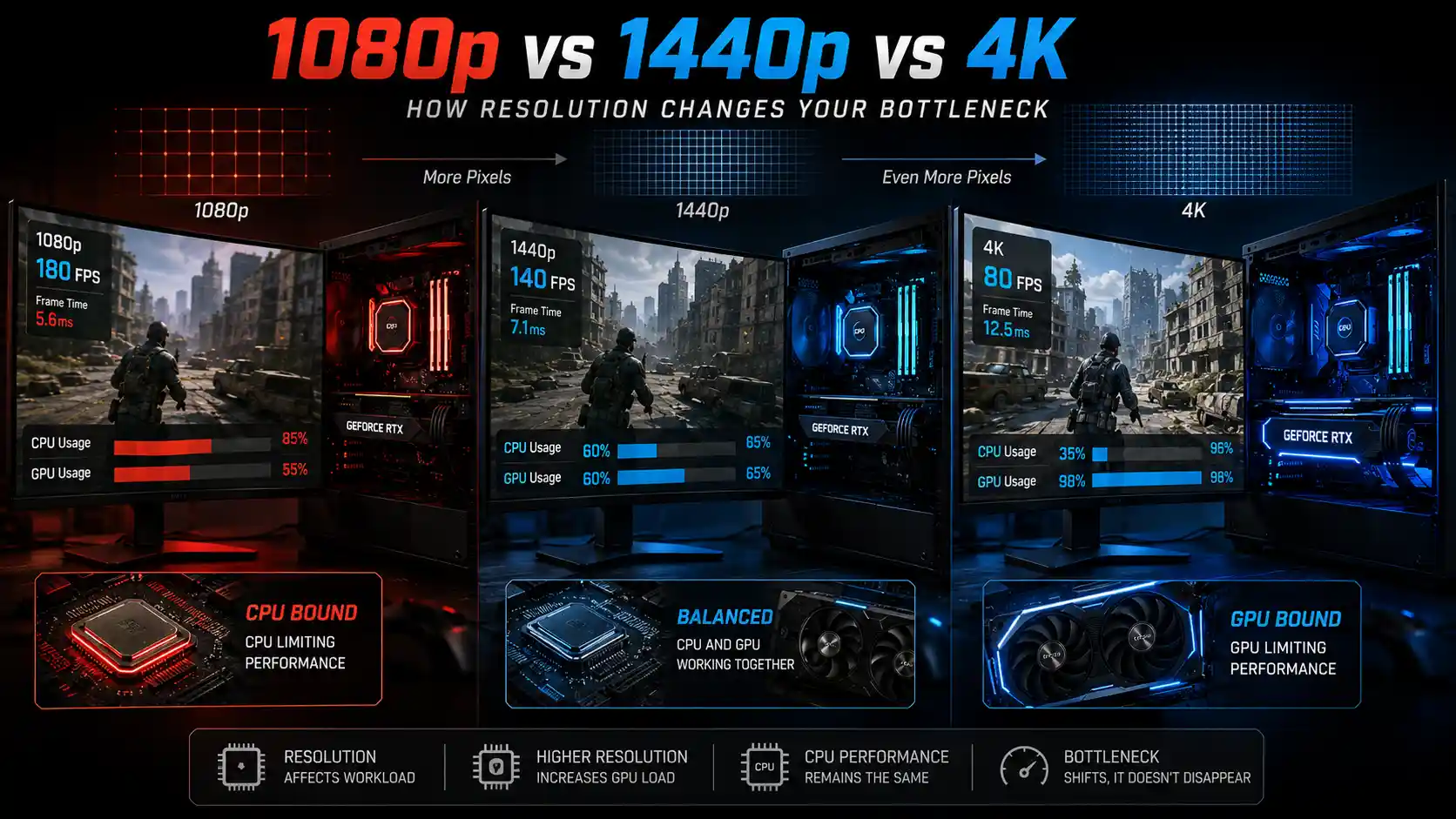
The same PC can behave like two different machines depending on what resolution it’s running. At 1080p, a fast CPU and a mid-range GPU might leave the graphics card underused while the processor scrambles to keep up with high frame rates. Switch that exact same hardware to 4K, and the story flips — the GPU now strains under a much heavier pixel load while the CPU sits comfortably ahead of it, waiting.
This isn’t a contradiction. It’s a direct result of how resolution changes the balance of work between the CPU and GPU, not the raw speed of either component.
Increasing resolution adds more pixels for the GPU to render, shade, and process every frame. That’s a real increase in GPU workload. But resolution has essentially no effect on the CPU-side work of a game — things like AI calculations, physics simulation, game logic, and issuing draw calls to the GPU. The CPU still has to do that work regardless of whether the game is rendering at 1080p or 4K.
So the relationship works like this: as resolution increases, GPU workload increases, frame rendering takes longer, and FPS drops. As FPS drops, the CPU has more time between frames to finish its own work, so it’s less likely to be the limiting factor. The CPU didn’t get faster — the GPU just got slower relative to it, and the bottleneck moved accordingly.
Key Takeaways
- Higher resolution increases GPU workload, not CPU workload.
- A CPU bottleneck becomes less visible at higher resolutions because the GPU becomes the limiting factor — this is different from the CPU bottleneck being fixed.
- 1080p is more likely to expose CPU bottlenecks because FPS potential is higher, giving the CPU less time per frame.
- 4K is usually more GPU-bound because rendering workload increases sharply with pixel count.
- 1440p often sits in a practical middle ground between image quality and GPU demand, but it isn’t universally “best.”
- Diagnosing a bottleneck requires looking at GPU utilization, per-core CPU utilization, frame time, and 1% lows — not just overall FPS.
- Upscaling technologies like DLSS, FSR, and XeSS complicate the picture because render resolution and output resolution aren’t the same thing.
30-Second Answer: Does Resolution Affect CPU Bottlenecks?
Yes, higher resolution can reduce the likelihood of a CPU bottleneck because the GPU takes longer to render each frame. However, the CPU workload for game logic, AI, physics, and draw calls does not automatically decrease just because resolution increases.
Think of it as masking, not fixing. Bump up the resolution and the GPU slows down enough to become the new limit, so the CPU’s ceiling stops mattering in practice. Reverse that — drop in a faster GPU, or enable upscaling — and the same CPU limit shows back up.
What Is a Resolution Bottleneck?
A “resolution bottleneck” isn’t a separate type of hardware limitation — it’s a description of how changing resolution shifts the balance between an existing CPU bottleneck and an existing GPU bottleneck. Every system has some combination of CPU and GPU capability; resolution determines which one runs out of headroom first.
Resolution and GPU Workload
Resolution has a direct, mathematical relationship with GPU workload. Moving from 1080p (roughly 2.1 million pixels) to 1440p (roughly 3.7 million pixels) to 4K (roughly 8.3 million pixels) means the GPU has significantly more pixels to shade, texture, and process per frame. More pixels means more rendering work, which means more time spent per frame and a lower FPS ceiling from the GPU side.
Resolution and CPU Workload
Resolution has almost no direct effect on CPU workload. The CPU’s job in a game — running game logic, simulating physics, calculating AI behavior, handling input, and preparing draw calls for the GPU — is largely tied to the game’s simulation complexity and the number of frames being processed per second, not the pixel count of those frames. A CPU preparing a frame for 4K output does roughly the same amount of work as preparing that same frame for 1080p output.
Why Higher Resolution Shifts More Work to the GPU
Because GPU workload scales with pixel count while CPU workload stays comparatively flat, increasing resolution effectively rebalances the system. The GPU takes on more of the total rendering time, frame times lengthen, and FPS falls. As FPS falls, the CPU has more time available between frames — so even if its per-frame workload hasn’t changed, it becomes relatively less likely to be the component holding back performance.
1080p vs 1440p vs 4K Bottleneck
| Resolution | Typical Limitation | GPU Workload | CPU Bottleneck Visibility |
|---|---|---|---|
| 1080p | CPU/GPU | Lower | Higher |
| 1440p | CPU/GPU | Moderate | Moderate |
| 4K | Usually GPU | High | Lower |
These are general tendencies based on how GPU workload scales with pixel count — not guarantees. A very CPU-intensive game (heavy AI, large open worlds, complex physics) can still be CPU-bound at 4K, and a lightweight, GPU-intensive title can be GPU-bound even at 1080p.
Why 1080p Is More Likely to Be CPU-Bound
1080p tends to expose CPU bottlenecks more often because it removes the GPU workload that would otherwise slow things down, allowing FPS to climb higher. Several factors compound this:
- Higher potential FPS. With less GPU work per frame, the system can attempt much higher frame rates.
- More frames for the CPU to prepare. Every additional frame per second means another full round of game logic, AI updates, physics steps, and draw calls the CPU has to complete in less time.
- Game logic and AI overhead. Complex simulations, NPC behavior, and pathfinding all run on the CPU regardless of resolution.
- Physics calculations. Collision detection, ragdoll physics, and destruction systems are CPU-side costs that don’t shrink at lower resolutions.
- Draw call preparation. The CPU has to package rendering instructions for the GPU, and this workload is tied more to scene complexity and frame rate than to resolution.
- Background processes. Overlays, background applications, and OS-level tasks compete for the same CPU threads, and their impact becomes more noticeable when frame times are already short.
Why 4K Is Usually More GPU-Bound
4K shifts the balance the other way by loading the GPU with far more rendering work per frame:
- More pixels. Nearly four times as many pixels as 1080p need to be shaded and processed.
- Higher rendering workload. Lighting, shading, texture sampling, and post-processing effects all scale with pixel count.
- Higher GPU utilization. The GPU is more likely to sit near 100% usage as it works to keep up.
- Lower FPS ceiling. Longer per-frame rendering time caps the maximum achievable frame rate.
- More CPU idle time between frames. Since frames take longer to render, the CPU often finishes its work and waits on the GPU, reducing the visible impact of any CPU-side limitation.
1440p vs 4K: Which Is More GPU-Bound?
4K is more GPU-bound: 3840×2160 is 8,294,400 pixels. 2560×1440 is 3,686,400. 1920×1080 is 2,073,600. So 4K is exactly four times 1080p, and 2.25 times 1440p. The GPU shades every one of those pixels. The CPU’s per-frame work barely changes with the resolution.
That is why the same pair often looks CPU-limited at 1440p and GPU-limited at 4K. The shift is pixel count. It is still not a promise for every game: a simulation-heavy title can stay CPU-bound at 4K.
Does Higher Resolution Reduce CPU Bottleneck?
Higher resolution can reduce the practical impact of a CPU bottleneck by making the GPU the limiting component — but it does not increase actual CPU performance. The CPU is doing the same amount of work per frame; it simply has more idle time to do it in because the GPU has become the slower link in the chain.
Illustrative example (not benchmark data):
- At 1080p: The CPU limits the game to roughly 180 FPS.
- At 1440p: GPU workload increases and performance falls to roughly 140 FPS.
- At 4K: The GPU becomes the main limitation, and performance falls to roughly 80 FPS.
These numbers are purely illustrative to show the concept — actual results vary enormously by game, hardware, and settings.
1080p CPU Bound vs 4K GPU Bound
The same hardware can behave very differently depending on resolution, and the difference shows up clearly across several metrics:
- CPU utilization tends to be higher (or shows one heavily loaded thread) at 1080p, where the CPU has less time per frame.
- GPU utilization tends to climb toward 100% at 4K as rendering work increases.
- FPS is typically higher and more CPU-limited at 1080p, lower and more GPU-limited at 4K.
- Frame time (the time to render each individual frame) becomes more GPU-driven as resolution increases.
- 1% lows (the frame rate during the slowest 1% of frames) can reveal CPU-side stutters at 1080p that get masked by the GPU workload at 4K.
1440p Sweet Spot Gaming
1440p is often described as a practical middle ground, not because it’s mathematically optimal, but because it balances a few competing priorities:
- Better image quality than 1080p, with a meaningfully sharper picture.
- Less GPU demand than 4K, keeping frame rates more attainable on mid-to-high-end hardware.
- Strong compatibility with high-refresh-rate monitors, since 1440p panels commonly run at 144Hz–240Hz.
- A more balanced CPU/GPU workload, where neither component is left drastically underused in most games.
This doesn’t make 1440p universally the “best” resolution — someone prioritizing maximum FPS for competitive play may prefer 1080p, while someone prioritizing visual fidelity on a powerful GPU may prefer 4K. The right resolution depends on the hardware, the games being played, and personal priorities.
Does Resolution Affect FPS?
Yes. Resolution affects FPS through GPU workload: higher resolution increases the number of pixels the GPU must render, which increases GPU frame time, which in turn lowers the maximum achievable FPS. The relationship follows this chain:
Resolution → GPU workload → frame time → FPS
This is a conceptual relationship rather than a fixed formula — the actual FPS drop from increasing resolution depends on the game engine, settings, and how GPU-bound the workload already is. In a heavily CPU-bound game, raising resolution may barely change FPS at all, because the CPU — not the GPU — was already setting the ceiling.
How to Tell if You’re CPU-Bound or GPU-Bound
Check GPU Utilization
Consistently high GPU utilization (commonly cited as around 95–100%) while FPS is stable generally indicates the GPU is the limiting component.
Check CPU Utilization
Look at per-core or per-thread usage, not just the overall average. A game can be CPU-bound even when total CPU usage looks moderate, because a single core or thread handling the main game loop can max out while other cores sit idle.
Compare FPS at Different Resolutions
If FPS stays roughly the same when you lower the resolution, the CPU is likely the limiting factor. If FPS rises noticeably at lower resolutions, the GPU was likely playing a larger role.
Check Frame Time
Frame time (measured in milliseconds) shows how long each frame takes to render. Spikes or inconsistency in frame time can point to CPU-side stutters that average FPS numbers can hide.
Check 1% Lows
1% lows reveal how the system performs during its worst moments, not just on average. A game with a good average FPS but poor 1% lows often has an underlying CPU bottleneck causing occasional stutters.
Why total CPU usage can be misleading: Modern games often rely heavily on one or two “main” threads to run core game logic, even on CPUs with many cores. Overall CPU utilization can look low — say, 40–50% — while that one critical thread is fully maxed out and limiting performance.
Resolution Scaling Test for Bottlenecks
This is one of the most reliable ways to diagnose whether a system is CPU-bound or GPU-bound in a specific game.
- Run the game at 1080p and record FPS, frame time, GPU utilization, and CPU utilization.
- Increase to 1440p and record the same measurements.
- Increase to 4K and record the same measurements again.
- Compare GPU utilization and FPS across the three resolutions.
Interpreting the results:
- If FPS barely changes as resolution increases, the CPU is likely the limiting factor, and the GPU has spare headroom.
- If FPS drops significantly as resolution increases, the GPU is likely taking on more of the workload and becoming the limiting factor.
- If GPU utilization climbs toward 100% at higher resolutions while FPS falls proportionally, that’s a strong sign of a GPU-bound scenario.
This test isn’t perfect proof on its own. Game engines, graphics settings, frame rate caps, V-Sync, and upscaling can all distort the results, so it’s best used alongside utilization and frame-time monitoring rather than in isolation.
Resolution Bottleneck vs CPU Bottleneck vs GPU Bottleneck
| Bottleneck Type | Primary Cause | Resolution Sensitivity | Typical Symptom |
|---|---|---|---|
| Resolution bottleneck | Shift in CPU/GPU balance caused by pixel count | High | Bottleneck location changes with resolution |
| CPU bottleneck | Game logic, AI, physics, draw calls | Low | High FPS ceiling not reached; low/inconsistent GPU usage |
| GPU bottleneck | Rendering workload exceeds GPU capability | High | GPU usage near 100%; FPS falls as resolution rises |
| RAM bottleneck | Insufficient or slow system memory | Low | Stutters, frame time spikes, background swapping |
| VRAM bottleneck | Insufficient video memory for textures/assets | High | Stuttering or frame drops, especially at high resolution or texture settings |
Does Lower Resolution Always Increase FPS?
Not necessarily. If the CPU is already the limiting factor, lowering the resolution reduces GPU workload — but the GPU wasn’t the bottleneck to begin with, so FPS may barely move. In a CPU-bound scenario, the frame rate ceiling is set by how fast the CPU can prepare frames, and reducing resolution doesn’t speed that up.
Can 4K Fix a CPU Bottleneck?
No. It masks one, at best. Upgrade the GPU later, drop settings, or turn on upscaling at that same 4K resolution, and the original CPU limit can resurface immediately — nothing about the CPU changed in the meantime.
Does 1440p Reduce CPU Bottleneck?
Sometimes, and it depends heavily on the pairing. A powerful GPU with a weaker CPU can still hit a CPU wall at 1440p in CPU-heavy titles, while a more balanced build often sees the GPU take over as the limiting factor at this resolution.
How DLSS, FSR, and XeSS Change the Equation
Upscaling technologies — NVIDIA DLSS, AMD FSR, and Intel XeSS — complicate the resolution-bottleneck relationship because they separate render resolution from output resolution.
- Output resolution is what the display shows (for example, 4K).
- Render resolution is the lower internal resolution the GPU actually renders before the image is upscaled (for example, 1440p or lower).
Because the GPU is rendering at a lower internal resolution, its workload drops closer to what it would be at that lower resolution — even though the monitor displays the higher output resolution. This can significantly reduce GPU rendering time and raise FPS.
Important distinction: upscaling reduces GPU workload, but it does not change CPU workload. If a game was CPU-bound before enabling DLSS, FSR, or XeSS, that CPU limitation can become the dominant bottleneck again once the GPU workload is reduced, since the GPU is no longer holding performance back as much.
Resolution and Refresh Rate
High refresh rate monitors push systems to reach higher FPS targets, which increases the CPU’s workload per second and makes CPU limitations more likely to surface, especially at lower resolutions (our guide to CPUs for high refresh rate gaming goes deeper):
- 1080p at 240Hz demands very high FPS, placing heavy pressure on the CPU to keep up.
- 1440p at 165Hz balances higher image quality with a still-demanding frame rate target.
- 4K at 120Hz generally shifts the workload back toward the GPU, since the resolution alone often prevents FPS from reaching CPU-limiting levels.
Higher refresh rates expose CPU limitations at lower resolutions because they require more frames to be prepared per second, giving the CPU less time per frame regardless of how light the GPU’s workload is.
Common Resolution Bottleneck Mistakes
- Assuming 4K automatically eliminates CPU bottlenecks. It shifts visibility, not the underlying CPU workload.
- Looking only at total CPU usage. A single maxed-out thread can bottleneck a game even with low overall CPU usage.
- Assuming 99% GPU usage is always bad. High GPU utilization is normal and expected when the GPU is the limiting component — it isn’t inherently a problem.
- Comparing FPS without considering settings. Differences in graphics settings, upscaling, or frame caps can invalidate resolution comparisons.
- Ignoring upscaling. DLSS, FSR, and XeSS change the effective render resolution, which changes GPU workload independent of the displayed resolution.
- Ignoring frame time. Average FPS can hide inconsistent frame delivery caused by CPU-side stutters.
- Treating resolution as the only bottleneck variable. RAM, VRAM, thermal throttling, and background processes can all contribute to performance limitations alongside resolution.
Resolution Bottleneck Troubleshooting Checklist
- Record baseline FPS, frame time, GPU utilization, and per-core CPU utilization at your current resolution.
- Run the resolution scaling test across 1080p, 1440p, and 4K.
- Note whether FPS changes significantly or stays flat as resolution changes.
- Check 1% lows at each resolution, not just average FPS.
- Confirm whether any single CPU thread is maxed out even if overall usage looks moderate.
- If using upscaling, compare results with it enabled and disabled.
- Rule out other bottleneck sources, such as VRAM limits, RAM speed, or thermal throttling.
- Re-test after any driver, game, or settings changes, since these can shift results.
FAQs
Does resolution affect CPU bottleneck?
Yes. Higher resolution increases GPU workload, which can make the GPU the limiting factor instead of the CPU, reducing how visible a CPU bottleneck is — without changing the CPU’s actual workload.
Does higher resolution reduce CPU bottleneck?
It can reduce the practical impact by shifting the limitation to the GPU, but it does not reduce the amount of work the CPU has to do.
Is 1080p more CPU-bound?
Generally yes, because 1080p allows for higher potential FPS, giving the CPU less time per frame and making CPU limitations more likely to surface.
Is 4K always GPU-bound?
No. It’s usually GPU-bound due to the large increase in rendering workload, but CPU-intensive games can still be CPU-bound even at 4K.
Is 1440p better for CPU bottlenecks?
1440p can reduce CPU bottleneck visibility compared to 1080p in many cases, but this depends on the specific game and hardware pairing.
Does increasing resolution lower FPS?
Generally yes, because higher resolution increases GPU workload and rendering time — though the effect is smaller if the system is already CPU-bound.
Why am I CPU-bound at 1080p but GPU-bound at 4K?
Because at 1080p the GPU can render frames quickly, leaving the CPU as the limiting factor, while at 4K the GPU’s rendering workload increases enough to become the slower — and therefore limiting — component.
Can 4K fix a CPU bottleneck?
No. It can make the GPU the limiting factor instead, which reduces the visible effect of a CPU bottleneck on FPS, but the CPU limitation itself is still present.
Is 1440p the sweet spot for gaming?
It’s a practical middle ground for many setups, balancing image quality, GPU demand, and refresh rate support — but it isn’t universally optimal for every user or hardware combination.
Does resolution affect GPU bottleneck?
Yes, directly. Higher resolution increases the number of pixels the GPU must render, which increases the likelihood and severity of a GPU bottleneck.
Does DLSS change CPU vs GPU bottlenecks?
Yes. By rendering internally at a lower resolution, DLSS (and similar tools like FSR and XeSS) reduces GPU workload, which can shift the bottleneck back toward the CPU if the CPU was already close to its limit.
Can a CPU bottleneck exist at 4K?
Yes, particularly in CPU-intensive games with heavy AI, physics, or simulation workloads, or when using upscaling technologies that reduce the GPU’s actual rendering resolution.
Related guides
20 Most GPU Intensive Games in 2026: Push Your Graphics Card to the Limit
Discover the 20 most GPU intensive games of 2026 that push modern graphics cards to their limits. Full benchmark list, VRAM needs & RTX requirements.
Hardware-Accelerated GPU Scheduling: Should You Turn It On?
When to leave hardware-accelerated GPU scheduling on, how to toggle it in Windows, and why DLSS Frame Generation needs it. The switch does not fix a CPU bottleneck.
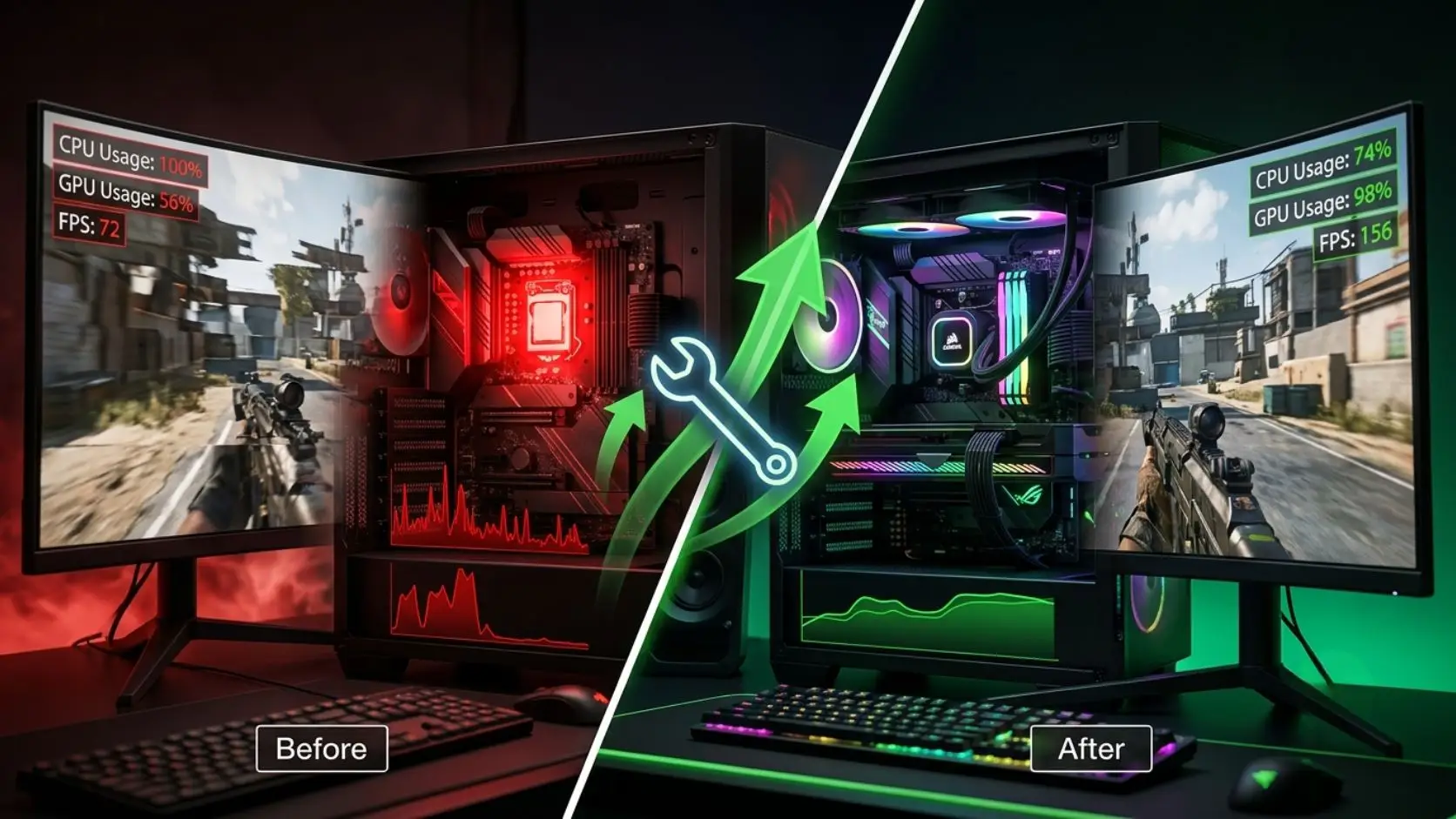
How to Fix a Bottleneck in Your PC (Complete Guide)
Learn how to fix a CPU or GPU bottleneck step by step. Diagnose the cause, apply free fixes, and boost FPS without upgrading hardware.