
Hardware-Accelerated GPU Scheduling: Should You Turn It On?
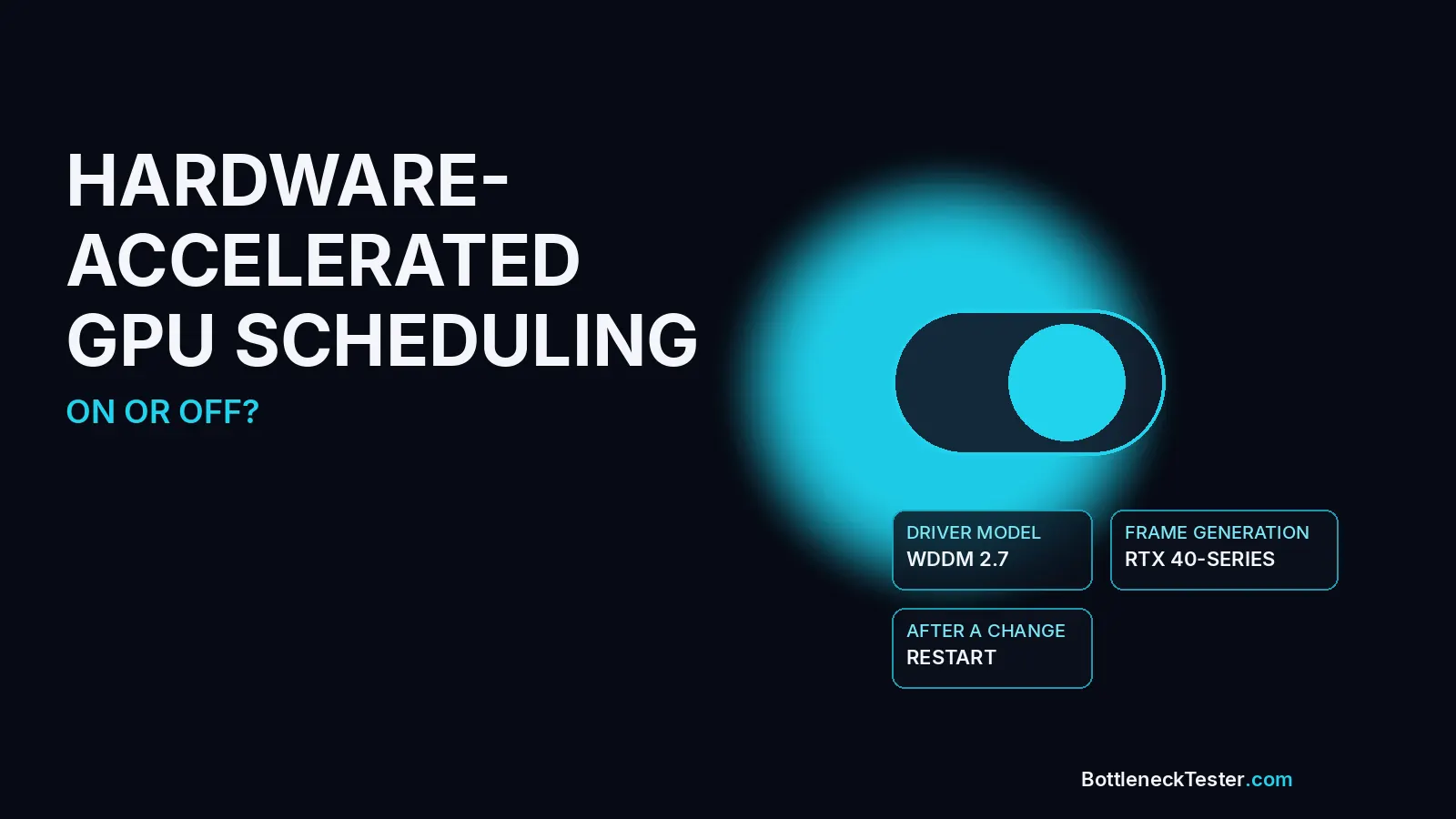
Quick answer: Leave hardware-accelerated GPU scheduling on if the switch is already on and your games are stable, and turn it on if you want DLSS Frame Generation. Game publishers that ship Frame Generation, including CD PROJEKT RED, say the feature requires the switch plus a GeForce RTX 40-series card or newer. Turn it off only when the same scene stutters after you enable it. The switch by itself does not remove a CPU bottleneck.
Hardware-accelerated GPU scheduling, usually shortened to HAGS, is a Windows display setting. It is not a graphics option inside a game, and it is not an NVIDIA or AMD control-panel slider. Windows 10 version 2004 added it. Windows 11 still has it. Whether it should be on depends on the card, the driver, and whether you use Frame Generation.
What Hardware-Accelerated GPU Scheduling Does
It moves scheduling onto the GPU: Without it, Windows uses the CPU to decide when GPU work runs and how video memory is handed out. With it on, a supported driver lets the GPU schedule more of that work itself. Microsoft shipped it to cut that scheduling overhead. It is a change in who queues the work, not a faster graphics card.
You will not see a new frame-rate counter for “HAGS.” The result, when there is one, is a small change in latency or smoothness. A large frame-rate jump after you flip the switch usually means something else changed at the same time, most often Frame Generation, a driver install, or a game setting.
When HAGS Helps
Frame Generation is the clear case: DLSS Super Resolution and DLSS Frame Generation are different features. Upscaling renders fewer pixels and rebuilds the image. Frame Generation inserts extra frames on the GPU. CD PROJEKT RED’s support page says Frame Generation needs a GeForce RTX 40-series card and Hardware-Accelerated GPU Scheduling. Nixxes, which ports several of those games, documents the same Windows requirement, and says Multi Frame Generation on an RTX 50-series card is the newer version of that same path. With the switch off, the Frame Generation option in a supported game is missing or greyed out.
A CPU-limited game is where those extra frames matter: Frame Generation runs on the GPU, so it can raise the displayed frame rate when the processor cannot prepare frames fast enough. It does not make the CPU faster, and the generated frames are not the same as frames the game simulated. Check which part is the limit in the FPS calculator before you turn a feature on to chase a number. If the GPU is already full, upscaling helps more than another scheduling switch. The VRAM bottleneck guide is the other check: Frame Generation needs memory headroom, and a card that is already out of video memory will stutter whether the switch is on or off.
When to Turn HAGS Off
Only after a before-and-after on the same scene: Turn it off if a game, a VR headset, or a capture app starts stuttering when you enable it and the problem disappears after you disable it and restart. That is a real conflict between that app and that driver. It is not a reason to leave the switch off on every PC.
Do not turn it off because a forum post said it “costs FPS.” Compare one setting, in one game, with Frame Generation left off for both runs. If Frame Generation was on for only one of the runs, you measured two different rendering modes, not the Windows switch.
Older cards are the other case. If the toggle is missing after a current driver from NVIDIA, AMD, or Intel, that driver does not expose the feature. Forcing it with a registry edit is how you get a black screen, not a faster PC.
How to Turn HAGS On or Off in Windows 11 and Windows 10
Save your work first. The change does not apply until the display driver loads again, which means a full restart. Signing out and back in leaves the old state in place while the toggle looks like it moved.
Windows 11: Open Settings, go to System, then Display, then Graphics. Open Advanced graphics settings. On some builds the same switch sits under Default graphics settings. Toggle Hardware-accelerated GPU scheduling, then restart.
Windows 10: Open Settings, go to System, then Display, then Graphics settings. Toggle Hardware-accelerated GPU scheduling, then restart. Windows 10 left mainstream support on 14 October 2025. The toggle can still be there. The operating system no longer gets security updates.
If you do not see the switch, install the current driver from the GPU maker’s site, restart, and look again. Windows Update’s display driver is often older than the one the GPU maker ships.
HAGS Requirements: GPU, Driver and Windows Version
All three have to agree: Windows 10 version 2004 or any Windows 11 build, a driver that exposes the feature, and a GPU that driver supports. A new Windows version alone does not create the toggle.
- Check the driver model: Press Windows+R, type
dxdiag, open the Display tab, and read Driver Model. Hardware-accelerated GPU scheduling needs WDDM 2.7 or newer. An older model number means the installed driver cannot offer the switch. - NVIDIA: The company’s own notes put support at GeForce GTX 10-series and newer, starting with the old 450 driver branch. That date is history. Install a current driver. Frame Generation is a separate, stricter requirement: an RTX 40-series or newer card.
- AMD and Intel: Support depends on the exact card and the driver release. If a current driver still hides the switch, that card does not offer it. Do not treat a generic “supported products” list as a HAGS list.
CD PROJEKT RED says Windows 11 turns the option on by default. Check anyway. A PC upgraded from Windows 10, or a laptop image from the manufacturer, does not always match a clean Windows 11 install.
Does HAGS Reduce a CPU Bottleneck?
The switch does not. Frame Generation might: A CPU bottleneck means the processor cannot prepare frames as fast as the graphics card can draw them. Moving the Windows scheduler onto the GPU does not give the game more CPU time for physics, AI, or draw calls. The usage test in CPU vs GPU bottleneck still applies: GPU well under full use, frame rate stuck when you lower the graphics settings, CPU busy.
Frame Generation is the feature that adds displayed frames in that situation, and only on RTX 40-series and newer, and only with this switch on. The frames are generated, not simulated. Input can feel different from a real frame-rate increase. If the goal is a higher real frame rate, start with the free fixes in how to fix a bottleneck: drivers, background apps, RAM running at its rated speed, and settings that actually hit the CPU. Then decide whether Frame Generation is worth turning on.
Frequently Asked Questions
Should hardware-accelerated GPU scheduling be on or off?
On, unless a specific app misbehaves: Leave it on for Frame Generation and for a PC that is already stable. Turn it off, restart, and retest only when the same scene got worse after you enabled it.
What is hardware-accelerated GPU scheduling?
A Windows setting, not a game setting: It lets a supported GPU schedule more of its own work instead of making the CPU do that scheduling. It has been in Windows since version 2004.
What does hardware-accelerated GPU scheduling do?
It changes who queues GPU work: The point is less scheduling overhead. It does not raise the clocks on the card, and it does not unlock Frame Generation on a GPU that lacks the feature.
Is HAGS on by default in Windows 11?
Often, not always: CD PROJEKT RED says Windows 11 enables it by default. Open the Graphics page and read the switch. Do not assume.
Does HAGS lower input lag?
It can, and you should measure it: The feature was built to cut scheduling latency. There is no single millisecond figure that holds for every game. Play the same scene with it on and off, after a restart each time, before you keep a setting for “latency.”
Why is Frame Generation greyed out?
The usual cause is this switch, or the card: Frame Generation needs HAGS enabled and an RTX 40-series GPU or newer. Upscaling can still be available when Frame Generation is not. Restart after you change the switch, then look again.
Related guides
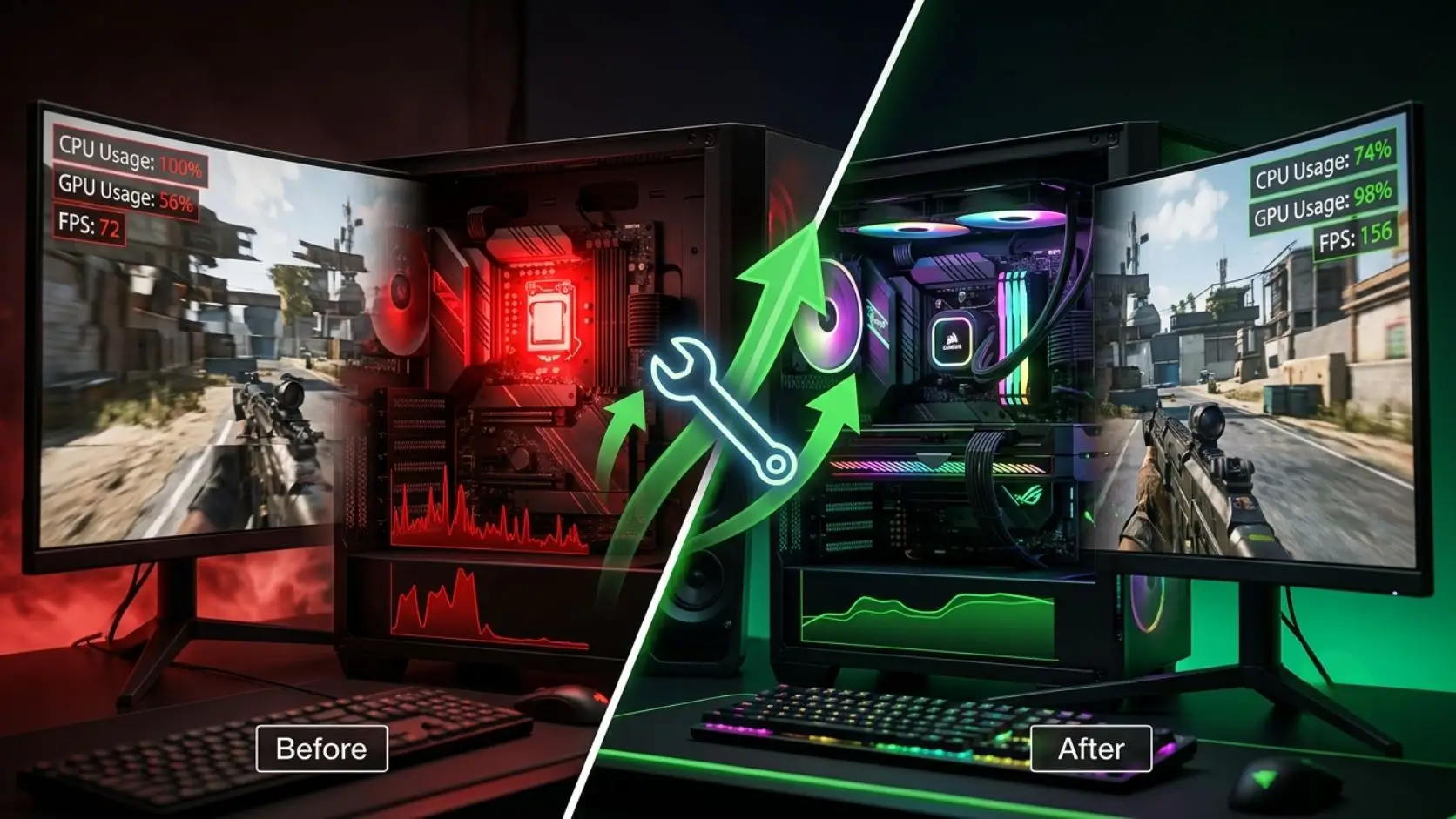
How to Fix a Bottleneck in Your PC (Complete Guide)
Learn how to fix a CPU or GPU bottleneck step by step. Diagnose the cause, apply free fixes, and boost FPS without upgrading hardware.
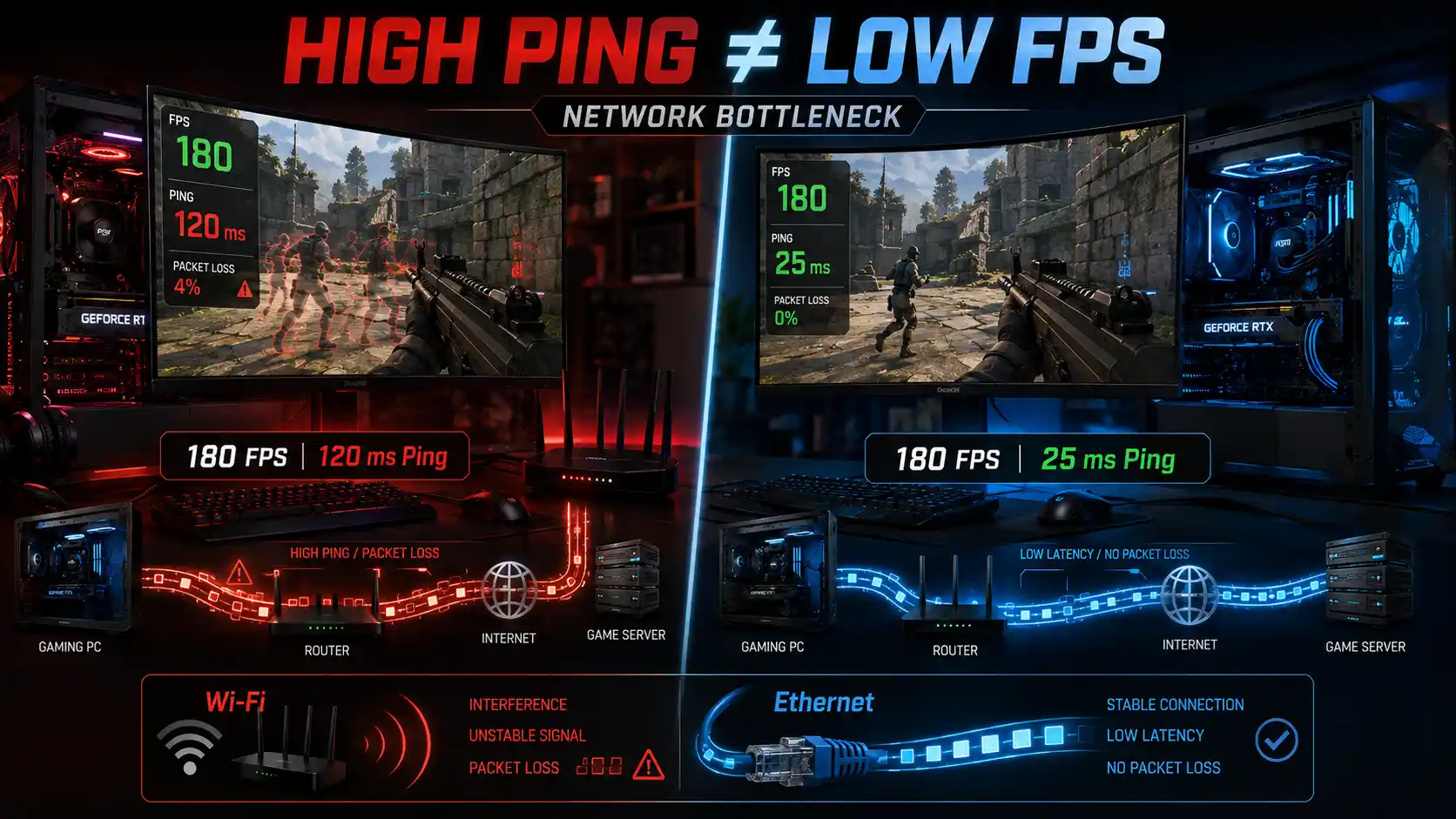
Network Bottleneck: High Ping Despite Good FPS
High FPS but still lagging? Learn what causes high ping, packet loss, Wi-Fi lag, network congestion, and rubber banding, plus how to fix them.
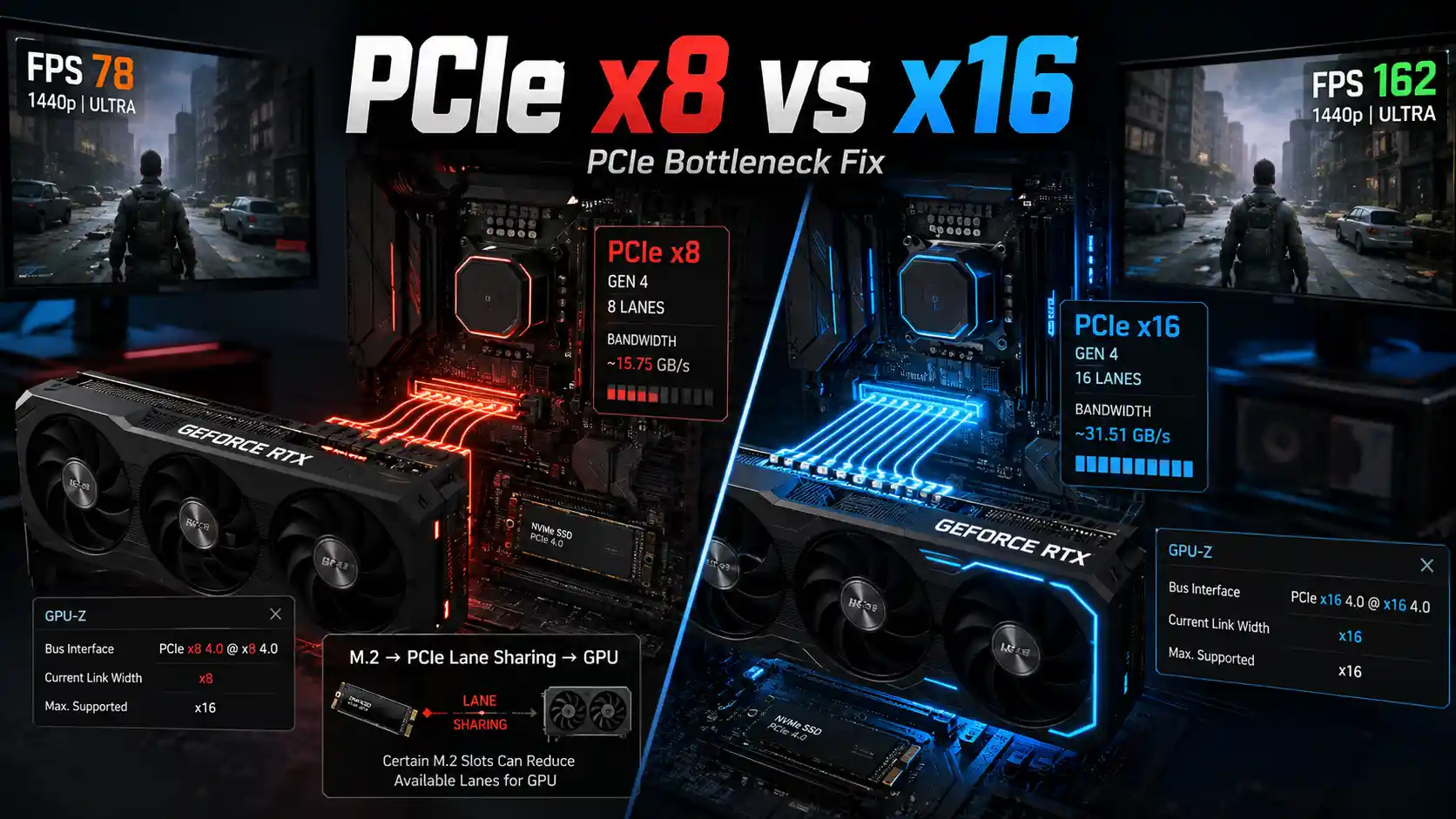
PCIe Bottleneck Fix (2026): GPU Running at x8 Instead of x16
GPU running at x8 instead of x16? Learn how to check PCIe speed with GPU-Z, fix lane sharing, and understand x8 vs x16 FPS differences.