
CPU vs GPU Bottleneck: The Complete Guide
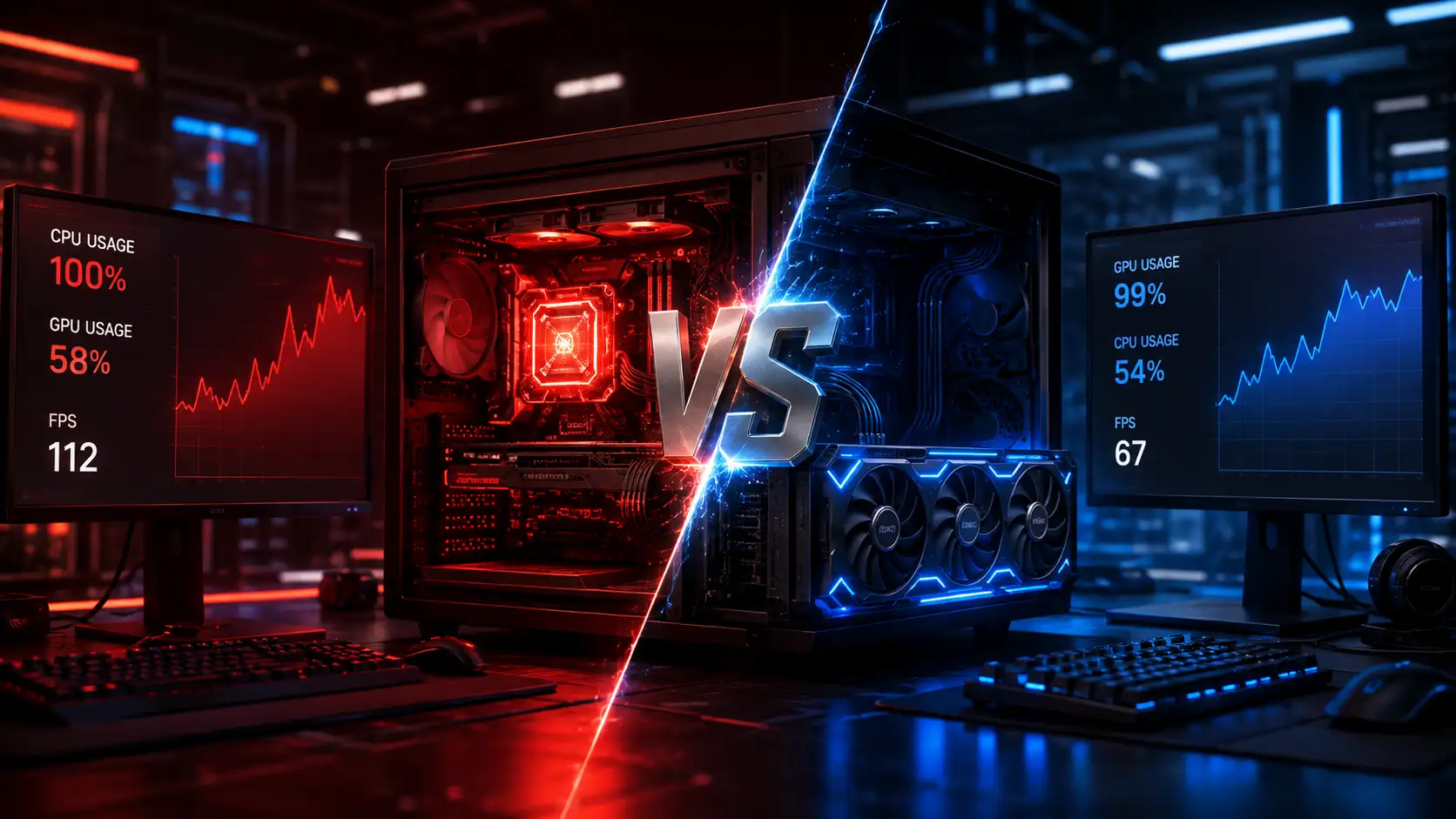
You just built or upgraded your PC. You boot up your favorite game, watch the frame counter, and something feels off. Your GPU should be screaming along at full tilt, but it isn’t. Or maybe your frame rate is fine, but the game still feels choppy in crowded areas. Somewhere in your system, one part is holding the rest back — and figuring out which one is the entire game.
A bottleneck simply means one component in your PC can’t keep up with the rest, so the whole system runs at the pace of its slowest piece. Gamers worry about this because it directly affects the FPS and smoothness they paid good money for. But here’s the part most articles skip: not every bottleneck is a problem. Every PC has one, all the time. The real question isn’t “do I have a bottleneck” — it’s “is my bottleneck actually costing me performance I care about.”
This guide walks through what CPU and GPU bottlenecks actually are, how to tell them apart using real numbers on your screen, what causes each one, and how to fix them — without the vague advice you’ll find everywhere else.
What Is Bottlenecking?
Bottlenecking: One part of the PC sets the pace for every frame you see. The CPU prepares that frame and the GPU draws it. Whichever finishes later is the bottleneck, and the frame rate stays there until that part gets faster.
What Is a Bottleneck?
A bottleneck is the point in a system where flow gets restricted because one part can’t process work as fast as the parts around it. The name comes from the neck of a literal bottle — no matter how wide the body is, liquid can only pour out as fast as the narrow neck allows.
In a gaming PC, your CPU and GPU work as a relay team. The CPU prepares each frame — calculating physics, AI behavior, game logic, and draw calls — then hands that work to the GPU, which renders the actual image you see. If the CPU can’t prepare frames fast enough, the GPU sits idle waiting for work. If the GPU can’t render frames fast enough, it doesn’t matter how fast the CPU is; the image still isn’t ready any sooner.
Real-world example: Imagine a two-person kitchen. One chef preps ingredients (CPU), the other cooks the dish (GPU). If prep takes five minutes per dish but cooking only takes two, the cook spends three minutes standing around waiting. Speeding up the cook further won’t get food out any faster — the kitchen’s real limit is the prep chef.
Every PC has a bottleneck somewhere, because no two components are ever perfectly matched in every scenario. A $2,000 flagship GPU paired with a mid-range CPU will bottleneck in some games and not others, depending on how CPU-heavy or GPU-heavy that specific game is. The goal isn’t to eliminate bottlenecks entirely — that’s not realistic — it’s to keep the bottleneck from wasting performance you paid for. If you want a quick estimate before testing your own system, a bottleneck calculator can give you a rough starting point, though nothing beats testing your actual games.
CPU Bottleneck Explained
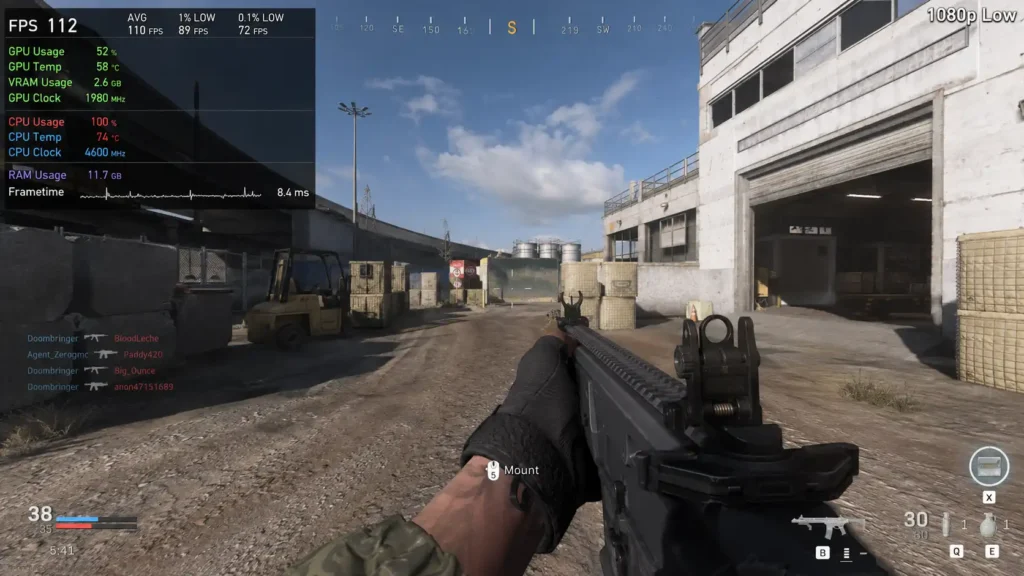
A CPU bottleneck happens when your processor can’t feed the GPU frames fast enough, so the GPU finishes rendering each frame and then waits idle for the next batch of instructions. Your GPU has spare capacity it isn’t using, and your overall FPS suffers as a result — even though your GPU is perfectly capable of pushing more frames.
Games depend on the CPU for a lot more than people realize:
- Physics simulation (collisions, ragdolls, particles)
- AI logic (enemy pathing, NPC behavior, decision-making)
- Draw call preparation (telling the GPU what and where to render)
- Game logic and scripting
- Handling large numbers of simultaneous objects or players
Example: In a city-builder game with thousands of individual units, or a battle royale with 100 players each carrying unique gear and animations, the CPU has to track and process an enormous number of independent objects every single frame. Even a powerful GPU can’t compensate for a CPU that’s struggling to keep the simulation running.
CPU bottlenecks tend to show up most in:
- Strategy and simulation games with lots of active units
- Open-world games with dense NPC populations
- Competitive multiplayer titles with many players on screen
- Games running at very high frame rates (240Hz+ monitors), where the CPU has to produce a new frame every 4 milliseconds or less
GPU Bottleneck Explained
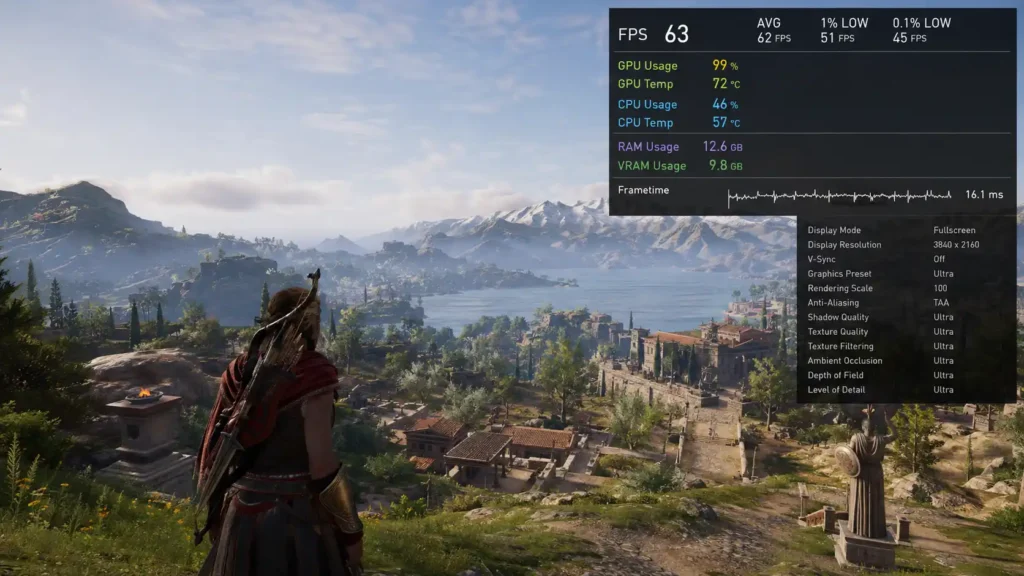
A GPU bottleneck happens when your graphics card is the component limiting your frame rate — it’s working at or near 100% capacity, rendering as fast as it physically can, while your CPU has spare headroom left over.
This is the far more common and, frankly, far more “normal” type of bottleneck. Games are designed to push graphics hardware — that’s the whole point of higher settings, ray tracing, and 4K textures. When you crank up resolution or visual effects, you’re intentionally asking the GPU to do more work per frame, which naturally shifts the limiting factor onto the GPU.
A GPU bottleneck isn’t inherently a flaw in your build. If you’re running a game at 4K with ray tracing maxed out, you want your GPU to be the limiting factor — that means your CPU isn’t wasting potential, and every bit of your graphics card’s power is being used.
Is My CPU Bottlenecking My GPU? Quick Test
Two checks, same scene: Play the game you actually care about for a minute, then change one thing. You do not need a new part to answer this.
Resolution check: Note the frame rate, drop the resolution one step, and leave every other setting alone. If the frame rate barely moves, the CPU was already the limit, because resolution mostly changes how hard the GPU works. If the frame rate jumps, the GPU was the limit.
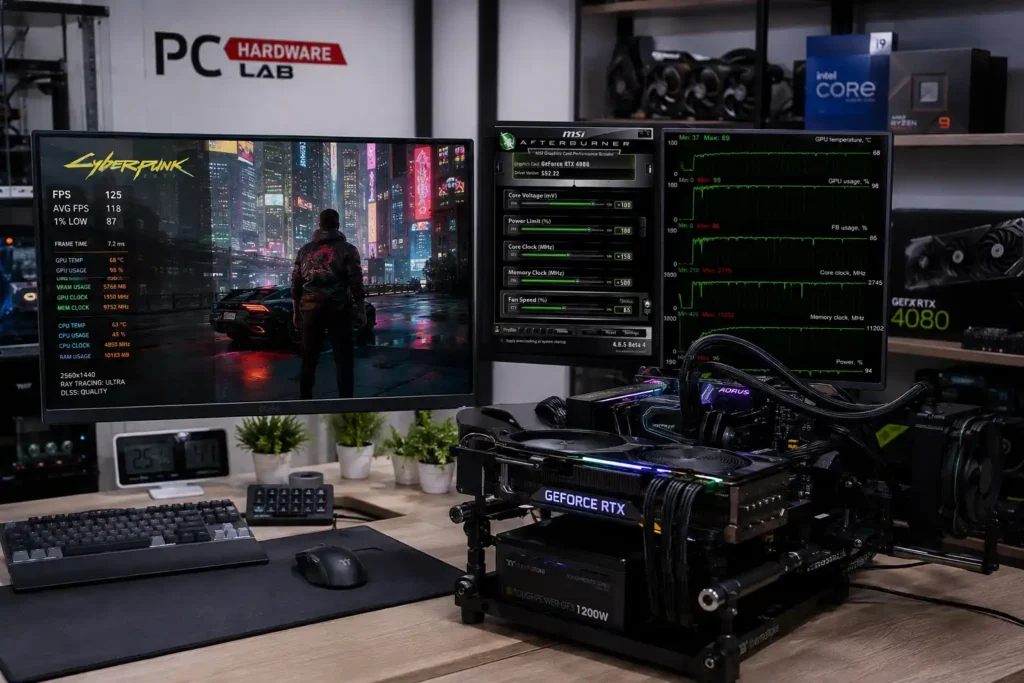
Usage check: Turn on MSI Afterburner or the Xbox Game Bar overlay and watch that same scene. GPU usage in the 95–100% range, with the CPU lower, means the graphics card is the limit. GPU usage often below 80–90%, with one or more CPU cores near full, means the processor is holding the card back. A frame-rate cap or V-Sync can hold GPU usage down on purpose, so turn the cap off before you trust the number.
Both checks are spelled out again under how to tell a CPU bottleneck from a GPU bottleneck, further down this page.
CPU Bottleneck vs GPU Bottleneck: Side-by-Side Comparison
| Factor | CPU Bottleneck | GPU Bottleneck |
|---|---|---|
| Cause | CPU can’t prepare frames fast enough | GPU can’t render frames fast enough |
| GPU Usage | Low (often below 80–90%) | High (95–100%) |
| CPU Usage | High (often near 100% on active cores) | Moderate to low |
| Typical Symptom | Stuttering, inconsistent frame times, poor 1% lows | Lower but stable FPS |
| Frame Times | Inconsistent, spiky | Smooth and consistent |
| Most Common In | Crowded scenes, strategy games, high-refresh esports titles | High resolutions, ray tracing, maxed-out graphics settings |
| Best-Case Scenario | 1080p/1440p competitive gaming with a weak CPU | 4K or ray-traced gaming, which is expected and often desirable |
| Upgrade Path | Faster CPU, faster RAM, enable XMP/EXPO | Faster GPU, DLSS/FSR, lower graphics settings |
| Ease of Fixing In-Game | Harder — often requires lowering draw distance, NPC density, or resolution scaling in the CPU’s favor | Easier — lower graphics settings directly reduce GPU load |
Can a CPU Bottleneck a GPU?
Yes — and this is the scenario most gamers actually mean when they ask about bottlenecks. A CPU bottleneck happens to the GPU: the graphics card is fully capable of rendering more frames, but it’s stuck waiting because the CPU hasn’t handed it the next batch of work yet.
Think of it like a printer that can print 60 pages a minute, connected to a computer that can only send it 30 pages a minute. The printer isn’t broken or slow — it’s simply starved of input. That’s exactly what happens when a weaker CPU is paired with a powerful GPU. The GPU’s usage meter drops because it’s spending real time doing nothing, waiting on the next frame’s instructions.
Real gaming example: Pair a Ryzen 5 3600 with an RTX 4090 in a CPU-intensive game like Cities: Skylines or a crowded Escape from Tarkov map, and you’ll often see GPU usage dip to 60–70% while the CPU sits near 100%. That expensive GPU simply can’t stretch its legs because the CPU can’t feed it fast enough.
Can a GPU Bottleneck a CPU?
Yes, this direction happens too — it’s just less often described as a “problem” because it’s usually intentional. Here, the CPU has already finished preparing frames and is ready to send more, but the GPU is still busy rendering the current one, so the CPU ends up waiting.
This is completely normal at high resolutions or with demanding visual settings. A CPU capable of processing 300 frames’ worth of logic per second is far more than a game running at 4K with ray tracing needs, since the GPU might only be able to render 60 of those frames per second. The CPU isn’t struggling — it’s simply outpacing a GPU that has a heavier rendering job to do.
CPU Bottleneck Symptoms
Here’s what to look for when your CPU is the limiting factor:
- GPU usage below 80% — your graphics card has spare capacity it isn’t using
- CPU usage near 100% on one or more cores, especially in games that don’t spread load evenly across all cores
- Stuttering or micro-freezes, especially in busy areas of a game
- Poor 1% and 0.1% lows — your average FPS might look fine, but the worst frames feel rough
- Inconsistent FPS that swings up and down even when the visual scene looks stable
- Frame pacing issues — frames arrive at uneven intervals, which feels janky even if the FPS counter looks acceptable
Each of these points to the same root cause: the CPU can’t produce frame data on a consistent, fast enough schedule, so the GPU (and therefore your eyes) are left waiting unevenly.
GPU Bottleneck Symptoms
Here’s what a GPU bottleneck typically looks like:
- GPU usage sitting at 95–100% consistently
- CPU usage noticeably lower, with headroom to spare
- Lower overall FPS, but that FPS tends to be stable
- Smooth, consistent frame pacing — even if the number is lower, it feels steady
- High GPU temperatures, since the card is working at full load
- FPS changes directly with graphics settings — lowering resolution or texture quality immediately raises your frame rate
That last point — how FPS reacts when you change a setting — turns out to be one of the fastest ways to self-diagnose, so let’s put it to use in the next section.
GPU Usage Low, CPU Usage High: What It Actually Means
You already know this pattern points to a CPU bottleneck — but it’s worth digging into why it happens and where it tends to show up, since that changes how you fix it.
Beyond the games types already mentioned, this pairing shows up reliably in a few specific situations: multiplayer shooters and battle royales tracking dozens of unique player models and network states at once, city builders and grand strategy titles simulating thousands of independent agents, and MMOs during large group events where the server is throwing constant ability and player data at your CPU. None of these are hardware flaws — the genre itself is simply asking more of the CPU than a linear, graphically-focused game would.
There’s also a cause worth calling out separately: playing at very low resolutions. Dropping resolution lightens the GPU’s job dramatically while the CPU’s job stays exactly the same, which is why competitive players running 1080p on a high-end GPU often see this exact low-GPU/high-CPU pattern even with hardware that “should” be overkill.
Quick fix checklist: close background apps eating CPU cycles, enable XMP/EXPO so your RAM runs at its rated speed, dial back CPU-dependent settings like draw distance and crowd density, and if the gap is still large after that, it’s a genuine sign your CPU is the piece worth upgrading next.
How to Tell if It’s a CPU or GPU Bottleneck
You don’t need expensive tools to figure this out — just a monitoring overlay and a few minutes of testing. Here’s the step-by-step process:
- Install MSI Afterburner (with RivaTuner Statistics Server) — this gives you an on-screen overlay showing real-time CPU and GPU usage, temperatures, and frame times while you play.
- Or use HWInfo for more detailed per-core CPU monitoring alongside GPU stats, especially useful if you want to see whether only one or two cores are maxed out.
- Check Windows Task Manager as a quick, no-install option — the Performance tab shows overall CPU and GPU utilization, though it’s less precise during actual gameplay.
- Watch your GPU usage number while playing. If it’s consistently below roughly 90%, the GPU isn’t the limiting factor.
- Watch your CPU usage number at the same time. High CPU usage paired with low GPU usage points squarely at a CPU bottleneck.
- Look at frame times, not just FPS. Spiky, inconsistent frame times indicate stuttering even when average FPS looks okay — this is a strong CPU bottleneck signal.
- Watch how FPS reacts to changing settings. Lower your resolution. If FPS jumps significantly, you were GPU-bound. If FPS barely moves, you’re CPU-bound, since resolution changes mostly affect GPU workload, not CPU workload.
- Test at multiple resolutions if you can. Run the same scene at 1080p, then 1440p, then 4K. A CPU bottleneck stays roughly the same FPS across all three, since the CPU’s job doesn’t change with resolution. A GPU bottleneck shows FPS dropping as resolution climbs.
Practical example: You’re getting 90 FPS at 1080p. You bump to 1440p and still get roughly 88 FPS. That flat result is a classic sign your CPU — not your GPU — is setting the ceiling.
Which Is Worse: CPU or GPU Bottleneck?
There’s no universal answer here — it depends entirely on what you’re doing and what you care about.
CPU bottlenecks tend to hurt more in the moments that matter most competitively: stuttering during a firefight, inconsistent frame times while tracking a moving target, or frame pacing issues that make your aim feel unreliable even when the FPS counter looks fine. They’re also often harder to fix in-game, since lowering graphics settings barely helps a CPU-bound scenario.
GPU bottlenecks usually just mean a lower, but smoother, frame rate — a less jarring experience overall, and one that’s straightforward to fix by lowering settings or resolution.
In terms of upgrade value: a GPU upgrade tends to be more universally beneficial since almost every game and every resolution benefits from more graphics horsepower. A CPU upgrade delivers value mainly in CPU-heavy titles and high-refresh-rate competitive scenarios — it won’t do much if you’re already GPU-bound at 4K.
So rather than declaring one worse across the board: if smoothness and consistency matter most to you (especially in competitive games), a CPU bottleneck is more disruptive. If raw visual fidelity at high resolution is your priority, a GPU bottleneck is the natural and expected limit.
Is a CPU Bottleneck Bad?
Sometimes yes, sometimes genuinely no — context matters more than the label.
- Competitive gaming (high refresh rates): A CPU bottleneck here is a real problem, because it directly caps how high your FPS can climb, even with a top-tier GPU.
- Casual single-player gaming at 1440p or 4K: A mild CPU bottleneck often doesn’t matter much, since the GPU is already the dominant factor at those settings and resolutions.
- Older CPUs paired with a new GPU: This is one of the most common bottleneck scenarios people run into after a GPU upgrade — expected, and usually worth addressing eventually.
- High-refresh-rate monitors (144Hz–360Hz): A CPU bottleneck becomes far more noticeable here, since hitting those frame rates demands the CPU produce frames extremely quickly and consistently. See what CPU you need for 144Hz and 240Hz.
- Productivity and non-gaming work: CPU bottlenecks matter differently here — tasks like rendering, compiling, or multitasking depend on raw CPU throughput, not on GPU-CPU balance in the gaming sense.
Common Causes of Bottlenecks
Beyond simply having a mismatched CPU and GPU, several other factors contribute:
- Weak CPU relative to the GPU — the most straightforward cause
- Weak GPU relative to the CPU — less common but happens with budget graphics cards paired with strong processors
- Slow RAM speeds — RAM running below its rated speed limits how fast the CPU can access data
- Single-channel RAM instead of dual-channel — this alone can cost significant CPU-bound performance in some games
- Background applications — browsers, overlays, recording software, and chat apps all quietly consume CPU cycles
- Power limits — CPUs or GPUs throttled by conservative power settings in the BIOS won’t reach their full potential
- Thermal throttling — overheating components automatically reduce their clock speeds to stay safe (how to check for it)
- Outdated drivers — old GPU drivers can introduce inefficiencies or fail to take advantage of newer optimizations
- Poor BIOS settings — RAM not running at its advertised XMP/EXPO profile is one of the most common and easily fixed culprits
How to Fix CPU Bottlenecks
- Upgrade your CPU if the gap between it and your GPU is significant and persistent across many games
- Enable XMP or EXPO in your BIOS so your RAM runs at its rated speed instead of a slow default
- Use faster RAM — higher frequency and lower latency both help feed the CPU more efficiently
- Close background applications that compete for CPU time, including browser tabs, overlays, and unnecessary startup programs
- Overclock your CPU if your chip and motherboard support it, for extra headroom without a full upgrade
- Reduce draw distance in games, since rendering fewer distant objects lowers the CPU’s per-frame workload
- Lower CPU-heavy settings specifically — things like NPC density, physics detail, and simulation distance, rather than purely graphical settings
How to Fix GPU Bottlenecks
- Upgrade your GPU for the most direct and universal performance gain
- Enable DLSS (NVIDIA) to render at a lower internal resolution and upscale intelligently, reducing GPU load while preserving image quality
- Enable FSR (AMD’s equivalent) for the same benefit on a broader range of hardware
- Enable XeSS (Intel’s upscaling tech) where supported
- Lower graphics settings — texture quality, shadows, and effects are often the biggest FPS costs for the smallest visual sacrifice
- Reduce ray tracing intensity or disable it, since ray tracing is one of the heaviest GPU-bound features in modern games
- Update your GPU drivers regularly, since driver updates frequently include game-specific performance optimizations
For step-by-step instructions on each of these, plus RAM, PSU and cooling fixes, see how to fix a bottleneck in your PC.
Resolution and Bottlenecks
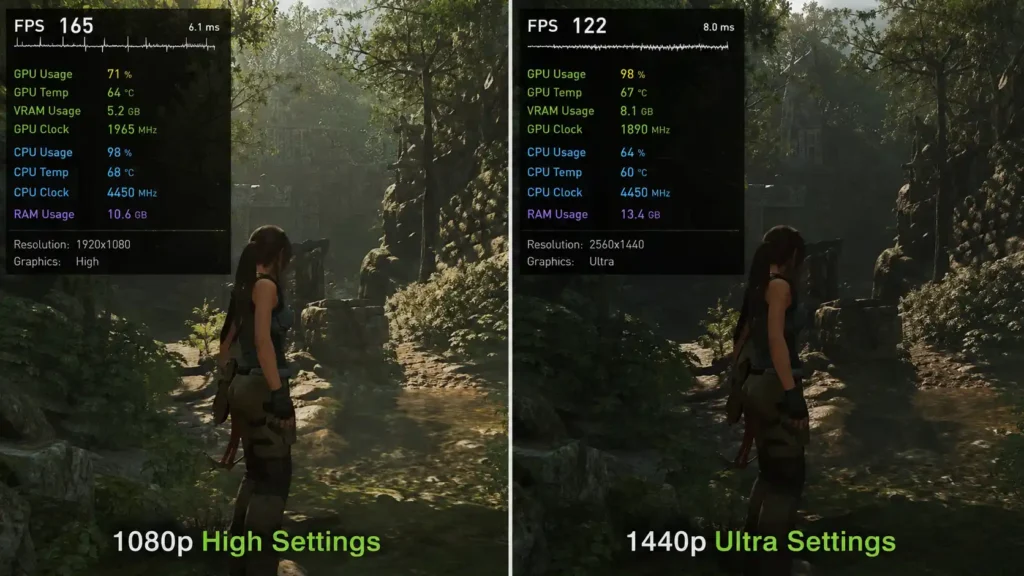
Resolution is one of the biggest factors in shifting where your bottleneck sits.
1080p: The CPU workload stays the same regardless of resolution, but the GPU’s job gets much lighter at 1080p. This makes CPU bottlenecks far more likely to appear here, especially with a powerful GPU.
1440p: A middle ground. GPU workload increases meaningfully compared to 1080p, which often balances things out — many mid-to-high-end builds find their CPU and GPU reasonably matched at this resolution.
4K: GPU workload increases dramatically at 4K, while CPU workload barely changes. This is why GPU bottlenecks are the norm at 4K, even with a very strong CPU — the graphics card simply has far more pixels to push.
The pattern to remember: higher resolution shifts the bottleneck toward the GPU; lower resolution shifts it toward the CPU. The pixel-count version of that shift is in does resolution change your bottleneck.
Real-World Build Examples
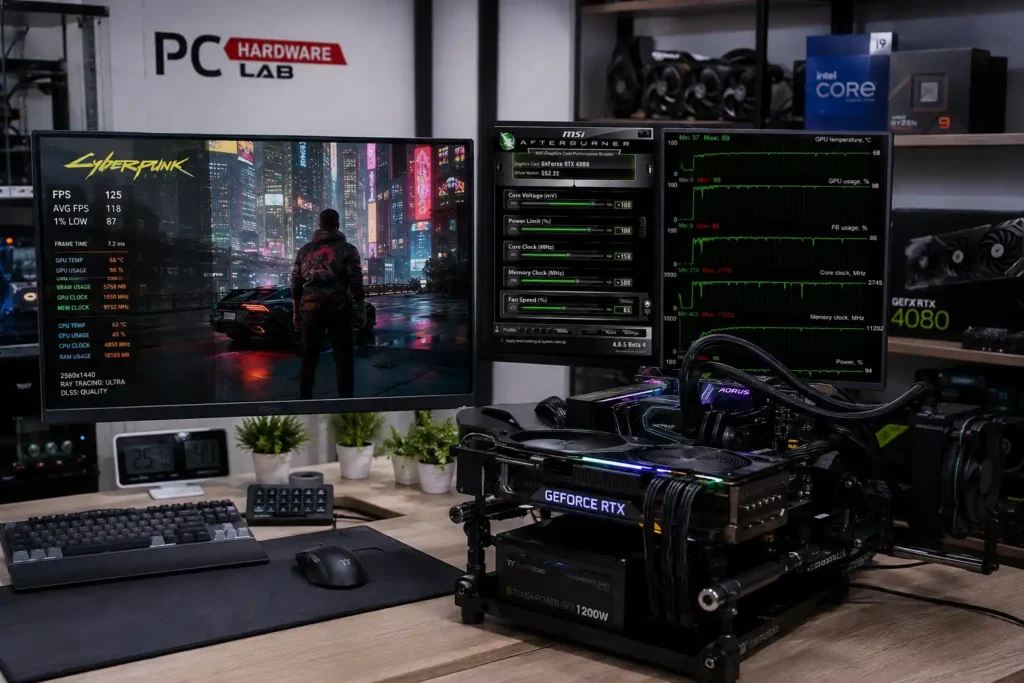
Ryzen 5 5600 + RTX 4060: A well-balanced pairing for 1080p and 1440p gaming. Neither component dramatically outclasses the other, so most games will lean GPU-bound at 1440p and roughly balanced at 1080p.
Ryzen 5 3600 + RTX 4090: A mismatched pairing. The 4090 is far more powerful than this CPU can fully feed, especially at 1080p and 1440p. Expect a noticeable CPU bottleneck in most games — the GPU simply won’t reach its potential until you push to 4K, where its raw power finally becomes the limiting factor again.
i5-12400F + RX 7800 XT: A reasonably balanced combination for 1440p gaming. Some CPU-heavy titles may lean CPU-bound at 1080p, but the pairing holds up well overall.
i9-14900K + RTX 4060: The inverse mismatch — a high-end CPU paired with a mid-range GPU. Here, the GPU will be the limiting factor in nearly every scenario, since the CPU has far more headroom than the graphics card can use. This is a textbook GPU bottleneck, and a completely normal one.
Myths About Bottlenecks
“Every bottleneck is bad.” False. Every system has one somewhere; the question is whether it’s costing you performance you’d otherwise use, not whether it exists at all.
“You always need 100% GPU usage.” Not necessarily. If you’re getting the frame rate and smoothness you want, sub-100% GPU usage isn’t automatically a problem — chasing that number for its own sake can lead to unnecessary upgrades.
“CPU bottlenecks only happen in old PCs.” False. Brand-new builds pairing a flagship GPU with a mid-range CPU can hit CPU bottlenecks immediately, particularly at 1080p or high refresh rates.
“Buying the fastest GPU fixes everything.” Not if your CPU can’t keep up. A faster GPU only helps up to the point where the CPU becomes the new limiting factor — beyond that, you’re paying for headroom you can’t use in CPU-bound games.
Frequently Asked Questions
Can a CPU bottleneck damage a GPU?
No. A bottleneck affects performance, not hardware health. Your GPU simply runs below its potential; it isn’t harmed by waiting on the CPU.
Can a GPU bottleneck damage a CPU?
No, for the same reason. Bottlenecks are a performance limitation, not a source of physical damage.
Is 100% GPU usage good?
Generally yes in most gaming contexts — it means your GPU is being fully utilized rather than sitting idle. It’s a sign of efficient use of your hardware, not a warning sign by itself.
Is 100% CPU usage bad?
Not inherently. It only becomes a concern if it’s paired with low GPU usage and stuttering, which signals the CPU can’t keep up with demand.
Should GPU always be at 99%?
Not necessarily. Frame-rate-capped scenarios (like using a frame limiter or V-Sync) can intentionally keep GPU usage below 99% even without any bottleneck at all.
Can RAM cause bottlenecks?
Yes. Slow RAM speeds or running in single-channel mode can starve the CPU of data quickly enough, creating a bottleneck that looks CPU-related but is really a memory configuration issue.
Does SSD affect bottlenecks?
Storage speed mainly affects loading times and asset streaming, not frame-to-frame CPU or GPU bottlenecks. A slow drive can cause stutters when new areas load, but that’s a different issue from an ongoing CPU/GPU bottleneck.
Does DLSS reduce CPU bottlenecks?
No — DLSS and similar upscaling technologies reduce GPU workload, not CPU workload. They help GPU bottlenecks specifically and won’t fix a CPU-bound scenario. Frame Generation is a different feature: it can add displayed frames when the CPU is the limit, and DLSS Frame Generation needs hardware-accelerated GPU scheduling on.
Should I upgrade CPU or GPU first?
Diagnose which one is limiting you in the games you actually play, using the usage-monitoring steps above. Upgrade whichever component is consistently the bottleneck in your specific use case.
How much bottleneck is acceptable?
As a rough guideline, a bottleneck under roughly 10% is generally not worth worrying about. Anything larger, especially if it comes with stuttering or inconsistent frame times, is worth investigating further.
Conclusion: Which One Do You Actually Have?
If your GPU usage sits low while your CPU runs near 100%, and your frame rate barely changes when you lower resolution, you’re CPU-bound. If your GPU usage sits near 100%, your frame rate is lower but steady, and dropping your resolution or settings gives you a clear FPS boost, you’re GPU-bound. And if both components are working hard with usage numbers reasonably close together, and your frame rate and pacing feel smooth for what you’re playing, you likely don’t have a meaningful bottleneck at all — your system is simply well matched for your settings.
The real takeaway: a bottleneck isn’t a defect to eliminate at all costs. It’s information. Use it to decide what to upgrade, what settings to adjust, and what to leave alone — rather than chasing a “perfectly balanced” PC that doesn’t actually exist.
Related guides
CPU and GPU Compatibility: How to Know If They Work Together
Five checks before you buy: PCIe slot, PSU and cables, case clearance, BIOS, and whether the pair is balanced. Compatible is not the same as well matched.
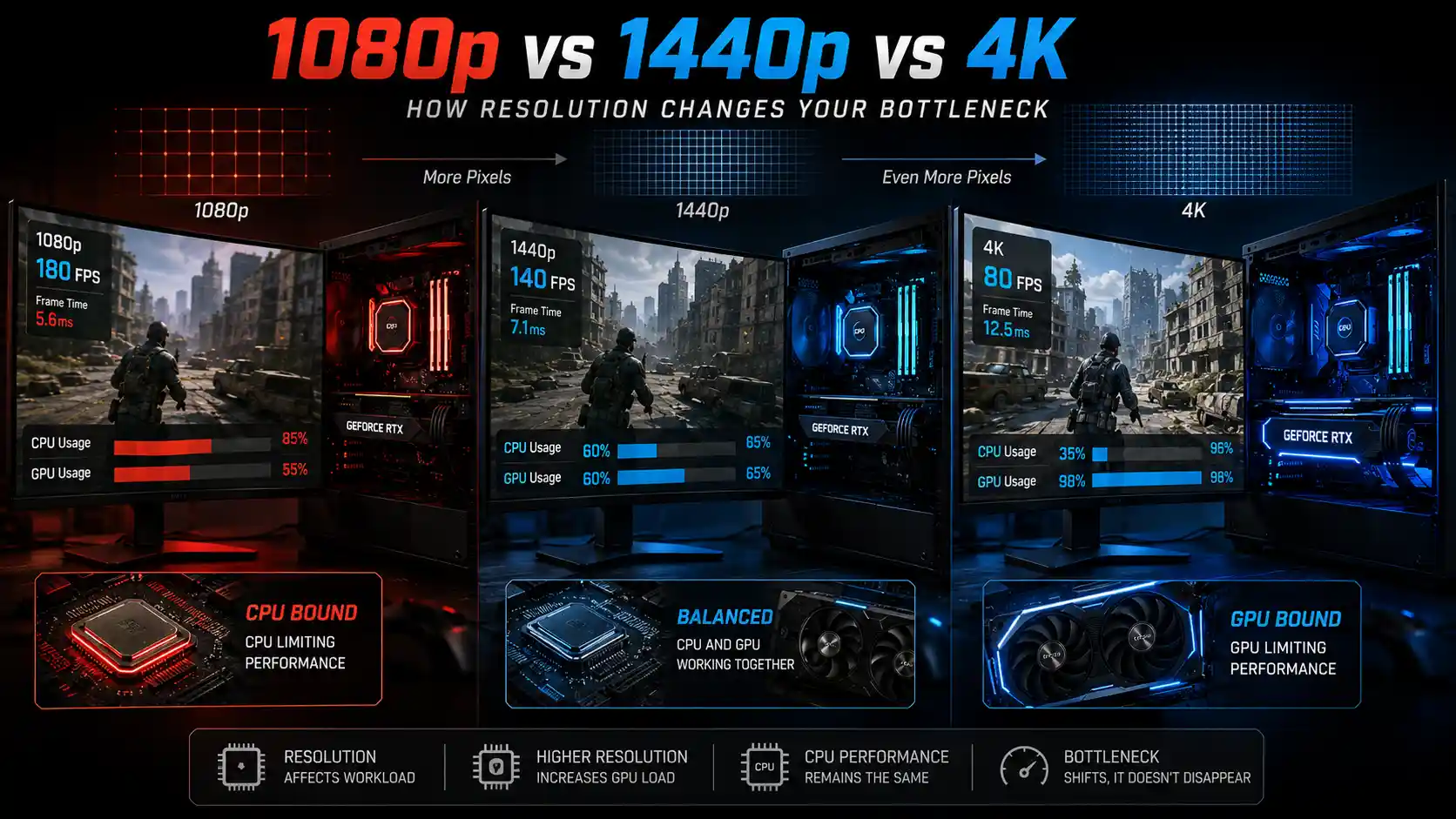
Does Resolution Change Your Bottleneck? 1080p vs 1440p vs 4K
Does resolution change your CPU or GPU bottleneck? Learn how 1080p, 1440p, and 4K affect CPU/GPU load, FPS, and gaming performance.
20 Most GPU Intensive Games in 2026: Push Your Graphics Card to the Limit
Discover the 20 most GPU intensive games of 2026 that push modern graphics cards to their limits. Full benchmark list, VRAM needs & RTX requirements.