CPU and GPU Compatibility: How to Know If They Work Together
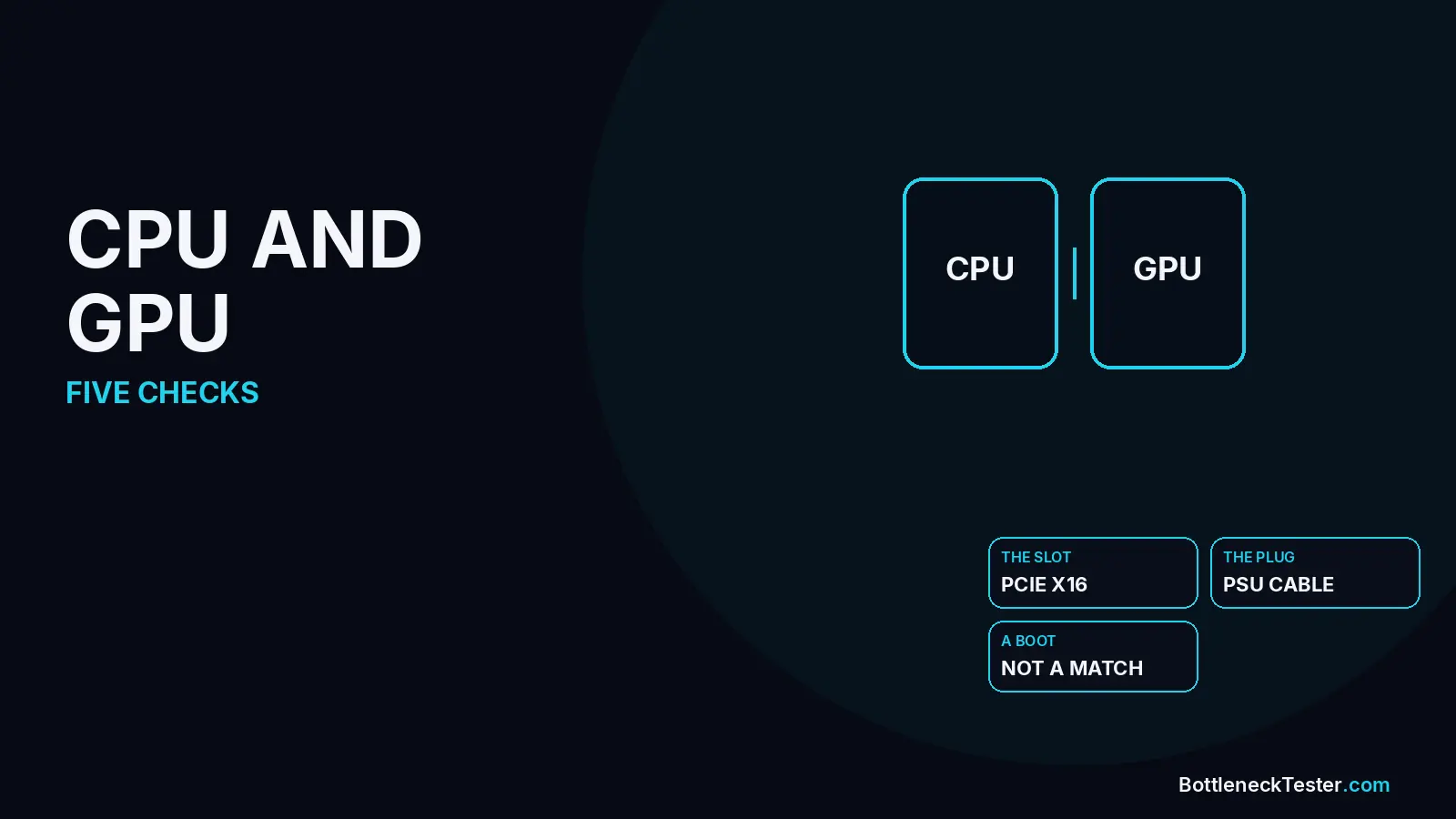
Quick answer: A desktop CPU and a desktop GPU almost always work together. The card does not plug into the processor. It plugs into a PCIe slot on the motherboard. Before you buy, check the slot, the power supply and its cables, the case, the BIOS, and whether the pair is balanced enough to be worth the money. “Compatible” only means the PC will boot.
Search results for a CPU and GPU compatibility checker usually promise a yes or no. The useful answer is five checks. Four of them are physical. The fifth is performance, and that one belongs to the bottleneck calculator, not to a socket chart.
Is Every GPU Compatible With Every CPU?
On a desktop, the processor is rarely what stops the card: Intel and AMD desktop CPUs do not have a graphics-card socket. The motherboard’s PCIe x16 slot is the connector. A Ryzen chip and a Core chip can each run an NVIDIA, AMD, or Intel graphics card, as long as the board, the case, and the power supply allow it.
Two cases are not a normal desktop swap. A laptop CPU with a soldered GPU is not a parts bin. And the integrated graphics inside a desktop CPU do not block a separate card. The discrete card takes over the display outputs you plug the monitor into. You can leave the integrated graphics enabled. You do not have to match “Intel CPU with Intel GPU” or “AMD with AMD.”
Check 1: PCIe Slot and Generation
Use the top x16 slot: Put the card in the full-length slot closest to the CPU. Lower slots on many boards are wired as x4 or x8, or they share lanes with an M.2 drive. The manual’s slot table is the source, not the plastic latch.
Generations are backward compatible: A PCIe 4.0 or 5.0 card runs in a PCIe 3.0 slot. It runs at the older speed. That is still “compatible.” It can cost bandwidth in a few games, which is a different problem from the card failing to post. When a card shows up as x8 instead of x16, the fix is lanes and BIOS, covered in the PCIe bottleneck guide, not a different CPU.
Check 2: Power Supply Wattage and Connectors
Use the card maker’s system figure: The number on the spec page labeled as recommended system power is for a whole PC, not the card alone. Board power, or TGP, is what the card can draw. Those are different numbers. Do not add the card’s board power to a guessed CPU wattage and call it a PSU size.
Match the plug, not just the watts: Current cards ask for 6-pin, 8-pin, or the 16-pin 12V-2x6 connector. A plug that can be forced into the socket is not automatically the right cable. Use the cables that shipped with that power supply. Modular cables from another brand can fit the socket on the supply and still be wired differently. Seat a 16-pin connector fully, and keep a sharp bend off the plug.
If the PC crashes, restarts, or the card drops clocks under load, read can a weak PSU bottleneck a PC before you blame the processor. A supply that is too small does not show up as a CPU-versus-GPU percentage.
Check 3: Case and Cooler Clearance
Measure the exact card: Two cards with the same GPU chip can differ by centimeters in length and by a slot in thickness. Compare the card maker’s length, height, and slot count with the case’s GPU limit.
The case limit shrinks when a front radiator or a drive cage is installed. A side panel can also hit the power connector on a thick cooler. “ATX mid-tower” is not a measurement. If the card is longer than the space you have with the radiator in place, the parts are not compatible with that case, even though the CPU would have run the card in a larger one.
Check 4: Motherboard BIOS and Resizable BAR
The card should boot without Resizable BAR: For a typical NVIDIA or AMD card, BAR is a performance option. It lets the CPU address the whole graphics memory instead of a small window. It is not what makes the card compatible. Intel’s desktop Arc guide is the exception: Intel tells you to boot in UEFI, turn off CSM, and enable Above 4G Decoding and Re-Size BAR. AMD labels the same option Smart Access Memory. The BIOS names differ. The feature does not.
Update the motherboard BIOS if the board is older than the card and the display never comes up. A BIOS update is a motherboard and CPU question, which is why the board still matters even though the CPU has no GPU socket. Board choice, chipset, and slot layout are in the gaming motherboard guide.
Check 5: Performance Balance
A PC that boots can still be a bad buy: An old quad-core and a current high-end card are compatible. At 1080p the processor is often the limit, and the card waits. That is a bottleneck, not an incompatibility. Select both parts in the calculator at the top of the homepage, at the resolution you play. Under 10% is a pair you can leave alone. Above 20%, the result is telling you which part to change before you spend.
The pairing guides already run that comparison for common parts: the best CPU for an RTX 4060 and the best GPU for a Ryzen 5 7600X. Use those when you already own one of the two parts. Use the calculator when your exact models are not in the title.
Compatible vs Well-Matched
| Pair | Will it boot? | What to check next |
|---|---|---|
| Current 6-core CPU and a mid-range card | Yes, if the slot, cables, and case allow it | The pairing guides, then the calculator at your resolution |
| Old quad-core and a high-end card | Yes | Expect a CPU limit at 1080p. The calculator shows the gap before you buy |
| Any CPU, card longer than the case | No, it does not fit | Case clearance with the radiator installed |
| Any CPU, PSU missing the card’s plug | It may not power the card | The card maker’s connector, and cables from that PSU |
| Intel Arc desktop card, CSM left on | Often a blank screen | UEFI, Above 4G Decoding, Re-Size BAR, per Intel’s guide |
Frequently Asked Questions
Does the CPU socket matter for the GPU?
No: AM5, AM4, LGA1851, and LGA1700 decide which CPU fits the motherboard. They do not decide which graphics card fits. The card only cares about the PCIe slot, power, and space.
Will a PCIe 4.0 card work in a PCIe 3.0 slot?
Yes: It runs at PCIe 3.0 speed. Compatibility is not the question. Bandwidth is, and only in some games. The PCIe guide covers when x8 or an older generation actually changes the frame rate.
What PSU do I need for a new GPU?
The wattage on the card maker’s page, plus the right cable: Use their recommended system power for that card, then confirm the connector. A higher wattage number does not help if the supply has no 12V-2x6 lead and you improvise one from another brand’s cable.
Is Resizable BAR required?
Not for most cards: It is a performance option on typical NVIDIA and AMD cards. Intel requires it for desktop Arc. A card that boots with BAR off is still compatible.
Does a bottleneck mean the parts are incompatible?
No: A bottleneck means one part waits on the other. The PC still works. Incompatibility means it does not fit, does not power on, or does not post. Run the calculator for the first. Use the five checks above for the second.
Related guides
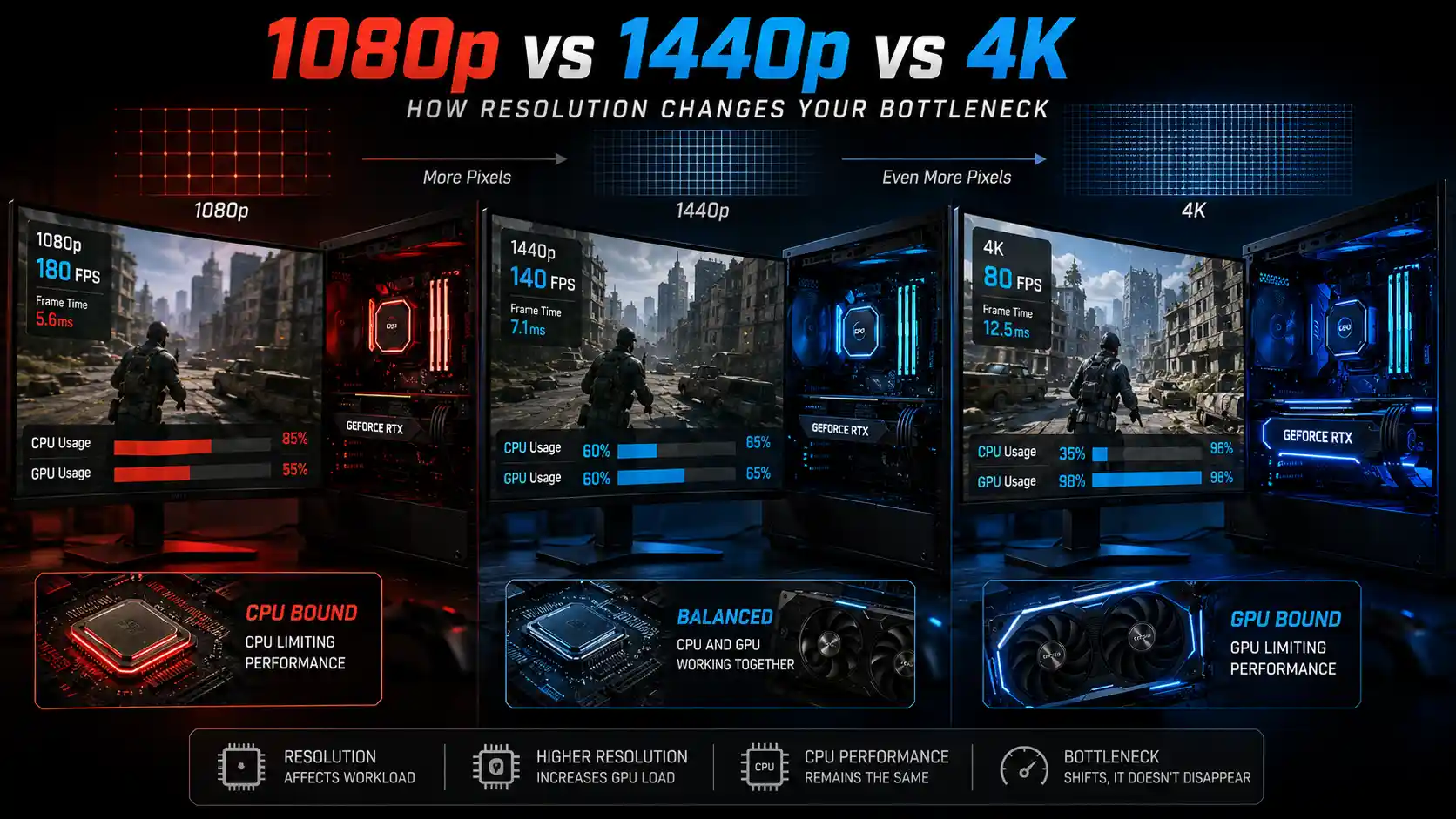
Does Resolution Change Your Bottleneck? 1080p vs 1440p vs 4K
Does resolution change your CPU or GPU bottleneck? Learn how 1080p, 1440p, and 4K affect CPU/GPU load, FPS, and gaming performance.
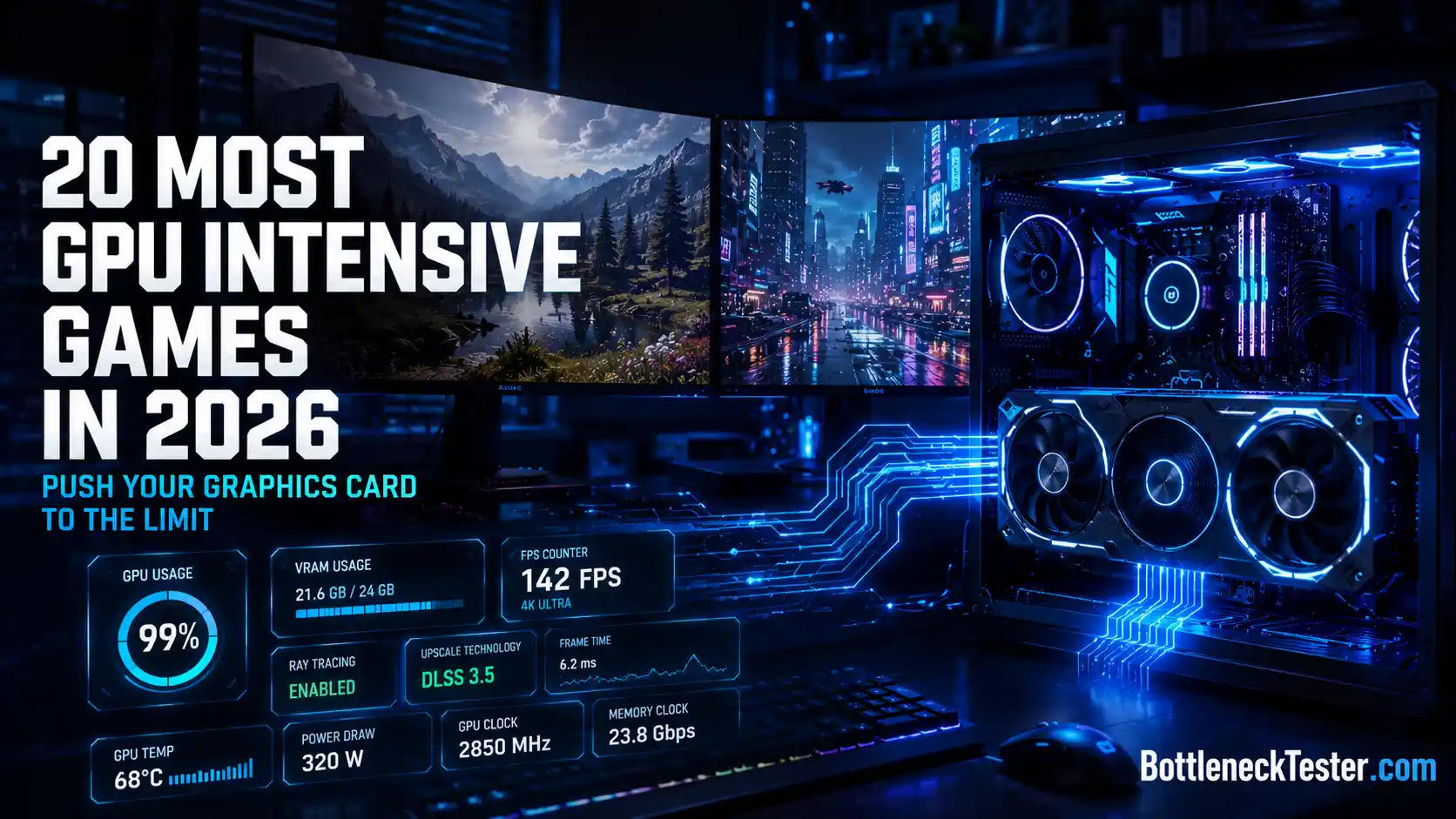
20 Most GPU Intensive Games in 2026: Push Your Graphics Card to the Limit
Discover the 20 most GPU intensive games of 2026 that push modern graphics cards to their limits. Full benchmark list, VRAM needs & RTX requirements.
Hardware-Accelerated GPU Scheduling: Should You Turn It On?
When to leave hardware-accelerated GPU scheduling on, how to toggle it in Windows, and why DLSS Frame Generation needs it. The switch does not fix a CPU bottleneck.