
VRAM Bottleneck: How Much VRAM You Really Need in 2026
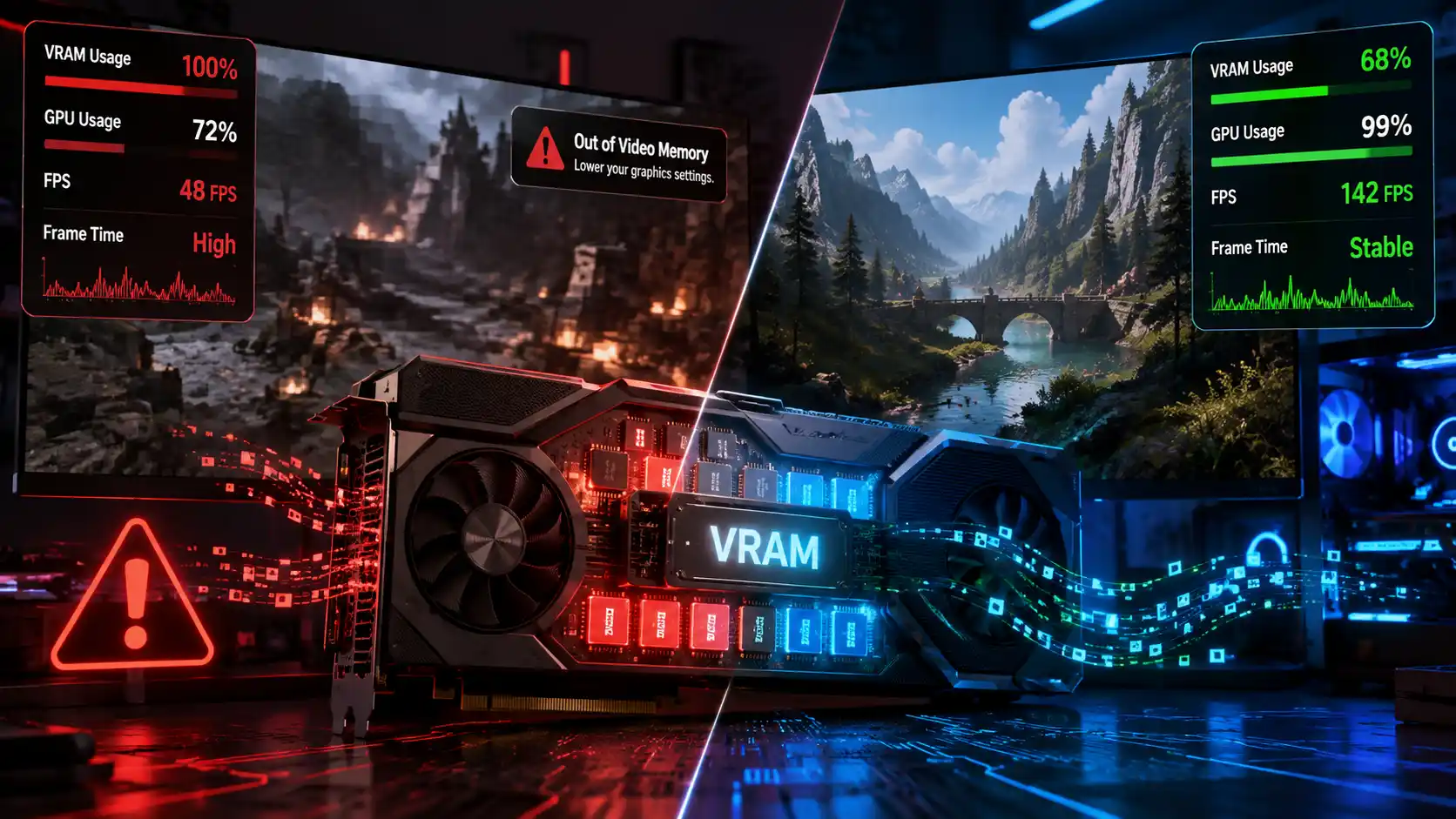
Quick answer: A VRAM bottleneck happens when your graphics card runs out of dedicated video memory before it runs out of rendering power. Instead of a clean frame rate drop, you get stutter, texture pop-in, and freezes — because the GPU is forced to swap data with much slower system RAM or storage instead of pulling it straight from VRAM.
If your GPU usage bounces around while your frame rate tanks, if textures load in blurry and sharpen a second later, or if a game randomly freezes for a beat before continuing — you’re probably not looking at a weak graphics card. You’re looking at a VRAM problem.
This distinction matters more in 2026 than it used to. Games built on Unreal Engine 5, along with ray-traced AAA titles like Alan Wake 2 and Indiana Jones and the Great Circle, now lean much harder on high-resolution texture streaming and ray-tracing acceleration structures, both of which eat video memory fast.
At the same time, plenty of current GPUs — especially in the budget and mid-range tiers — still ship with 8GB of VRAM, a number that was comfortable in 2021 and is increasingly tight today.
This guide covers what a VRAM bottleneck actually is, how to tell you have one, what causes it, how much VRAM you need for your resolution and use case, and exactly how to fix it — from free settings tweaks to the point where a GPU upgrade is genuinely the answer.
What Is a VRAM Bottleneck?
Direct answer: A VRAM bottleneck occurs when a game or application needs more video memory than your graphics card has available, forcing data to be evicted, compressed harder, or streamed from slower system memory — which shows up as stuttering, pop-in, and frame time spikes rather than a simple low frame rate.
Understanding Video Memory (VRAM)
VRAM (video RAM, usually GDDR6, GDDR6X, or GDDR7 on current cards) is memory built directly onto the graphics card, physically close to the GPU die and connected by a very wide, very fast bus. It’s separate from your system RAM. Its job is to hold everything the GPU needs instantly: textures, geometry, shader programs, render targets, and the frame buffer itself.
How VRAM Works During Gaming
As you move through a game world, the engine constantly streams new textures and geometry into VRAM and evicts data you no longer need — say, textures for a room you just left. This happens continuously, dozens of times a second, and it’s invisible when there’s enough headroom.
What Happens When VRAM Runs Out?
When there isn’t enough room, the driver has two options: evict data more aggressively (causing pop-in, since replacement textures haven’t arrived yet) or spill data into system RAM accessed over the PCIe bus. Community discussions on this are blunt about the physics involved: when a game overflows its VRAM budget, it has to pull assets over PCIe from system RAM instead, and because that path has dramatically less bandwidth than VRAM itself, frame rates can crater far more severely than a simple “GPU is too slow” scenario would ever produce.
⚠️ Warning box: A VRAM overflow doesn’t cause a proportional slowdown — it can cause a frame rate cliff, dropping a stable 70 fps to single digits almost instantly.
Why High-Resolution Textures Need More VRAM
Texture size scales with resolution roughly by the square, not linearly. A texture that’s fine at 1080p can be 4x the memory footprint at 4K equivalent detail. This is the single biggest reason VRAM requirements have crept upward every generation.
Fact box — approximate texture memory by resolution (uncompressed, single texture):
| 1K (1024×1024) | ~4 MB |
| 2K (2048×2048) | ~16 MB |
| 4K (4096×4096) | ~64 MB |
| 8K (8192×8192) | ~256 MB |
A modern open-world game loads thousands of these simultaneously (compressed, but still scaling the same way), which is why texture pack settings move VRAM usage more than almost any other slider.
What Causes a VRAM Bottleneck?
| Cause | Typical VRAM impact |
|---|---|
| Higher resolution (1440p/4K) | High — frame buffer and textures scale with pixel count |
| Ultra texture packs | Very high — the single biggest VRAM lever |
| Ray tracing enabled | High — adds BVH acceleration structures and denoising buffers on top of rasterization data |
| High-res texture mods | High and unpredictable — often unoptimized |
| Multiple/high-res monitors | Medium — larger desktop frame buffers, more overlay memory |
| Poorly optimized games | Variable — some titles allocate far more than they actually need |
Playing at Higher Resolutions (1440p & 4K)
Every step up in resolution increases the frame buffer and every render target tied to it. This is compounding: 4K isn’t “a bit more” than 1080p, it’s 4x the pixels.
Ultra Texture Packs
This is the setting with the most direct 1:1 relationship to VRAM usage. Dropping texture quality even one notch is consistently the fastest fix for VRAM-related stutter — community troubleshooting guides for VRAM-heavy titles routinely list it as the first thing to try before touching anything else.
Ray Tracing and VRAM Usage
Ray tracing doesn’t just add a rendering pass — it adds new data structures (bounding volume hierarchies) that have to live in VRAM alongside your regular textures, plus denoising buffers. This is part of why ray-traced games can need meaningfully more VRAM at the same resolution and texture setting than their raster-only counterparts.
High-Resolution Texture Mods
Community forums around modded titles are full of VRAM overflow reports tied to unofficial high-res texture packs, particularly in open-world RPGs — these mods often aren’t budget-tested the way official assets are.
Multiple High-Resolution Monitors
Each connected display needs its own frame buffer and desktop compositing memory; this is a commonly overlooked source of baseline VRAM usage before a game even launches.
Poorly Optimized PC Games
Not every VRAM spike reflects genuine need. Community investigation into recent AAA releases has specifically noted the difference between VRAM a game allocates (reserves, “just in case”) and VRAM it’s actually using — a distinction most players, and even some review outlets, conflate.
VRAM Bottleneck Symptoms
- Sudden FPS drops that don’t match GPU usage
- Random micro-stuttering, especially entering new areas
- Texture pop-in (objects load blurry, then sharpen)
- Delayed texture loading at close range
- Game freezing for a second or two, then resuming
- GPU usage drops unexpectedly during a stutter
- Longer level/area loading times
- DirectX “out of memory” or DXGI errors
Sudden FPS Drops
Unlike a GPU-bound drop (smooth but lower average FPS), VRAM-bound drops are spiky and inconsistent — fine one moment, a slideshow the next.
Random Micro Stuttering
Small, frequent hitches, often tied to camera movement that reveals new textures the GPU has to stream in.
Texture Pop-In
The most visible symptom: surfaces appear blurry or low-res for a beat before sharpening. One widely echoed troubleshooting account describes ray tracing enabled on an older 8GB card running fine indoors, then turning into a slideshow the instant the player stepped outside, with VRAM usage pinned and the system desperately streaming textures from the SSD to compensate.
Delayed Texture Loading
Related to pop-in but more persistent — textures that never fully resolve to their intended quality because the budget is maxed continuously.
Game Freezing for a Few Seconds
A more extreme version of stutter: the driver stalls while swapping a large batch of data.
GPU Usage Drops Unexpectedly
This is the tell most players miss. If your GPU usage % falls during a stutter instead of staying pinned near 100%, the GPU is waiting on memory, not struggling to render — a VRAM or memory-bandwidth issue, not a raw horsepower issue.
Longer Loading Times
VRAM-starved systems spend more time reloading evicted assets every time you revisit an area.
DirectX Out of Memory Errors
Explicit DXGI_ERROR or “out of video memory” messages are the least ambiguous symptom — there’s no diagnosis needed at that point.
How to Tell If You’re VRAM Bottlenecked
Before you try to fix a VRAM bottleneck, you need to confirm that it’s actually the problem. Many gamers mistake CPU or GPU limitations for a lack of video memory because the symptoms can look similar.
By monitoring your VRAM usage, watching for specific in-game signs, and using the right performance tools, you can quickly determine whether your graphics card is running out of memory or if another hardware component is limiting performance. This section explains the most reliable ways to identify a VRAM bottleneck before making changes to your settings or upgrading your hardware.
Monitor VRAM Usage with MSI Afterburner
Install Afterburner + RivaTuner Statistics Server, enable the on-screen display, and add “Memory usage” (and ideally “Memory usage / Dedicated” if your card exposes it) to the overlay. Watch it during gameplay, not menus.
Windows Task Manager GPU Memory Monitoring
No install required: Task Manager → Performance tab → GPU. It shows “Dedicated GPU memory usage” in real time — a fast, free first check.
Compare Allocated vs Used VRAM
This is the step almost every competing guide skips, and it’s the source of most confused forum threads. Games often allocate far more VRAM than they’re actively using at any instant — reserving headroom in case it’s needed. A card reporting “15.8GB / 16GB used” isn’t necessarily starved; it may simply be pre-caching aggressively.
The real signal is stutter correlated with usage pinned at your card’s hard ceiling, not a high number in isolation. As one community breakdown of a VRAM-heavy 2026 release put it, there’s a meaningful difference between memory a game has claimed and memory it’s genuinely working with — and most usage complaints trace back to that confusion.
Comparison table:
| Signal | What it usually means |
|---|---|
| High VRAM usage, no stutter | Normal aggressive caching — not a bottleneck |
| VRAM pinned at max + stutter + GPU usage dips | Real VRAM bottleneck |
| VRAM usage low, GPU usage pinned at 99–100%, stutter-free but low FPS | GPU (core) bottleneck, not VRAM |
Signs During Gameplay
Texture pop-in that gets worse the longer you play in one session, plus stutter that improves instantly when you lower texture quality, is about as close to a confirmed diagnosis as you’ll get without a monitoring tool.
Benchmark Testing
The most reliable test: drop texture quality one notch (leave everything else identical) and re-run the same in-game benchmark or route. If stutter disappears or frame time spikes flatten out, VRAM was your bottleneck.
VRAM Usage at Different Resolutions
| 1080p | 6–8GB | 8GB |
| 1440p | 10–12GB | 12GB |
| 4K | 14–16GB+ | 16GB |
| Ultrawide (3440×1440) | 12–14GB | 12–16GB |
| VR | 8–12GB+ (dual render) | 12GB |
1080p Gaming
Current guidance across hardware sites converges on 8GB as the workable floor for 1080p in 2026 — comfortable for most titles at high settings, though a growing minority of texture-heavy or less-optimized games are starting to push past it even at this resolution.
1440p Gaming
This is where the 8GB conversation gets genuinely contested. Multiple 2026 buying guides now put 12GB as the practical target for 1440p, with 16GB recommended for builds meant to last past 2027.
4K Gaming
Guidance is more unanimous here: 16GB is treated as the realistic minimum for 4K at high/ultra settings in 2026, with 24GB offering real headroom for texture-heavy or modded titles.
Ultrawide Gaming
Ultrawide panels (3440×1440 and beyond) sit between 1440p and 4K in pixel count, but many players underestimate this — the frame buffer and every post-processing pass scales with total pixels, not just one dimension, so ultrawide VRAM needs track closer to 4K than standard 1440p once you factor in wider FOV asset streaming.
VR Gaming
VR renders a separate image per eye at high resolution and typically high refresh rate, which multiplies frame buffer and texture streaming demand. VR-specific forum threads frequently trace stutter and reprojection failures back to VRAM saturation that doesn’t show up the same way in flat-screen gaming.
How Much VRAM Do You Need in 2026?
Modern games continue to push graphics hardware harder each year, making VRAM one of the most important factors in gaming performance. While having more VRAM doesn’t automatically increase FPS, having too little can lead to stuttering, texture pop-in, longer loading times, and unstable frame rates.
The right amount depends on the games you play, your preferred resolution, texture quality, and whether you use features like ray tracing. In this section, we’ll break down how much VRAM you need in 2026 for 1080p, 1440p, and 4K gaming, and whether 8GB is still enough for today’s most demanding titles.
Is 6GB VRAM Enough?
Only for esports/competitive titles at 1080p on lower settings. Modern AAA games will force compromises quickly.
Is 8GB VRAM Enough in 2026?
Direct answer: Yes for 1080p, increasingly no for 1440p or above. Coverage from early-to-mid 2026 is split but converges on the same shape: 8GB remains workable at 1080p, especially for competitive games and with upscaling in play, but it’s already the wrong choice for a new 1440p-focused build, and it’s not a safe assumption for texture-heavy single-player AAA titles even at 1080p ultra. There’s also a market angle worth knowing: reporting in mid-2026 pointed to Nvidia potentially favoring 8GB configurations for some mainstream SKUs going forward, which keeps this an active, moving conversation rather than a settled one.
Is 10GB or 12GB the Sweet Spot?
12GB is widely treated as the current practical floor for anyone building or buying for 1440p in 2026 — enough headroom for ultra textures and moderate ray tracing without living on the edge.
Is 16GB VRAM Future-Proof?
As close to “yes” as this category gets right now. 16GB comfortably covers 4K at high settings in nearly every current title, with only the heaviest path-traced modes pushing meaningfully past it.
Best VRAM Amount for Competitive Games
8–10GB is plenty; competitive titles are tuned to run on a wide range of hardware and rarely push texture budgets hard.
Best VRAM Amount for AAA Games
12GB minimum for 1440p, 16GB for 4K, matching the resolution table above.
VRAM Bottleneck vs GPU Bottleneck
| GPU usage during the issue | Often dips below 100% | Pinned at 99–100% |
| Frame rate pattern | Spiky, sudden drops/freezes | Smooth but consistently low |
| Fix that helps most | Lower texture quality/resolution | Lower render-heavy settings (shadows, RT, AA) or upgrade GPU core |
| Behavior over a session | Often worsens the longer you play | Consistent from the start |
Key Differences
A GPU bottleneck is a horsepower problem — the chip can’t compute frames fast enough. A VRAM bottleneck is a logistics problem — the chip could render fine, but the data it needs isn’t where it needs to be in time.
Which One Is Easier to Fix?
VRAM bottlenecks are often free to fix (lower one setting). GPU bottlenecks generally require a hardware upgrade or broader settings compromise.
Real Gaming Examples
A common real-world pattern: a mid-range 8GB card runs a modern UE5 title at 1440p with GPU usage sitting around 70–80% while frame times spike — dropping texture quality to High from Ultra restores both GPU usage to ~99% and frame time consistency, confirming VRAM (not the GPU core) was the constraint.
VRAM Bottleneck vs RAM Bottleneck
Although both VRAM and system RAM store data while your PC is running, they serve very different purposes. VRAM is dedicated memory on your graphics card that holds textures, shaders, frame buffers, and other graphics-related assets, while RAM is used by the operating system, games, and applications for general computing tasks.
Running out of either can hurt performance, but the symptoms are different. Understanding the difference between a VRAM bottleneck and a RAM bottleneck makes it much easier to diagnose stuttering, low FPS, and loading issues, so you can apply the right fix instead of upgrading the wrong component.
System RAM vs Video Memory
System RAM is general-purpose and CPU-adjacent; VRAM is GPU-dedicated and vastly faster for the GPU to access directly. They’re not interchangeable, but they cooperate: texture streaming systems stage data in system RAM before promoting it to VRAM.
Which One Affects FPS More?
For gaming specifically, running low on VRAM tends to hurt more severely and more visibly (stutter, freezes) than running low on system RAM, which more often shows up as longer load times or background-task slowdown.
Can Low RAM Cause VRAM Issues?
Indirectly, yes. If system RAM is tight, the OS may struggle to stage the next batch of assets in time, which can produce pop-in that looks VRAM-related even on a card with plenty of VRAM headroom — a frequently missed diagnostic trap.
Is 8GB of VRAM Enough in 2026?
For 1080p, mostly yes, though you may need to lower texture quality in the newest games. For 1440p, 8GB is now a real limit. Several recent releases use more than 8GB at high texture settings even at 1080p: Resident Evil Requiem uses about 10GB at 1080p maximum settings, and Monster Hunter Wilds approaches 20GB at its highest quality. When a game runs out of VRAM you get stutter, texture pop-in and sudden frame-time spikes rather than a steady lower frame rate. Lowering texture quality one step usually fixes it. If you’re buying a new card for 1440p, choose 12GB or more.
Is 12GB of VRAM Enough?
For 1440p, yes, in almost every game today, which makes 12GB cards like the RTX 5070 a sound 1440p choice. For 4K with ray tracing and maximum textures, 12GB can run short. Indiana Jones and the Great Circle uses up to about 15GB at 4K on its highest texture setting, and Black Myth: Wukong goes past 13GB at 4K with very high ray tracing. For 4K, 16GB is the safer target.
VRAM on RTX 50-Series and RX 9000 Cards
| GPU | VRAM | Best resolution for its VRAM |
|---|---|---|
| RTX 5090 | 32GB | 4K and above |
| RTX 5080 | 16GB | 4K |
| RTX 5070 Ti | 16GB | 1440p and 4K |
| RTX 5070 | 12GB | 1440p |
| RTX 5060 Ti 16GB | 16GB | 1080p and 1440p |
| RTX 5060 | 8GB | 1080p |
| RX 9070 XT | 16GB | 1440p and 4K |
| RX 9070 | 16GB | 1440p and 4K |
| RX 9060 XT 16GB | 16GB | 1080p and 1440p |
The RTX 5060 Ti and RX 9060 XT are also sold in 8GB versions, which run into the limits above much sooner. Pick the 16GB version for 1440p. To see how each card ranks overall, check the GPU tier list.
Games That Use the Most VRAM
| Cyberpunk 2077 | REDengine | ~18GB with RT Overdrive (full path tracing) + Frame Generation | RT acceleration structures alone can add 2–4GB before textures are even loaded; a 2026 GPU comparison round-up puts the RTX 5080 as the practical minimum for a stable 60fps at native 4K in this mode |
| Alan Wake 2 | Northlight | ~16–17GB with full ray tracing at 4K | Has a software ray-tracing fallback for non-RT-capable GPUs, unlike some competing titles; at Medium texture pool on an 8GB card, usage sits closer to 6.5–7GB post-patch |
| Black Myth: Wukong | Unreal Engine 5 | ~17GB at 4K “Cinematic” preset | Dense environment/foliage detail pushes texture streaming unusually hard for a UE5 title |
| Indiana Jones and the Great Circle | idTech | 8–16GB depending on texture pool and resolution | Requires hardware ray tracing on all presets; official minimum spec lists an 8GB card, but usage climbs well past that at higher texture pools — see note below |
| Microsoft Flight Simulator | Proprietary | Scales with view distance/scenery detail rather than a fixed number | World-streaming heavy; VRAM use is more variable session-to-session than any other title on this list |
| Future UE5 titles | Unreal Engine 5 | Trending upward | Nanite/Lumen generally raise baseline VRAM needs versus older engines; early benchmarks of upcoming titles suggest this trend continues into 2027 |
How to Fix a VRAM Bottleneck
Quick decision tree:
- Confirm it’s VRAM (drop textures one notch — did it help?) → If yes, continue below.
- Free fixes first (settings), then driver/system fixes, then hardware.
Lower Texture Quality
The single highest-impact free fix. One notch down usually recovers the most VRAM for the least visual cost. Our [Texture Quality Guide] and [Graphics Settings Guide] walk through which sliders matter most per genre if you want a fuller settings pass than just this one fix.
Reduce Resolution
Cuts frame buffer size directly; most effective when combined with upscaling (see below) to preserve visual clarity.
Enable DLSS, FSR, or XeSS
Important nuance most guides skip: upscaling reduces the internal render resolution, which shrinks the frame buffer and some render targets — but it does not reduce the VRAM footprint of your loaded textures, since texture quality settings are independent of render resolution.
Frame Generation is a separate case: NVIDIA’s newer DLSS Frame Generation model was specifically re-engineered to use meaningfully less VRAM than its predecessor (NVIDIA has documented roughly 30% lower frame-generation VRAM use, citing a real-world example of about 400MB saved at 4K in one title), while DLSS’s core upscaling model got a similar efficiency pass, cutting its own memory footprint by roughly a fifth in a recent SDK update.
Net effect: modern DLSS versions help VRAM pressure more than older versions did, but they’re not a substitute for adequate VRAM if your textures alone exceed your budget. See our [DLSS Guide] and [FSR Guide] for the full quality/performance tradeoffs of each upscaler, separate from their VRAM impact.
Disable Ray Tracing
Removes BVH and denoising buffer overhead — often frees several hundred MB to over a gigabyte depending on the title.
Close Background Applications
Browsers, Discord overlays, and recording software (OBS) all reserve their own VRAM slices. This adds up more than most players expect, especially on 8GB cards.
Update GPU Drivers
Driver regressions have historically caused VRAM usage spikes in specific titles; keeping drivers current avoids known bugs. That said, treat this as routine maintenance, not a guaranteed fix — sometimes an update is the cause of a new VRAM issue, not the solution, so check patch notes if a problem appears right after updating.
Increase Virtual Memory (Page File)
Won’t add real VRAM, but gives Windows more headroom to avoid hard crashes when VRAM and system RAM are both under pressure — a safety net, not a performance fix.
Remove High-Resolution Texture Mods
If you’ve added unofficial 4K/8K texture packs, this is often the actual cause, not the base game.
Upgrade Your Graphics Card
The real fix when settings compromises stop being acceptable. Match VRAM to your target resolution using the table earlier in this guide, not just to your budget tier — our GPU Buying Guide breaks down current cards by VRAM tier and price if you’re ready to shop. If you’re not sure whether the core or the memory is holding you back, check our [GPU Bottleneck] and [PCIe Bottleneck] explainers to rule those out first, and see our [FPS Optimization] guide for a full settings pass beyond just VRAM.
Can More VRAM Increase FPS?
Myth vs Fact: More VRAM alone does not directly increase frame rate the way a faster GPU core does. It only helps once you’re VRAM-constrained.
When Extra VRAM Helps
If you’re currently VRAM-bottlenecked (stutter, pop-in, usage pinned), more VRAM removes that ceiling and can produce a dramatic, immediate improvement — often bigger than a modest GPU core upgrade would.
When It Doesn’t Improve Performance
If your card already has more VRAM than the game needs at your settings, adding more VRAM (or buying a higher-VRAM version of the same GPU) does nothing — the core, not memory capacity, is the limit.
Real Benchmark Examples
This is exactly why two versions of the same GPU (e.g., an 8GB vs 16GB variant of the same chip) can perform identically at 1080p but diverge sharply at 1440p ultra with ray tracing — same core, different ceiling.
Advanced & Overlooked VRAM Topics
Most guides stop after explaining basic VRAM usage, but modern PC gaming involves several advanced factors that can also affect graphics memory performance. Features like memory compression, texture streaming, shader compilation, Resizable BAR, and game engine optimization all influence how efficiently VRAM is used. Understanding these often overlooked topics can help you troubleshoot unusual performance issues, optimize your settings more effectively, and make smarter hardware upgrade decisions for current and future games.
Memory Compression: How GPUs Stretch VRAM Further
Every modern GPU (NVIDIA, AMD, Intel) uses lossless delta color compression to reduce how much data actually has to move across the memory bus. In simple terms: instead of storing the full color value for every pixel, the GPU stores one reference value per block and small “delta” (difference) values for the rest, since neighboring pixels are usually similar in color.
This is transparent, always-on, and doesn’t require you to do anything — but it’s important to understand that it saves bandwidth, not capacity. It makes your VRAM faster to use, not bigger. This is a large part of why raw GB-for-GB comparisons between GPU generations can be misleading.
Shader Cache and Its Hidden VRAM Cost
Compiled shader programs are cached to avoid expensive recompilation, and this cache consumes a real, sometimes surprisingly large, slice of VRAM — particularly right after a driver update or the first time you launch a game, when shaders are actively compiling. Clearing an oversized shader cache is a legitimate (if situational) troubleshooting step, not just placebo.
Resizable BAR and Its Effect on VRAM Bottlenecks
Resizable BAR (branded Smart Access Memory on AMD systems) changes how the CPU addresses GPU memory. Historically, the CPU could only access VRAM in small 256MB windows at a time, which created overhead every time it needed to read or write a larger chunk — like textures. Resizable BAR lets the CPU see and address the GPU’s entire memory pool at once, cutting that overhead.
It’s most beneficial in games that stream large textures continuously, and gains tend to be larger at higher resolutions and with ray tracing enabled, since those workloads move more data through that channel. It’s worth confirming it’s actually active in your BIOS and GPU utility (GPU-Z shows this directly) — it’s a free performance gain that a surprising number of systems still have switched off. Importantly, ReBAR does not increase your VRAM capacity — it only makes existing VRAM more efficient to access.
Console Unified Memory vs PC Discrete VRAM
A common but misleading comparison: current consoles advertise a shared memory pool (commonly cited around 16GB) used for both system and graphics tasks, which players sometimes translate directly into “so 16GB VRAM is plenty on PC too.” That comparison doesn’t hold up cleanly — console unified memory has to cover OS overhead, game logic, and audio in addition to graphics, and console engines are tuned specifically against that one fixed budget.
A PC with 16GB of dedicated VRAM, separate from system RAM entirely, generally has more real headroom for graphics specifically than the console number suggests at face value.
How Browser Tabs, Discord, and OBS Eat Into Your VRAM
Hardware-accelerated video decoding in browsers, Discord’s overlay and screen-share features, and OBS’s capture/encode pipeline all reserve VRAM continuously, not just when actively recording.
On an 8GB card this can be the difference between stable and unstable, especially with many browser tabs open. Community reports of VRAM climbing steadily over a play session with no obvious in-game cause frequently trace back to exactly this.
Laptop VRAM Behavior vs Desktop VRAM
Laptop GPUs of the same name as their desktop counterparts sometimes ship with less VRAM, and laptop memory can also share thermal and power constraints that affect real-world clock speeds — meaning a laptop RTX card can behave differently under VRAM pressure than the desktop card its name implies. Always check the specific laptop model’s VRAM spec rather than assuming parity with desktop.
Buying a Used GPU — VRAM Health and Capacity Checklist
- Confirm actual VRAM capacity with GPU-Z, not just the seller’s listing
- Run a memory stress test (e.g., OCCT’s VRAM test) to check for errors, especially on mining-era cards
- Match VRAM to the resolution you’ll actually use — don’t buy on core speed alone
- Be skeptical of “as new” claims on high-VRAM cards priced well below market; capacity is the main reason they hold value
Common VRAM Myths
| Myth | Fact |
|---|---|
| More VRAM always means faster performance | Only true once you’re VRAM-constrained; otherwise the GPU core is the limit |
| VRAM is the same as system RAM | Different hardware, different bus, different purpose — not interchangeable |
| DLSS eliminates VRAM problems | Modern DLSS reduces VRAM pressure somewhat (especially Frame Generation), but doesn’t shrink texture memory footprint |
| Texture settings don’t affect VRAM | Texture quality is the single biggest VRAM lever in almost every game |
Frequently Asked Questions
What is a VRAM bottleneck?
It’s when a game needs more video memory than your GPU has available, forcing data to be evicted or streamed from slower system memory, causing stutter and pop-in instead of a clean frame rate drop.
What happens when VRAM reaches 100% usage?
The driver starts evicting data aggressively or pulling it from system RAM over PCIe, which can cause stutter, freezes, or a sharp frame rate drop depending on severity.
Is 8GB VRAM enough for gaming in 2026?
Yes for 1080p in most titles, but it’s increasingly tight for 1440p and above, and some texture-heavy AAA titles now push past it even at 1080p ultra settings.
Can low VRAM cause stuttering?
Yes — VRAM overflow is one of the most common causes of stutter that doesn’t correlate with GPU usage staying pinned at 100%.
How do I reduce VRAM usage?
Lower texture quality first, then resolution, then disable ray tracing, and close VRAM-hungry background apps like browsers and Discord.
Does DLSS reduce VRAM usage?
Partially. Newer DLSS versions have measurably reduced their own memory footprint, and DLSS Frame Generation now uses notably less VRAM than earlier versions, but neither reduces the VRAM used by your texture settings.
Is VRAM more important than GPU power?
Neither is universally “more important” — VRAM capacity sets a hard ceiling for settings you can use without stutter, while GPU core power determines your frame rate within that ceiling.
Can adding system RAM increase VRAM?
No, not directly. More system RAM can reduce asset-streaming-related pop-in in some cases, but it does not add to your GPU’s dedicated video memory.
Does lowering texture quality reduce VRAM usage?
Yes, and it’s usually the single most effective free fix available.
How do I check my VRAM usage in Windows?
Open Task Manager → Performance tab → select your GPU → look at “Dedicated GPU memory usage,” or use MSI Afterburner/HWInfo for a persistent in-game overlay.
Why does my VRAM show 100% usage but my FPS is still fine?
This is the allocation-vs-usage gap covered earlier: many games reserve VRAM aggressively as a cache, even when they don’t strictly need all of it in that instant. If frame times are smooth and there’s no stutter or pop-in, a high VRAM percentage on its own isn’t a problem worth chasing.
Does Resizable BAR increase my effective VRAM?
No — it doesn’t add capacity. It changes how efficiently the CPU can address the VRAM you already have, which can reduce stutter in texture-streaming-heavy games but won’t let you run higher texture settings than your card’s actual VRAM allows.
Can I cap or limit how much VRAM a game uses?
Some games (particularly certain live-service and competitive titles) expose an in-game VRAM target slider. Capping it lower can reduce stutter on borderline systems, though it does so by forcing more aggressive texture eviction — you’re trading pop-in frequency for guaranteed headroom, not eliminating the underlying constraint.
Final Thoughts
When you’ve already lowered textures, disabled ray tracing, and confirmed (via Task Manager or Afterburner) that VRAM is pinned at your card’s ceiling during stutter — and you’re still not satisfied with visual quality at those reduced settings — that’s the point where a VRAM upgrade beats further compromise.
Choosing the Right Amount of VRAM for Future Games
Buy for the resolution you’ll actually use, not just today’s cheapest option at that resolution: 8GB for 1080p, 12GB for 1440p, 16GB for 4K, using the table earlier in this guide as your baseline, and lean toward the higher end of each tier if you plan to keep the card multiple years.
Best Practices to Avoid VRAM Bottlenecks
- Match texture quality to your VRAM tier, not just your GPU’s raw speed
- Check Resizable BAR is enabled in BIOS
- Keep an eye on allocated vs. actually-used VRAM rather than reacting to a high number alone
- Close unnecessary browser tabs and overlay software during play
- When buying, size VRAM to your target resolution first, GPU core second
Related guides

Best Windows Game Mods & Mod Managers for PC Gaming (2026)
Discover the best Windows game mods & mod managers in 2026 — Vortex, MO2, Nexus Mods & more. Compare features, installs & find the perfect tool for your PC.

GPU Tier List 2026
Desktop graphics cards ranked by our gaming scores into S, A, B, C, and D, with VRAM, TDP, and the CPU that stays under a 10% limit at 1440p.

GPU Compare: Compare Any Two Graphics Cards
Compare gaming score, VRAM, TDP, and a 1440p bottleneck estimate for current graphics cards, with the CPU held still so the card is the only change.