RAM Bottleneck Symptoms (2026): How to Fix Low FPS, Stuttering & Memory Issues
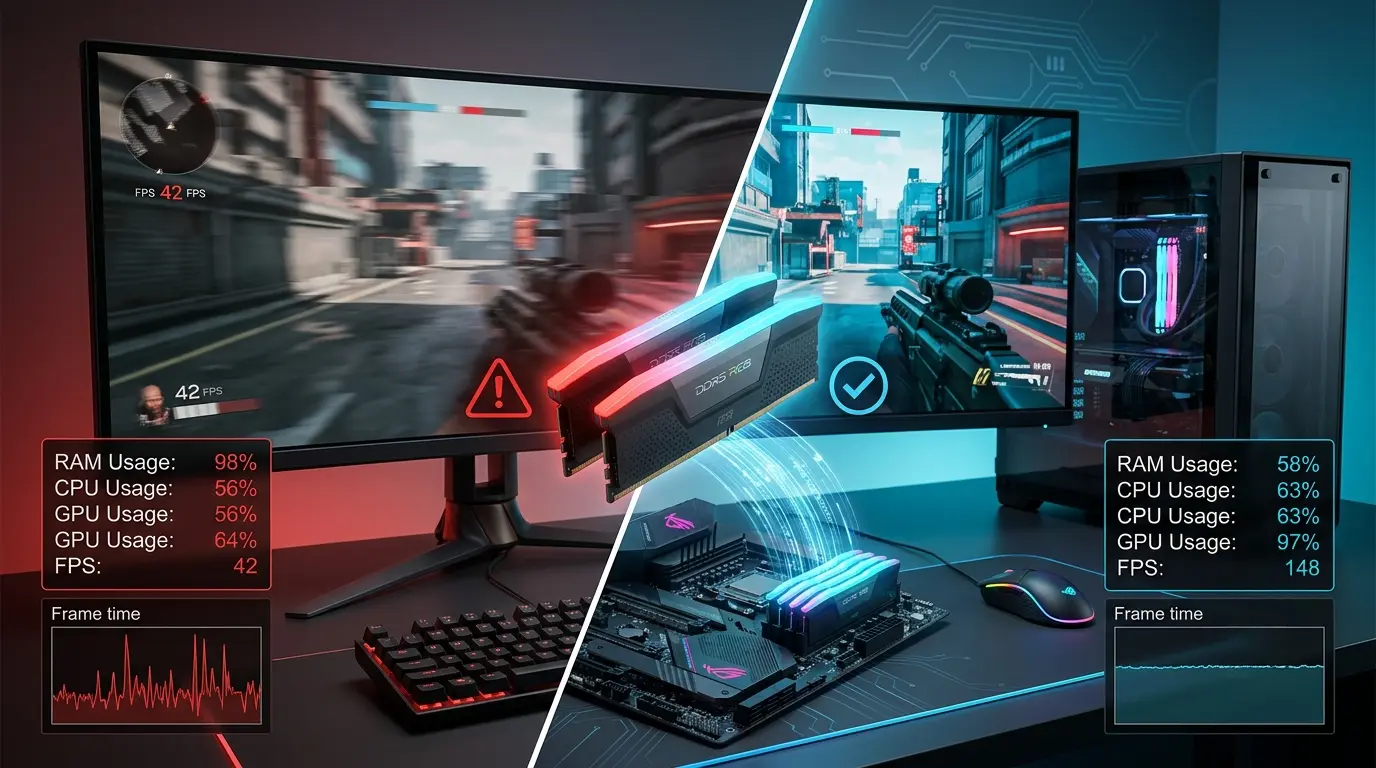
Your game freezes for half a second right as the action gets intense. Then the frame rate dips, textures load in late, and that boss fight feels more like a slideshow. Most gamers immediately blame their CPU or GPU, but that’s not always where the problem lives.
Sometimes the real culprit is sitting quietly in the background: your RAM. A RAM bottleneck happens when your memory can’t keep up with everything your system is trying to do at once, forcing your CPU and GPU to wait around instead of doing their jobs. The result is low FPS, choppy gameplay, and a PC that feels slower than it should.
The signs are often easy to miss if you don’t know what to look for. RAM usage sitting above 90%, textures popping in a second too late, loading screens that drag on forever, browser tabs refreshing themselves out of nowhere, and games stuttering the moment you alt-tab. These are all classic RAM bottleneck symptoms, and they get more common in 2026 as games demand more memory than ever.
This guide breaks it all down. You’ll learn how to spot a RAM bottleneck, how it differs from a CPU or GPU bottleneck, whether 16GB still holds up in 2026, and how RAM speed and dual-channel setups actually affect your FPS. We’ll also walk through practical fixes you can apply today.
Let’s start with the basics: what exactly is a RAM bottleneck?
What Is a RAM Bottleneck?
A RAM bottleneck is when your memory can’t keep up with your CPU and GPU, so both end up waiting instead of working. It shows up as stutters, FPS drops, and slow load times, even on a system with a strong processor and graphics card.
Definition
A RAM bottleneck happens when your memory becomes the slowest part of the chain. Your CPU and GPU are ready to work, but they end up waiting on RAM to deliver the data they need. That waiting shows up as stutters, FPS drops, and slow load times, even if you have a powerful processor and graphics card.
How RAM Works With CPU & GPU
Think of RAM as a workbench, not a filing cabinet. Your CPU pulls game data from storage and places it on this workbench so it can work fast. The GPU then grabs textures, models, and other assets from that same space to render each frame.
If the workbench is too small or too slow, both the CPU and GPU have to pause and wait. That pause is what you feel as lag.
Why RAM Becomes a Bottleneck
Modern games load huge open worlds, high-resolution textures, and multiple background processes at the same time. If your RAM can’t hold and deliver all of that fast enough, it becomes the weak link in your system.
It doesn’t matter how strong your CPU or GPU is. If RAM can’t keep pace, your whole system slows down to match it.
Capacity vs Speed vs Latency
These three factors work together, and each one matters:
Capacity is how much data your RAM can hold at once. Speed, measured in MHz, is how fast that data moves. Latency is the delay before RAM responds to a request. Low capacity causes stutters and crashes. Slow speed and high latency cause smaller, but still noticeable, FPS losses.
What Causes a RAM Bottleneck?
Most RAM bottlenecks come down to one of two things: not enough capacity, or memory that isn’t running at full speed. Background apps, mismatched sticks, and disabled XMP settings make the problem worse.
Not Enough RAM Capacity
This is the most common cause. If your game and background apps need more memory than you have installed, Windows starts swapping data to your storage drive. That process is much slower than RAM, and it tanks your performance.
Slow RAM Speed
Older or budget RAM kits often run at low speeds like 2133MHz or 2400MHz. Modern games are built with faster memory in mind, so slow RAM can hold back your frame rate even when capacity isn’t an issue. Kits like Kingston Fury Beast or Corsair Vengeance run well above 3200MHz out of the box, which is why so many builders upgrade to them first.
Single Channel Memory
Running just one RAM stick instead of two limits your memory bandwidth significantly. Dual channel setups let your CPU pull data through two lanes instead of one, which noticeably helps in games and creative apps.
XMP/EXPO/DOCP Disabled
Most RAM kits ship with their rated speed disabled by default. Without turning on XMP, EXPO, or DOCP in your BIOS, your RAM often runs at a much slower base speed than what you paid for, and you lose performance for no reason.
Mismatched RAM Modules
Mixing different RAM brands, speeds, or capacities can force your system to run everything at the slowest module’s speed. In some cases, it can also cause instability or prevent dual channel mode from working correctly.
Too Many Background Applications
Browsers with dozens of tabs, chat apps, streaming software, and overlays all eat into your available RAM. That leaves less room for your game, which can trigger stutters and slowdowns.
Memory Leaks
Some games and apps don’t release RAM properly after use. Over time, this memory leak eats up more and more of your available RAM, causing performance to get worse the longer you play.
Heavy Modern Games
Open-world titles, ray tracing, and high-resolution texture packs all demand more memory than games did just a few years ago. Even a system that felt fast in 2022 can struggle with today’s memory-hungry titles — check our list of the most GPU-intensive games of 2026 to see which ones push hardware the hardest.
RAM Bottleneck Symptoms
The clearest signs of a RAM bottleneck are high memory usage, random FPS drops, texture pop-in, and long loading screens. If you notice several of these together, RAM is likely holding your PC back.
RAM Usage Above 90%
If Task Manager shows your RAM usage constantly near or above 90% while gaming, your system doesn’t have enough headroom. This is one of the clearest signs of a RAM bottleneck.
FPS Drops & Stuttering
Sudden, random FPS drops that don’t match a specific graphics setting often point to RAM. Unlike GPU-related dips, these stutters tend to happen unpredictably, especially during busy scenes.
Low 1% and 0.1% Lows
Your average FPS might look fine, but if your 1% and 0.1% lows are rough, that means your game is hitting brief but noticeable freezes. This pattern is a strong sign that RAM is struggling to keep up.
Texture Pop-in
Textures loading in late, especially in open-world games, usually means your RAM couldn’t deliver the data fast enough. You’ll see blurry surfaces sharpen up a second or two after they should have loaded.
Long Loading Screens
Levels, fast travel, and game launches all take noticeably longer when RAM is limited. Your system has to lean on your storage drive to compensate, and that’s much slower than pulling data straight from memory.
Out of Memory Errors
Some games will crash or throw direct “out of memory” warnings when RAM runs out completely. This is a clear, unmistakable sign that you need more capacity.
Windows Using Virtual Memory
When RAM fills up, Windows uses your storage drive as a backup called virtual memory or a page file. This keeps your system from crashing, but it’s far slower than real RAM and causes major slowdowns.
Browser Tabs Reloading Automatically
If your browser tabs keep refreshing themselves while you game or multitask, your system is likely low on memory. Windows frees up RAM by unloading background tabs, which forces them to reload when you click back.
How to Tell if RAM Is Your Bottleneck
The fastest way to check is to open Task Manager while gaming and watch your RAM usage. If it stays near your total capacity while CPU and GPU usage look normal, RAM is your bottleneck.
Check Task Manager
Open Task Manager, click the Performance tab, and watch your RAM usage while gaming. If it’s consistently near your total capacity, RAM is likely holding your system back.
Check Resource Monitor
Resource Monitor gives a deeper look than Task Manager, showing hard faults and committed memory. A high number of hard faults per second usually means your system is swapping data to disk because RAM is full.
MSI Afterburner Overlay
MSI Afterburner can display RAM usage, CPU usage, and GPU usage as an in-game overlay. Watching all three at once while you play makes it much easier to spot which one is maxed out during a stutter.
Monitor RAM Usage While Gaming
Don’t just check your RAM usage at the desktop. Load into a demanding scene, alt-tab, or open a few background apps, then check your usage again to see how close you are to your limit.
When CPU & GPU Usage Look Normal
If your CPU and GPU usage both sit below 90% but you’re still getting stutters, that’s a strong hint that RAM is the bottleneck. When RAM can’t deliver data fast enough, your CPU and GPU end up sitting idle waiting for it.
RAM Bottleneck vs CPU Bottleneck vs GPU Bottleneck
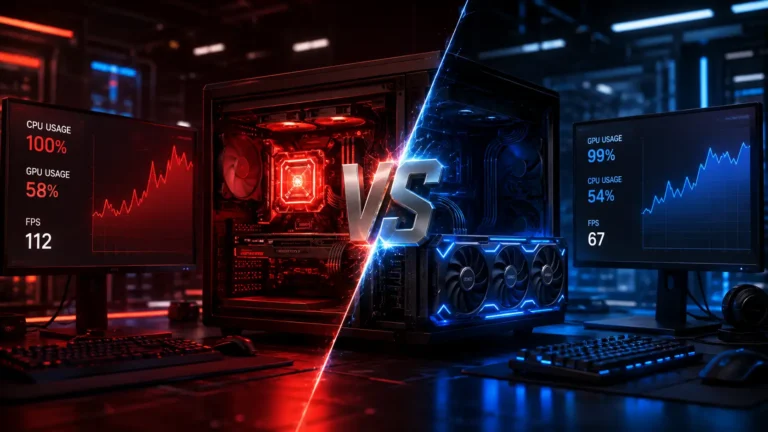
RAM, CPU, and GPU bottlenecks each show different patterns. RAM issues bring random stutters and long load times, CPU issues cause low FPS in crowded scenes, and GPU issues cause a steady FPS cap that drops with higher settings.
| Feature | RAM | CPU | GPU |
|---|---|---|---|
| Usage during stutter | Near 90-100% | Near 100% | Often below 90% |
| FPS pattern | Random drops, poor lows | Low FPS in CPU-heavy areas | Consistent FPS cap |
| Loading screens | Long | Normal | Normal |
| Texture issues | Pop-in, delayed loading | Rare | Rare |
| Fix | Add capacity, enable XMP | Upgrade CPU | Upgrade GPU |
RAM Bottleneck Symptoms
Look for high memory usage, texture pop-in, long load times, and stutters that happen even when CPU and GPU usage look normal. These issues tend to get worse the longer you play or the more background apps you have open.
CPU Bottleneck Symptoms
A CPU bottleneck shows up as consistently high CPU usage, especially on one or two cores, paired with a GPU that isn’t being pushed to its limit. You’ll usually see this in CPU-heavy games or crowded areas with lots of NPCs.
GPU Bottleneck Symptoms
With a GPU bottleneck, your GPU usage sits near 100% while CPU and RAM usage stay comfortable. FPS is usually consistent rather than random, and it drops predictably when you raise graphics settings or resolution.
Which One Is Limiting Your PC?
Compare your CPU, GPU, and RAM usage side by side during a stutter. Whichever one is maxed out while the others have room to spare is almost always your bottleneck.
Does RAM Affect FPS?
Yes, RAM affects FPS in two ways: capacity and speed. Not having enough RAM causes stutters, while faster RAM helps your CPU access data quicker, which can raise both average FPS and your lowest frame dips.
Does More RAM Increase FPS?
Yes, but only up to a point. Going from 8GB to 16GB can boost FPS significantly because it removes stutter caused by memory shortages. Going from 16GB to 32GB helps mostly with stability and multitasking rather than raw FPS, unless you’re running memory-heavy games or background apps.
Does RAM Speed Affect FPS?
RAM speed has a smaller but real impact on FPS, especially in CPU-bound games. Faster RAM helps your CPU access data quicker, which can improve both average FPS and 1% lows in the right situations.
DDR4 vs DDR5 Performance
DDR5 offers higher speeds and better bandwidth than DDR4, which can give a small edge in newer titles. The gap isn’t huge yet, but it widens as games and platforms lean more on DDR5. If you’re picking a platform from scratch, motherboard choice decides which memory type you can even run, so check our best gaming motherboards guide before buying RAM.
RAM Latency Explained
Latency, shown as CL numbers like CL16 or CL30, measures the delay before RAM responds to a request. Lower latency at the same speed is slightly better, but overall speed usually matters more for gaming than shaving off a few latency points.
Is 16GB RAM Enough for Gaming in 2026?
Yes, 16GB is still enough for most games in 2026. But if you stream, multitask, or play the newest AAA titles, 32GB gives you noticeably more breathing room.
8GB vs 16GB vs 32GB
8GB is no longer enough for most modern games and will cause frequent stutters and crashes. 16GB is still a solid baseline for most gamers in 2026, handling the majority of titles smoothly. 32GB is becoming more valuable for heavy multitaskers, streamers, and players of the most demanding new releases.
Best RAM for AAA Games
For AAA gaming in 2026, 16GB is the minimum, and 32GB is the safer pick if you want headroom for future titles. A dual-channel kit like the G.Skill Trident Z5 or Corsair Vengeance DDR5 at 6000MHz is a popular choice among builders right now. Not sure if your current setup is holding you back? Run your specs through our free bottleneck calculator to see exactly where you stand.
Best RAM for Streaming
If you stream while gaming, 32GB is strongly recommended. Streaming software, chat overlays, and browser sources all add extra memory demand on top of your game.
Best RAM for Content Creators
Video editors, 3D artists, and anyone running multiple creative apps at once should aim for 32GB or more. Large project files and multitasking between programs eat up memory fast.
How to Fix a RAM Bottleneck
The quickest fixes are enabling XMP, closing background apps, and adding a second RAM stick for dual channel. If those don’t solve it, upgrading to 32GB is the next step.
Upgrade to 32GB RAM
If you’re running 16GB and hitting high usage regularly, upgrading to 32GB is the most direct fix. This gives you enough headroom for games, background apps, and future titles.
Enable XMP / EXPO / DOCP
Head into your BIOS and turn on XMP, EXPO, or DOCP depending on your motherboard and RAM brand. This single step gets your RAM running at its full rated speed, sometimes boosting FPS noticeably for free.
Switch to Dual Channel
If you’re running a single RAM stick, add a second matching one to enable dual channel mode. This roughly doubles your memory bandwidth versus a single stick of the same capacity, and it’s one of the cheapest upgrades available. See how big the difference is for your setup with our bottleneck calculator.
Install Matching RAM Kits
Always use RAM sticks that match in brand, speed, and capacity when possible. Mismatched kits can run slower than expected or fail to work properly in dual channel mode.
Close Memory-Hungry Apps
Close unused browser tabs, background apps, and overlays before gaming sessions. This frees up RAM for your game and can reduce stutter significantly on lower-capacity systems.
Reduce Texture Quality
Lowering texture quality in-game reduces how much RAM and VRAM your system needs to load assets. This is a quick fix if you’re stuck on 8GB or 16GB and can’t upgrade right away.
Update BIOS
An outdated BIOS can prevent your RAM from running at its rated speed or cause compatibility issues. Updating to the latest version can improve stability and unlock better performance.
Keep Virtual Memory Enabled
Even with plenty of RAM, keep your virtual memory or page file enabled as a safety net. It won’t replace real RAM, but it prevents crashes if usage spikes unexpectedly.
Recommended RAM Specifications
Your ideal RAM setup depends on what you actually do on your PC. Esports players can get by with less, while streamers, editors, and developers need more capacity and speed. Popular picks in each tier include Kingston Fury Beast for budget builds, Corsair Vengeance for mainstream gaming, and G.Skill Trident Z5 for high-end AAA rigs.
| Use Case | Capacity | Speed | Configuration |
|---|---|---|---|
| Esports Gaming | 16GB | 3200-3600MHz | Dual Channel |
| AAA Gaming | 32GB | 3600-6000MHz | Dual Channel |
| Streaming | 32GB | 3600MHz+ | Dual Channel |
| Video Editing | 32-64GB | 3600MHz+ | Dual Channel |
| Unreal Engine & Game Dev | 32-64GB | 3600MHz+ | Dual Channel |
Esports Gaming
Fast-paced, competitive titles usually run well on 16GB paired with a solid dual-channel speed like 3200 to 3600MHz. These games are typically less memory-hungry than large open-world titles.
AAA Gaming
For the latest AAA releases, 32GB paired with faster RAM gives you the best balance of smoothness and future-proofing. It also gives you room to run Discord, browsers, and overlays without issue.
Streaming
Streamers benefit from both higher capacity and higher speed since encoding software runs alongside the game. 32GB at 3600MHz or above is a good target.
Video Editing
Video editing software often loads large files directly into memory, so 32GB is a reasonable minimum and 64GB is better for heavy 4K or multi-track projects.
Unreal Engine & Game Development
Game engines like Unreal are memory-intensive, especially when compiling shaders or running the editor alongside a build. Developers should aim for 32GB at minimum, with 64GB being common for larger projects.
Frequently Asked Questions
Can RAM bottleneck FPS?
Yes. When RAM can’t supply data fast enough, your CPU and GPU sit idle waiting for it, which directly lowers your FPS and increases stutter.
Is 16GB enough for gaming?
For most games in 2026, 16GB is still enough, though some newer AAA titles and multitasking setups benefit from 32GB.
Is 32GB worth it?
32GB is worth it if you play demanding AAA games, stream, multitask heavily, or want to future-proof your system for the next few years.
Does dual-channel RAM increase FPS?
Yes, dual channel mode increases memory bandwidth compared to single channel, which can lead to noticeably better FPS and smoother gameplay in many titles.
Can slow RAM cause stuttering?
Yes. Slow RAM speed limits how quickly data reaches your CPU and GPU, which can cause stutters and lower 1% lows even if you have enough capacity.
Can RAM bottleneck the GPU?
Yes. If RAM can’t deliver textures and assets fast enough, your GPU has to wait, which lowers its effective performance even if the GPU itself is powerful.
Can RAM bottleneck the CPU?
Yes. The CPU relies on RAM to access game data quickly, so slow or insufficient RAM can hold back CPU performance in memory-heavy scenes.
How do I know if RAM is the bottleneck?
Check Task Manager or Resource Monitor while gaming. If RAM usage is consistently high and CPU or GPU usage looks normal during stutters, RAM is likely your bottleneck.
What RAM speed is best for gaming?
For most current systems, 3600MHz to 6000MHz depending on your platform offers a good balance of price and performance for gaming.
Does XMP improve gaming performance?
Yes. XMP runs your RAM at its rated speed instead of a slower default, which can improve FPS and reduce stutter with no extra cost.
Conclusion
RAM doesn’t get as much attention as your CPU or GPU, but it can quietly hold your entire build back. Low FPS, choppy gameplay, texture pop-in, and long loading times are all worth checking before you blame your other parts.
The good news is that fixing this is often simple and affordable. Enabling XMP, switching to dual channel, or adding a second stick can make a real difference in how smooth your games feel. Not sure where your setup stands? Try our free bottleneck calculator to get a quick, personalized answer.
Take a few minutes to check your usage next time you play. If it’s maxed out, you now know exactly what to do about it.