PSU Bottleneck (2026): Can a Weak Power Supply Limit PC Performance?
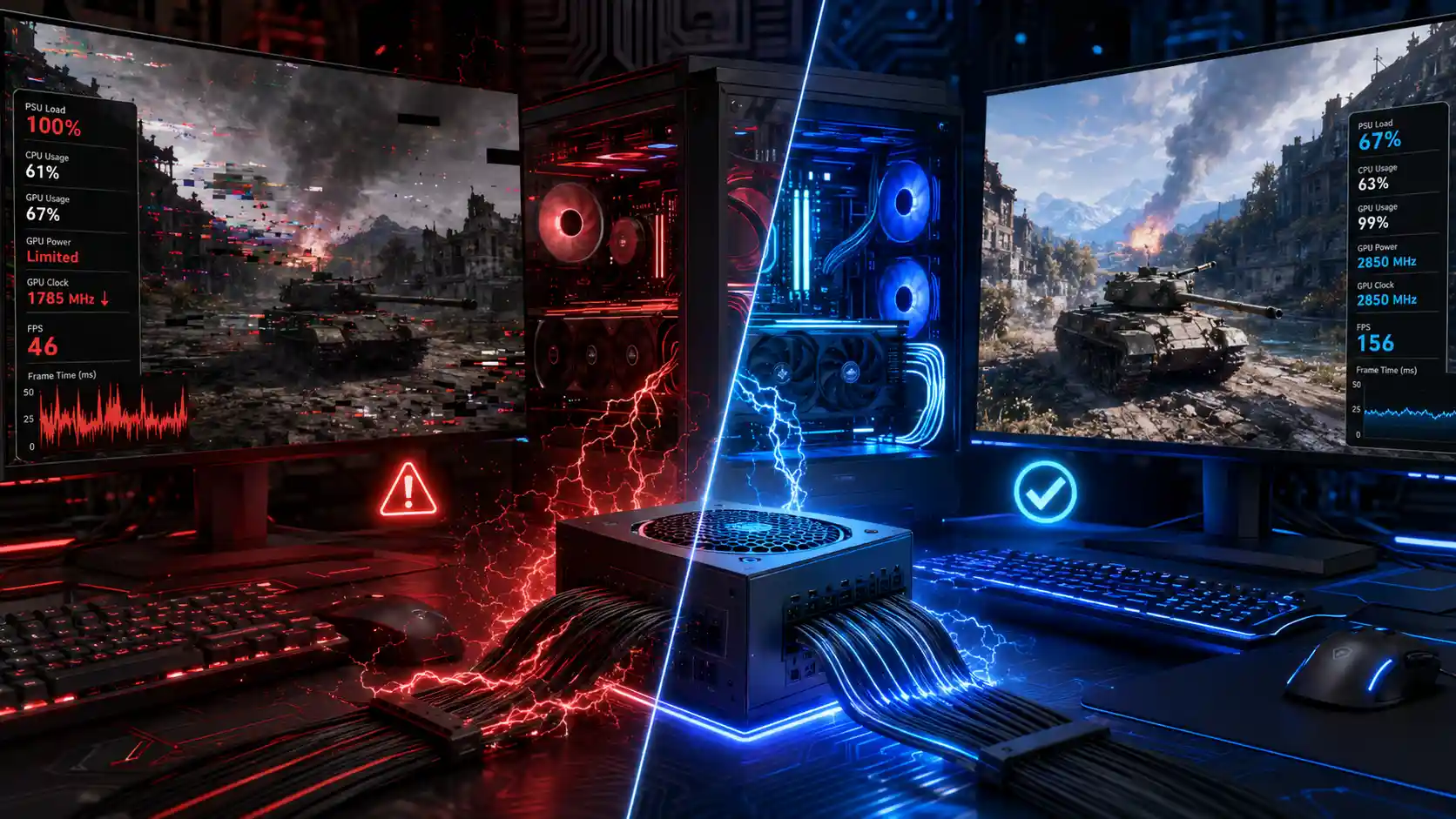
Quick answer: A weak or failing PSU doesn’t lower FPS the way a slow CPU or GPU does — it causes random restarts, black screens, GPU clocks that never reach their boost speed, and crashes during demanding gaming moments. You can confirm it by monitoring voltage rails with HWInfo, running an OCCT power test, or swapping in a known-good PSU.
Most people spend weeks researching a CPU and GPU, then grab whatever power supply is cheapest or already sitting in a drawer. That habit causes more hidden performance problems than almost any other build decision. A PSU bottleneck doesn’t show up in a benchmark chart the way a slow CPU does — instead, it shows up as random restarts, GPU clocks that never reach their advertised boost speed, and crashes that seem to have no pattern at all.
Take a common real-world example: a builder drops an RTX 4070 Ti Super into a system still running a 550W unit from a five-year-old prebuilt. Benchmarks look fine at first. Then, an hour into a demanding open-world game, the screen goes black and the PC reboots. No crash log, no driver error, nothing in the game’s settings that explains it. Nine times out of ten, that’s not a game bug — it’s the PSU hitting its limit during a power spike and tripping its own safety protection.
This guide breaks down exactly how a weak or failing power supply limits your gaming PC, how to tell if yours is the problem, and how to fix it — whether that means running a quick software test or finally retiring that 8-year-old 500W unit. If you’ve been dealing with a power supply causing crashes and can’t figure out why, the checklist below will help you pin it down.
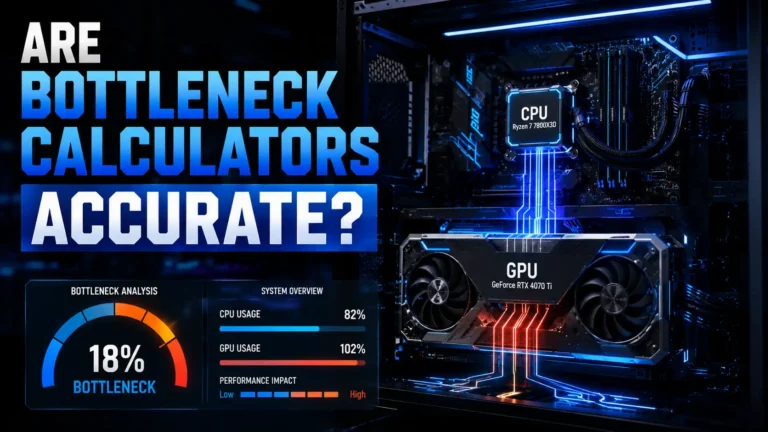
If you haven’t already, run your components through the Bottleneck Calculator to see how your CPU and GPU pair up before you start chasing a power delivery issue — sometimes what looks like a PSU problem is actually a CPU or GPU bottleneck instead.
What Is a PSU and Why Does It Matter?
The power supply unit (PSU) is the component that turns the AC power from your wall outlet into the stable DC voltages every other part of your PC depends on. It’s easy to overlook because it doesn’t render frames or run code — but every single component, from your GPU to your NVMe drive, is only as stable as the power feeding it.
What Does a Power Supply Unit (PSU) Do?
A PSU takes incoming alternating current and converts it into three main DC voltage rails: 12V, 5V, and 3.3V. The 12V rail is the one that matters most for gaming PCs, since it powers your GPU and CPU — the two components with the highest and most variable power draw during gameplay.
Beyond conversion, a good PSU also regulates voltage, filters electrical noise, and protects your components from power surges. Cheap units often skip proper filtering and regulation entirely, which is where a lot of “unexplainable” instability originates.
How Power Delivery Affects PC Stability
Modern GPUs and CPUs don’t draw a flat, constant amount of power. They spike — sometimes dramatically — for fractions of a second during demanding scenes, physics calculations, or ray tracing passes. A well-built PSU can absorb these transient spikes without the voltage sagging. A weak or low-quality one can’t, and that sag is often what triggers a crash or shutdown.
This is especially relevant with modern NVIDIA and AMD GPUs, which are known for sharp, brief power spikes well above their rated TDP — this is part of why the newer ATX 3.1 standard exists in the first place.
Why Gamers Often Ignore the PSU
The GPU and CPU get all the attention because their specs are easy to compare and their performance is easy to benchmark. A PSU’s quality, by contrast, is hidden behind vague wattage numbers and marketing terms like “gaming edition” that don’t actually describe electrical performance.
The result: builders regularly pair a $1,500 GPU with a $40 power supply, then spend hours troubleshooting driver issues that were never about the driver at all. It’s an easy mistake to make when every review, benchmark video, and build guide is obsessing over frame rates and thermals, and the PSU is treated as an afterthought line item at checkout.
Can a Weak PSU Cause a Bottleneck?
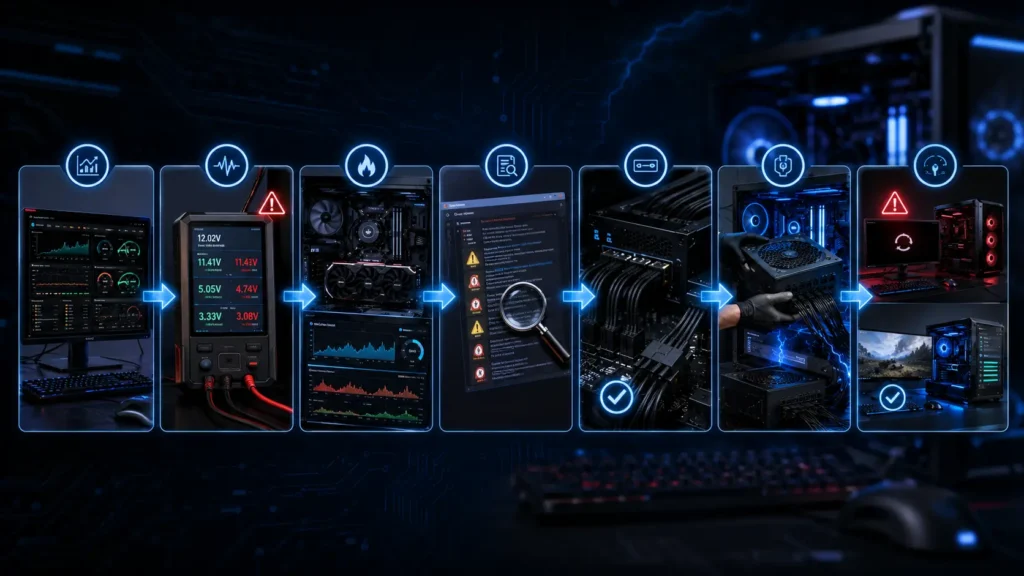
A traditional bottleneck happens when one component — usually the CPU or GPU — can’t keep up with the other, capping your frame rate. A PSU bottleneck is different: it’s not about raw processing speed, it’s about whether your components can even receive the power they need to reach their full clock speeds in the first place.
Does a PSU Actually Bottleneck Performance?
Yes, though indirectly. A PSU doesn’t have a “clock speed” the way a CPU or GPU does, so it can’t bottleneck performance in the traditional sense. What it can do is prevent your GPU from reaching its boost clocks, force your CPU to throttle under load, or crash the system entirely before you ever see the performance loss on a graph. That’s what makes it so easy to misdiagnose — a CPU or GPU bottleneck is visible on a chart, but a PSU bottleneck often looks like nothing at all until the system reboots.
In other words, a PSU bottleneck often looks like a CPU or GPU problem until you dig deeper.
PSU Bottleneck vs CPU vs GPU Bottlenecks
| Bottleneck Type | What Limits Performance | Typical Symptom |
|---|---|---|
| CPU Bottleneck | Processor can’t feed data fast enough | Low, uneven FPS with GPU usage below 99% |
| GPU Bottleneck | GPU can’t render frames fast enough | GPU usage pinned at 99–100%, FPS capped |
| PSU Bottleneck | Power delivery can’t support components under load | Crashes, restarts, GPU clocks not reaching boost |
| RAM Bottleneck | Insufficient or slow memory | Stuttering, texture pop-in, high RAM usage |
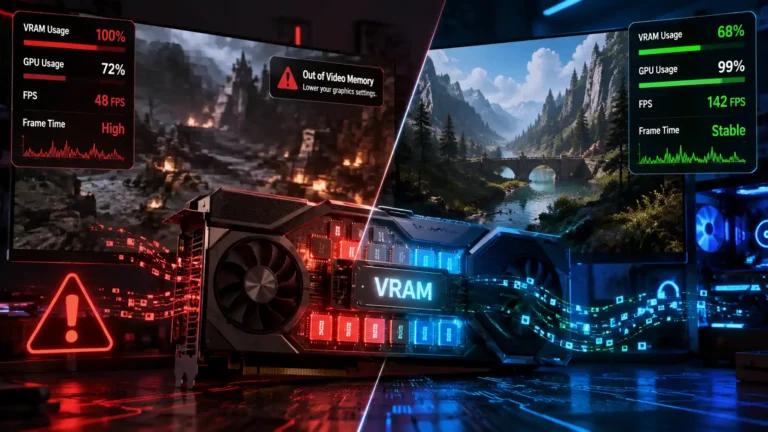
| VRAM Bottleneck | GPU memory capacity exceeded | Frame time spikes, texture streaming issues |
Not sure which one applies to your build? Our guide on whether bottleneck calculators are accurate breaks down how CPU and GPU bottleneck results are actually calculated, and where the numbers can mislead you.
Why Insufficient Power Creates Stability Problems
When power draw exceeds what a PSU can reliably deliver, the unit’s protection circuitry may trigger an over-power protection (OPP) or over-current protection (OCP) shutdown. This is a safety feature, not a malfunction — but it feels exactly like a random crash to the person sitting at the keyboard.
How a Weak PSU Affects Gaming Performance
A struggling PSU doesn’t just cause outright crashes. Often the first sign is subtler: your expensive GPU quietly underperforming without any obvious error message.
GPU Not Reaching Boost Clock
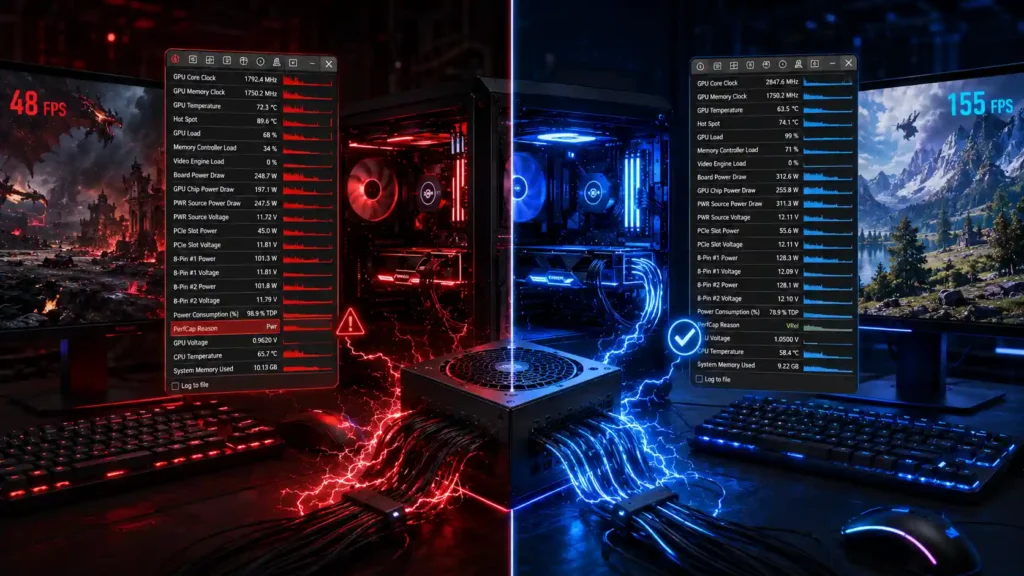
This is one of the most searched PSU-related symptoms, and for good reason. If your GPU detects unstable incoming power, its firmware can proactively downclock itself to stay within a safer operating margin. You’ll see this in monitoring software as a boost clock that never quite hits the number on the box, even at low temperatures with plenty of thermal headroom.
Voltage Drops
Voltage drops (or “sag”) happen when the PSU can’t maintain a stable rail voltage under sudden load. A drop from 12V to something like 11.4V might not sound like much, but it’s enough to push some components outside their tolerance window, especially during power spikes from a high-end GPU like an NVIDIA RTX 50-series card or an AMD Radeon RX 9000-series card. Titles that push these cards hardest — see our list of the most GPU-intensive games of 2026 — are also the ones most likely to expose a marginal PSU.
Performance Throttling
Some GPUs and CPUs are designed to throttle rather than crash when they detect unstable power. This protects the hardware but costs you frame rate. If you’re seeing lower-than-expected performance in GPU-heavy titles despite a capable graphics card, this is worth investigating before you assume the card itself is faulty.
Random FPS Drops
Momentary voltage sag during a demanding in-game moment — an explosion, a crowded scene, a ray-traced reflection pass — can cause a brief FPS dip that doesn’t correlate with anything in your CPU or GPU usage graphs. If your frame time graph shows sharp spikes that don’t line up with GPU or CPU usage, power delivery is worth ruling out.
PSU Not Enough Power Symptoms
Before diagnosing the exact cause, it helps to recognize the pattern of symptoms that typically point toward a power supply that’s undersized, aging, or failing.
Random Restarts
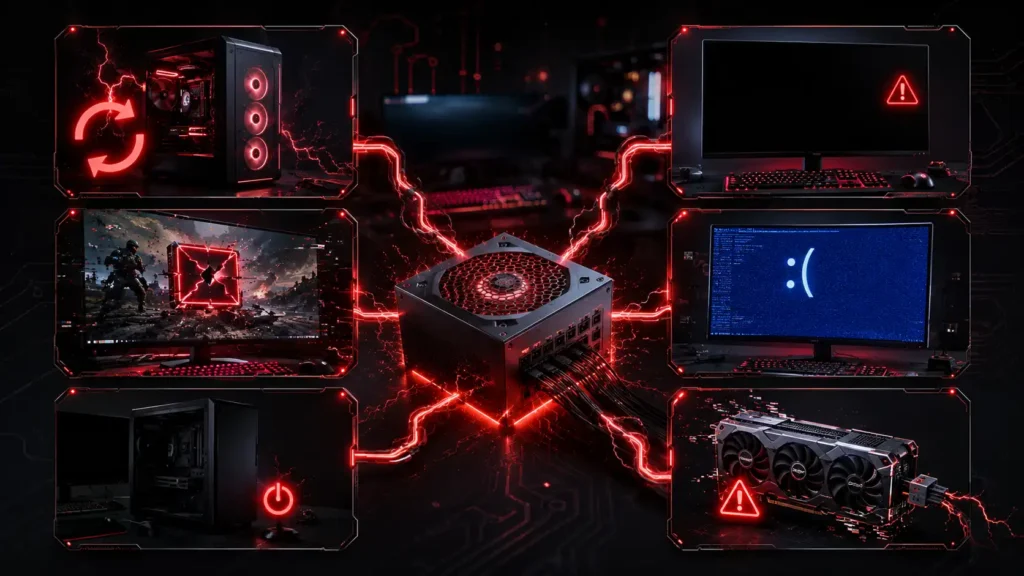
A PC that reboots without warning — often mid-game, under heavy GPU or CPU load — is one of the clearest signs of a PSU that can’t keep up with a sudden power spike. This is the single most common complaint tied to the search term “random restart gaming pc fix.” The pattern usually looks the same: the game runs fine for a while, then a demanding moment hits — an explosion, a new area loading, a busy multiplayer lobby — and the screen goes dark before Windows comes back up as if nothing happened, with no crash dialog and no entry pointing to the game itself.
Black Screens
A brief black screen followed by the monitor reconnecting (sometimes with a “no signal” flicker) can indicate the GPU briefly lost stable power without a full system reboot.
Game Crashes
Crashes that happen specifically during graphically intense moments — not on the desktop, not in menus — often point to a power delivery issue rather than a software bug, especially if the crash logs don’t point to a specific driver or executable.
Blue Screens
Power-related blue screens often reference DPC watchdog violations, whea-uncorrectable errors, or generic hardware failures rather than a specific driver file. If you’re chasing a BSOD that seems to have no consistent cause, check the Windows Event Viewer for power-related warnings before reinstalling drivers again — reinstalling the same driver over and over rarely fixes a problem that was never software-related in the first place.
Unexpected Shutdowns
Unlike a restart, a full shutdown with no reboot often points to the PSU’s over-current or over-power protection kicking in and refusing to restart until the load drops.
GPU Driver Crashes
“Display driver stopped responding” errors are usually blamed on NVIDIA or AMD drivers, but insufficient or unstable power delivery to the GPU can trigger the exact same error message. If reinstalling drivers hasn’t fixed a recurring TDR crash, power is worth testing next — especially if the crashes cluster around the same demanding scenes or settings rather than happening completely at random.
How to Know if Your PSU Is Bad
Diagnosing a PSU issue takes a bit more effort than checking a benchmark score, since the problem is intermittent by nature. If you’re trying to figure out how to know if your PSU is bad, these five checks will give you a real answer instead of a guess.
Software Monitoring
Start with free monitoring tools that log voltage rails in real time while you game. Look for dips on the 12V rail below roughly 11.4V (a common rough threshold for concerning sag), especially during load spikes.
OCCT Power Test
OCCT includes a dedicated power supply test that intentionally stresses your system with sharp load transients — the same kind of spikes modern GPUs produce during gaming — while logging voltage stability. If your system crashes during this test but not during a standard stress test, that’s a strong signal pointing at the PSU. Run it for at least 15–20 minutes, since some PSUs hold up fine for the first few minutes and only fail once internal components warm up under sustained load.
HWInfo Voltage Monitoring
HWInfo lets you log every voltage rail over an extended play session, then review the minimum, maximum, and average values afterward. Sustained dips correlating with crash timestamps are a reliable diagnostic signal.
Event Viewer
Windows’ built-in Event Viewer logs kernel-power events (Event ID 41) whenever your PC loses power unexpectedly, which is a strong indicator of PSU-related shutdowns rather than a software crash. Check the System log around the timestamp of your last crash or restart.
Testing With Another PSU
The most definitive test is swapping in a known-good PSU, even temporarily, and seeing if the instability disappears. If you don’t have a spare, many local PC repair shops can test a PSU under load for a small fee. This step matters because software monitoring can miss extremely brief voltage sags that last only microseconds — a physical swap rules the PSU in or out with certainty that no monitoring tool can fully guarantee on its own.
PSU Wattage Calculator
Sizing a PSU correctly is one of the easiest ways to avoid a power-related bottleneck altogether. Before buying, it’s worth running your exact build through our free bottleneck calculator to get a precise number rather than guessing.
CPU Power Draw
High-end CPUs from Intel and AMD can draw anywhere from 65W to well over 250W under full load, depending on the model and power limits set in the BIOS. Check your specific CPU’s rated TDP and, if you’ve enabled any power limit overrides, its actual peak draw.
GPU Power Draw
The GPU is almost always the single largest power consumer in a gaming PC. Flagship cards can draw 350–600W on their own, and that number climbs further with factory overclocked models. Always check the manufacturer’s recommended PSU wattage, not just the card’s rated TDP.
| GPU Tier | Typical Rated TDP | Manufacturer-Recommended PSU |
|---|---|---|
| Entry (RTX 4060, RX 7600) | 115–165W | 550–600W |
| Mid-range (RTX 4070, RX 7800 XT) | 200–260W | 650–700W |
| High-end (RTX 4080 Super, RX 7900 XTX) | 320–355W | 750–850W |
| Flagship (RTX 4090, RTX 5090) | 450–575W | 850–1000W+ |
These numbers already assume a reasonably capable CPU alongside the GPU — if you’re pairing a flagship card with an overclocked high-end CPU too, lean toward the higher end of the recommended range rather than the lower one.
Power Spikes
Modern GPUs can transiently spike to 1.5–2x their rated power draw for milliseconds at a time. A PSU calculator that only adds up rated TDPs will consistently undersize your PSU — this is why headroom matters so much more than raw arithmetic.
Recommended Headroom
A commonly recommended approach is sizing your PSU to roughly 30–40% above your calculated total system draw. This headroom absorbs transient spikes, keeps the PSU running in its efficient load range, and leaves room for future upgrades.
As a worked example: a CPU drawing 125W plus a GPU drawing 285W, alongside storage, fans, and a motherboard adding roughly 60W, comes to about 470W of calculated system draw. Add 30–40% headroom and you land in the 650–700W range — noticeably higher than what a naive “add up the TDPs” calculation would suggest, but exactly the kind of margin that keeps transient spikes from tripping the PSU’s protection circuitry.
How to Fix a PSU Bottleneck
Once you’ve confirmed the PSU is the source of your instability, the fix is usually more straightforward than diagnosing the problem in the first place. Work through these in order — the free checks first, the hardware purchase last.
Upgrade Your PSU
If your current unit is simply undersized for your GPU and CPU combination, the most reliable fix is upgrading to a higher-wattage unit from a reputable brand with a strong efficiency rating and transient response. Don’t just match your calculated total — buy with the 30–40% headroom covered earlier so the new unit isn’t marginal too.
Reduce Overclocking
If you’re overclocking your CPU or GPU, dialing back your power limits or clock offsets reduces peak draw and can eliminate instability without spending a dollar — a useful test even before buying a new PSU. Lowering your GPU’s power limit slider by even 10–15% in software like MSI Afterburner often removes the sharpest transient spikes with almost no measurable FPS loss.
Replace Aging Power Supplies
Capacitors degrade over time, and a PSU that was perfectly adequate five years ago may no longer deliver its rated output cleanly. If your unit is older than 6–7 years and you’re seeing instability, age is a reasonable first suspect — especially if it’s run hot in a poorly ventilated case for most of its life.
Check PCIe Power Cables
Make sure your GPU’s power cables are fully seated, and avoid using cheap “daisy-chain” adapters or splitters on a single cable for high-draw GPUs. This is especially important with the 12VHPWR and 12V-2×6 connectors used on recent NVIDIA cards, which have a history of connection-related issues when not fully seated. A cable that’s even slightly loose can cause exactly the same symptoms as an undersized PSU.
Update BIOS
Motherboard BIOS updates occasionally include improvements to power delivery behavior and PCIe power negotiation, particularly for newer GPUs. Manufacturers like ASUS and MSI regularly ship these updates specifically to improve GPU power negotiation, so it’s a free, low-risk step worth trying before a hardware purchase. If you’re troubleshooting a fresh build, our gaming motherboard buying guide also covers which boards handle power delivery to the CPU better than others.
Choosing the Right Power Supply
If you’ve confirmed you need a new PSU, here’s what actually matters when comparing options.
Wattage
Buy based on your calculated headroom, not just what fits your current build — leave room for a future GPU upgrade so you’re not replacing the PSU again in two years.
| Build Type | Recommended Wattage |
|---|---|
| Budget 1080p gaming | 550–600W |
| Mid-range 1440p gaming | 650–750W |
| High-end 1440p/4K gaming | 750–850W |
| Enthusiast flagship builds | 1000W+ |
80 Plus Ratings
The 80 Plus certification (Bronze, Gold, Platinum, Titanium) measures efficiency, not raw quality, but it’s a reasonable proxy for build quality since cheap, poorly-made units rarely bother certifying at higher tiers.
| Rating | Efficiency at 50% Load | Typical Use Case |
|---|---|---|
| Bronze | ~85% | Budget builds |
| Gold | ~90% | Most gaming PCs |
| Platinum | ~92% | High-end builds |
| Titanium | ~94% | Enthusiast/workstation builds |
ATX 3.1
The ATX 3.1 standard is specifically designed to handle the sharp transient power spikes of modern GPUs, making it a strong choice if you’re pairing your build with a recent high-end NVIDIA or AMD card. It refines the 12V-2×6 connector used on RTX 40- and 50-series cards, adds shorter sense pins that cut power before a bad connection causes damage, and requires PSUs to absorb larger power excursions without tripping their own protection circuitry — exactly the scenario that causes so many of the crashes described earlier in this guide.
Modular vs Non-Modular
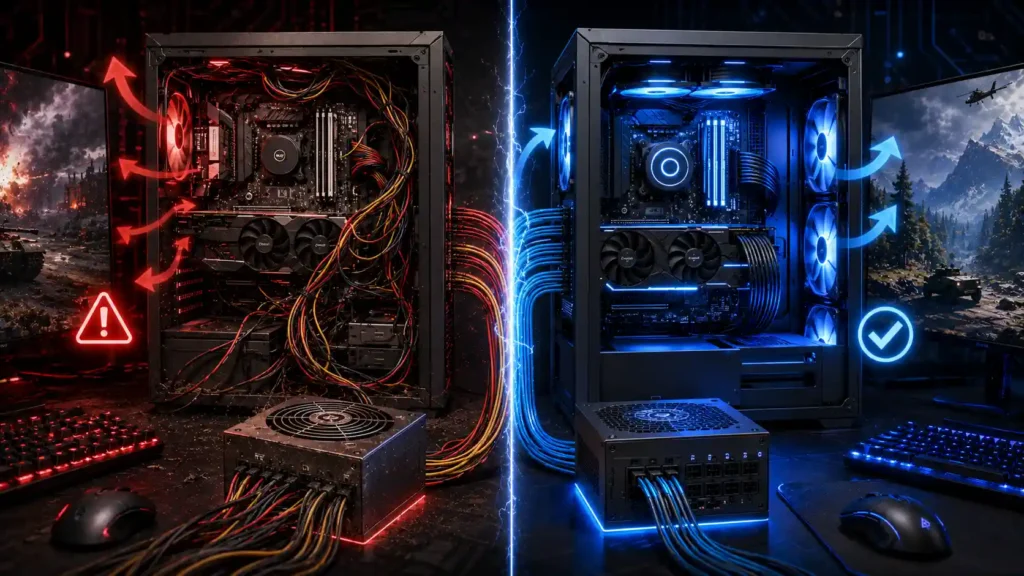
Fully modular PSUs let you connect only the cables you need, improving airflow and cable management. Non-modular units are usually cheaper but leave you with unused cables cluttering the case.
Trusted PSU Brands
Stick to manufacturers with a strong track record for both electrical quality and warranty support — brands like Corsair and Seasonic are consistently well-regarded in independent PSU teardown reviews, and MSI and ASUS also produce well-reviewed units in their higher tiers.
Frequently Asked Questions
Can a bad PSU cause low FPS?
Yes. If a weak PSU forces your GPU to downclock or throttle to stay within a safe power envelope, you’ll see lower and less consistent frame rates even though the GPU itself is fully capable.
How do I know if my PSU is too weak for my GPU?
Check the GPU manufacturer’s recommended PSU wattage, compare it against your unit’s rated output, and watch for symptoms like random restarts or boost clocks that never reach spec under load.
Can a PSU cause stuttering?
Yes, momentary voltage sag during demanding scenes can cause brief frame time spikes that feel identical to stuttering caused by CPU or RAM issues.
Does PSU wattage affect FPS?
Only if the wattage is insufficient for your components. Once a PSU comfortably exceeds your system’s peak draw, adding more wattage beyond that point won’t improve FPS further.
Can a bad power supply damage other components?
In rare cases, a failing PSU can send unstable or excessive voltage to connected components, potentially damaging them. This is one reason buying from a reputable brand with proper protection circuitry matters.
How long do PSUs typically last?
Most quality PSUs last 7–10 years under normal use, though heavy daily gaming loads and heat can shorten that lifespan, especially in cheaper units with lower-grade capacitors.
Is 650W enough for a gaming PC?
It depends entirely on your CPU and GPU combination. A mid-range build with a card like an RTX 4060 or RX 7600 will typically be fine on 650W, but flagship GPUs usually need 750W or more.
Can overclocking cause a PSU bottleneck?
Yes. Overclocking increases both average and peak power draw, which can push a marginal PSU past its stable operating range and trigger crashes that wouldn’t happen at stock settings.
How do I test my PSU without buying a new one?
Run a dedicated power test in OCCT, monitor voltage rails during gameplay with HWInfo, or swap in a known-good spare PSU temporarily to see if the instability disappears.
Does a higher wattage PSU use more electricity?
No. A PSU only draws as much power as your components actually request; a higher-wattage unit sitting well within its efficiency curve can even be slightly more efficient than an undersized one running near its limit.
Can a laptop have a PSU bottleneck?
Laptops can hit a similar limit with their power adapter — running a demanding game on battery or with an underpowered charger can cause the same kind of throttling and shutdown behavior seen with a weak desktop PSU.
Should I buy the exact wattage a GPU manufacturer recommends?
Treat the manufacturer’s number as a floor, not a target. Buying 100–150W above the recommendation gives you headroom for transient spikes and future upgrades without meaningfully increasing cost or idle power draw.
Conclusion
A PSU bottleneck rarely announces itself the way a slow CPU or GPU does — instead, it hides behind symptoms that look like driver bugs, overclocking instability, or bad luck. Random restarts, GPU clocks that never hit their boost speed, and crashes during intense gaming moments are all classic signs of power delivery struggling to keep up.
The fix is usually simpler than the diagnosis: calculate your real wattage needs with proper headroom, choose a reputable brand with solid transient response, and don’t let your power supply be the one component you never researched. It’s the one part of the build that touches everything else, and it’s also one of the cheapest problems to prevent — a $30–$50 difference between a marginal unit and a properly sized one is a lot less than the cost of a fried GPU or a wasted afternoon chasing a phantom driver issue.
If you haven’t already, run your build through the free bottleneck calculator to make sure your CPU and GPU are well matched, and check our guides on RAM bottleneck symptoms, VRAM bottlenecks, and how to fix a bottleneck in your PC to rule out every other cause before you spend money on new hardware.