Network Bottleneck: High Ping Despite Good FPS
Key Takeaways
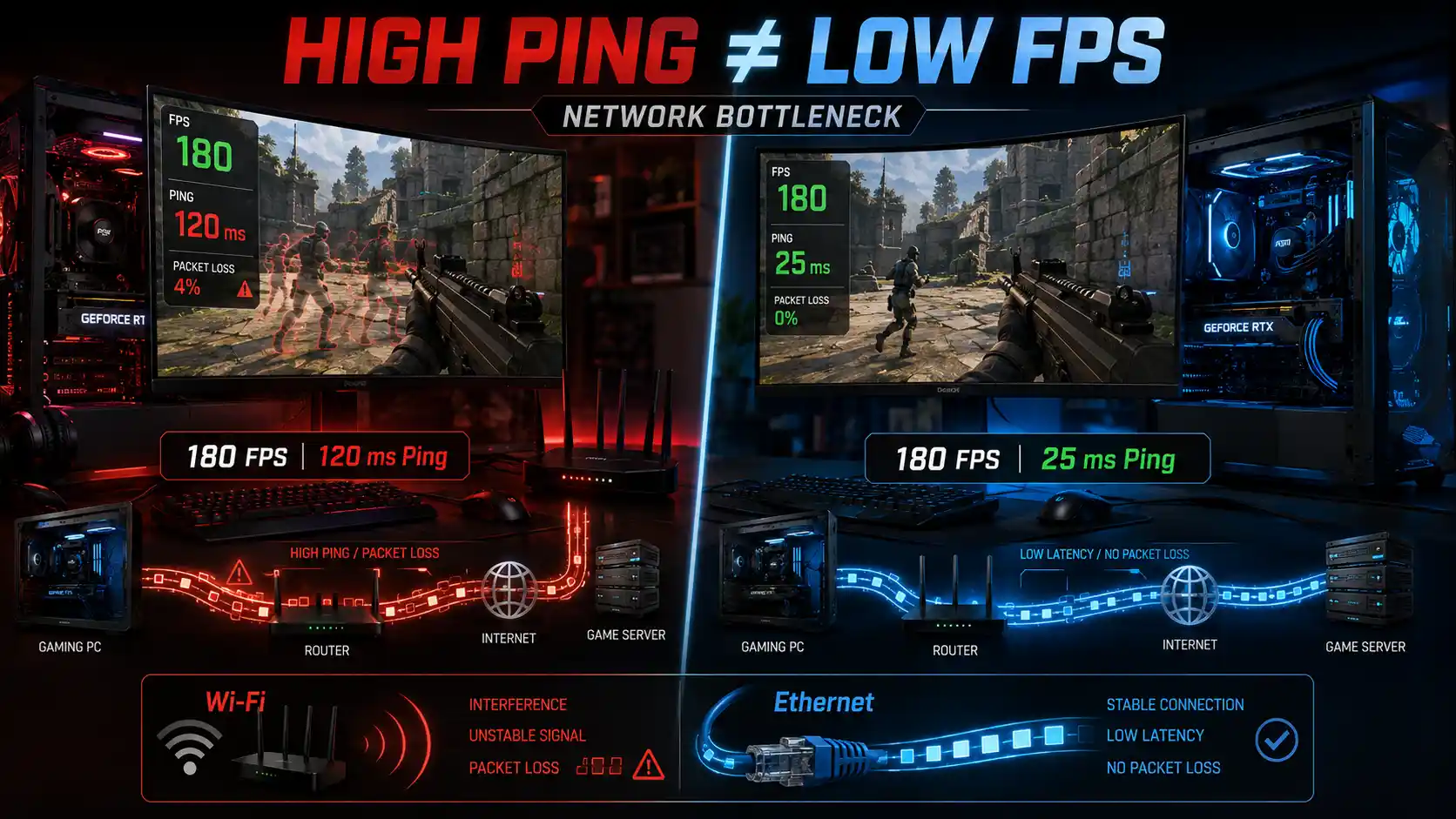
- FPS and ping measure completely different things: FPS is rendering speed, ping is network delay. High FPS never guarantees low ping.
- High ping with good FPS almost always points to a network bottleneck, not a PC performance problem.
- Common causes include game server distance, ISP routing, Wi-Fi interference, network congestion, bufferbloat, and packet loss.
- Ethernet improves connection consistency but cannot fix latency caused by a distant server or poor ISP routing.
- Rubber banding is usually a combination of packet loss, jitter, and latency disrupting client-server synchronization.
- Faster internet speed (bandwidth) does not automatically mean lower ping (latency) — they are different network properties.
- Diagnosing the real bottleneck requires isolating FPS, ping, jitter, and packet loss individually rather than assuming one cause.
30-Second Answer: Why Do I Have High Ping With Good FPS?
High ping with good FPS happens because FPS depends on your GPU and CPU rendering frames locally, while ping depends on how long data takes to travel between your PC and the game server. A powerful gaming PC can render hundreds of frames per second while still sending and receiving network packets slowly due to Wi-Fi interference, network congestion, ISP routing, or server distance. The two systems — rendering and networking — operate independently, so strong hardware performance has no effect on network latency.
What Is a Network Bottleneck?
Before diagnosing high ping, it helps to understand what a network bottleneck actually is and how it differs from the internet speed and PC performance issues players usually blame first. The sections below break this down piece by piece.
Network Bottleneck Definition
A network bottleneck is any point in the connection between a player’s PC and a game server that slows down or disrupts data transmission, causing high ping, jitter, or packet loss regardless of how fast the PC itself is running. It can occur on the local network (Wi-Fi, router) or further along the route (ISP, backbone routing, server-side).
Network Bottleneck vs Internet Speed
A network bottleneck is not the same as low internet speed. Internet speed (bandwidth) measures how much data can move per second, while a network bottleneck often involves latency and stability problems that occur even on high-bandwidth connections. A 500 Mbps connection can still produce high ping if traffic is congested, routed poorly, or affected by bufferbloat.
Network Bottleneck vs PC Bottleneck
A PC bottleneck limits frame rate through CPU, GPU, RAM, or VRAM constraints. A network bottleneck limits data transmission speed and reliability, affecting ping, jitter, and packet loss instead of FPS. A system can be completely free of PC bottlenecks and still suffer from a network bottleneck, and vice versa.
What Causes High Ping?
High ping is caused by delays anywhere along the path data travels between a player’s PC and the game server. The most common causes include:
- Game server distance — the physical distance between the player and the server adds unavoidable transmission delay.
- Server region — connecting to a server in a different region than the player’s location increases baseline ping.
- ISP routing — inefficient paths chosen by an ISP’s network can add latency even over short physical distances.
- Network congestion — heavy traffic on the local network or ISP’s network during peak hours can slow data delivery.
- Wi-Fi interference — competing wireless signals from neighboring networks, cordless phones, and smart-home devices disrupt Wi-Fi packets.
- Weak Wi-Fi signal — distance from the router or physical obstructions weaken signal strength and increase retransmissions.
- Background downloads — large downloads or updates running during gameplay consume bandwidth and add queuing delay.
- Upload traffic — cloud backups, video calls, or streaming uploads competing for limited upload bandwidth.
- Router problems — outdated firmware, overloaded hardware, or misconfigured settings on the router.
- VPNs — routing traffic through a VPN server adds an extra hop, which can increase ping depending on the VPN server’s location.
- Bufferbloat — excessive buffering in routers or modems under load, which delays time-sensitive gaming traffic.
- Packet loss — lost packets trigger retransmissions, which can appear as latency spikes and stutter.
- Game server issues — server-side performance problems or overloaded game servers, unrelated to the player’s own connection.
High FPS but Still Lagging: Why?
High FPS does not guarantee low network latency because FPS is determined by the PC’s rendering performance, while ping measures network communication delay. A player can experience 200+ FPS and still face 100 ms ping, packet loss, or rubber banding because these are two independent systems.
| Metric | What It Measures | Typical Symptom When Poor |
|---|---|---|
| FPS | How many frames the GPU/CPU render per second | Choppy visuals, stuttering animation |
| Frame Time | Time taken to render each individual frame | Micro-stutter, inconsistent frame pacing |
| Ping (Latency) | Time for data to travel to the server and back | Delayed actions, input lag, slow hit registration |
| Jitter | Variation in ping over time | Inconsistent, unpredictable lag |
| Packet Loss | Data packets that fail to reach their destination | Rubber banding, teleporting players, disconnects |
A game can render smoothly at high FPS while every network packet still takes 80–150 ms to reach the server, producing lag that has nothing to do with rendering performance.
Wi-Fi vs Ethernet for Gaming Ping
Does Ethernet reduce ping? Ethernet can make gaming latency more stable by reducing wireless interference, but it cannot eliminate latency caused by distant game servers or poor ISP routing. Ethernet’s main advantage is consistency, not a guaranteed drop in baseline ping.
Is Wi-Fi bad for gaming? Wi-Fi is not inherently bad for gaming, but it introduces variables that Ethernet avoids, including:
- Wi-Fi interference from other networks and electronic devices sharing the same frequency bands
- Signal strength loss over distance or through walls and floors
- Channel congestion in areas with many overlapping Wi-Fi networks (common in apartments)
- Latency consistency issues, since Wi-Fi ping tends to fluctuate more than a wired connection
Ethernet provides a more stable, consistent physical connection with fewer variables affecting jitter and packet loss. When Wi-Fi is perfectly usable: a strong, uncongested 5GHz or 6GHz connection at close range, on a modern router, with minimal interference, can perform close to wired for many games — especially those less sensitive to jitter.
Ethernet does not fix latency caused by ISP routing, server distance, or backbone congestion, since those bottlenecks exist beyond the local network entirely.
What Is Packet Loss?
Packet loss occurs when network packets fail to reach their destination, which can cause rubber banding, delayed updates, disconnects, and inconsistent gameplay.
Causes of packet loss:
- Wi-Fi interference or weak signal
- Faulty or damaged Ethernet cables
- Overloaded or outdated router hardware
- ISP network congestion or infrastructure issues
- Bufferbloat causing packets to be dropped under load
Symptoms of packet loss:
- Sudden rubber banding or teleporting characters
- Actions not registering (shots, abilities, movement)
- Brief freezes followed by a snap to a new position
- Intermittent disconnects from game servers
Why packet loss causes rubber banding: When packets are lost, the game client and server temporarily lose synchronization. The client may continue predicting movement locally, and when a correction packet finally arrives, the player is snapped back to the server’s last known position — producing the rubber-banding effect.
How packet loss differs from high ping: Ping measures delay; packet loss measures data that never arrives at all. A connection can have low ping but still suffer packet loss, and a high-ping connection can have zero packet loss. They are separate problems that require separate fixes.
How to Fix Packet Loss in Gaming
- Restart the router and modem to clear temporary memory issues and reset the connection.
- Switch to Ethernet if currently on Wi-Fi, to rule out wireless interference.
- Check and replace cables if using Ethernet, since damaged cables are a common hidden cause.
- Test on a different Wi-Fi channel or band (5GHz or 6GHz instead of 2.4GHz) to reduce interference.
- Move closer to the router or reduce physical obstructions if Wi-Fi is the only option.
- Update router firmware to patch known stability issues.
- Run a wired packet loss test using ping or traceroute tools to confirm whether loss occurs locally or further along the route.
- Contact the ISP if packet loss persists on a wired connection with no local cause identified, since the issue may be on their network.
What Is Network Congestion?
Network congestion happens when the total demand for bandwidth on a network exceeds its available capacity, causing packets to queue, delay, or drop — which increases ping and can trigger packet loss during gameplay.
Common contributors to network congestion include:
- Streaming video on multiple devices simultaneously
- Downloads, including game updates and large file transfers
- Uploads, such as video calls, livestreams, or file syncing
- Cloud backups running automatically in the background
- Multiple gaming devices competing for bandwidth on the same network
- Household network traffic from smart TVs, phones, tablets, and IoT devices all connected at once
Congestion is often worst during peak usage hours (evenings, weekends) when both home network traffic and ISP-wide traffic are highest.
Network Congestion Gaming Fix
- Stop unnecessary downloads before and during gaming sessions.
- Pause cloud synchronization services like backup or file-sync apps.
- Reduce background uploads, including streaming or video calls on other devices.
- Use Ethernet when possible to remove Wi-Fi as a variable in congestion-related issues.
- Configure QoS (Quality of Service) on the router to prioritize gaming traffic over other traffic types.
- Use SQM (Smart Queue Management) where supported, since it actively reduces bufferbloat under load.
- Test for bufferbloat using online bufferbloat test tools to see how latency behaves under simultaneous load.
- Avoid unnecessary VPN routing during gaming sessions unless the VPN is specifically used to improve routing to a game server.
Why Is My Ping So High?
A practical diagnostic workflow for identifying the cause of high ping:
- Check ping at idle — run a ping test with no other devices active to establish a baseline.
- Check ping under load — run the same test while downloading a file or streaming to see if ping spikes significantly.
- Compare Wi-Fi vs Ethernet — test the same connection wired and wireless to isolate whether Wi-Fi is contributing.
- Test different servers — connect to a different game server region to see if distance or routing is the cause.
- Test different games — high ping in one game but not another often points to a server-side or game-specific issue rather than a local network problem.
- Check for packet loss separately — high ping and packet loss are different problems and should be diagnosed independently.
- Review household traffic — identify whether other devices are consuming bandwidth during the high-ping periods.
How to Fix High Ping in Gaming
- Restart your router and modem — clears minor connection issues and refreshes the connection to your ISP.
- Switch from Wi-Fi to Ethernet — removes wireless interference and signal loss as variables.
- Close bandwidth-heavy background applications — stop downloads, updates, and streaming on other devices.
- Connect to the closest available game server region — reduces the physical distance data must travel.
- Enable QoS or SQM on your router — prioritizes gaming traffic and reduces bufferbloat under load.
- Update router firmware and network drivers — resolves known bugs affecting connection stability.
- Test with a wired connection directly to the modem — isolates whether the router itself is adding latency.
- Contact your ISP — if high ping persists across all tests, the issue may be in ISP routing or infrastructure, which is outside your control.
What Is Rubber Banding?
Rubber banding is a visible gameplay glitch where a character suddenly snaps back to a previous position after appearing to move normally, caused by a breakdown in synchronization between the game client and server.
It typically results from a combination of:
- Latency — delayed communication between client and server
- Packet loss — missing updates that the client has to reconcile once new data arrives
- Jitter — inconsistent timing between packets, making synchronization harder
- Server/client synchronization — the client predicts movement locally, and when server data conflicts with that prediction, the game corrects the player’s position abruptly
Rubber banding is a network synchronization symptom, not a rendering issue — it can occur even at very high, stable FPS.
Rubber Banding Fix Gaming
Player-side fixes:
- Switch to a wired Ethernet connection to reduce jitter and packet loss
- Close background applications consuming bandwidth
- Restart the router and modem
- Test and, if needed, replace Ethernet cables
- Move closer to the router or reduce Wi-Fi interference
- Enable QoS/SQM to reduce bufferbloat during gameplay
When the problem may be server-side:
- Rubber banding affects most or all players in the match
- The issue occurs consistently in one specific game but not others on the same connection
- Official game status channels report known server issues
- The problem persists even after confirming a clean, low-latency, packet-loss-free connection
If rubber banding continues after ruling out local network issues, the cause is likely on the game server’s end and cannot be fixed through personal network changes.
Ping vs Jitter vs Packet Loss
| Term | Definition | Effect on Gameplay |
|---|---|---|
| Ping | Time for a data packet to travel to the server and back | Consistent delay in actions and responses |
| Jitter | Variation in ping over time | Unpredictable, inconsistent lag spikes |
| Packet Loss | Data packets that never reach their destination | Rubber banding, missed inputs, disconnects |
These three metrics are related but distinct. A connection can have low ping with high jitter, or low jitter with significant packet loss — each requires different troubleshooting.
Does Internet Speed Affect Gaming Ping?
Does faster internet reduce ping? Not automatically. Internet speed (bandwidth) measures how much data can be transferred per second, while ping measures how long that data takes to travel one round trip — these are different properties of a connection. A 1 Gbps connection with poor routing can have higher ping than a 100 Mbps connection with a direct, efficient route to the server.
Faster internet plans can indirectly help by reducing congestion when multiple devices are active, but they do not reduce the physical distance data must travel or improve ISP routing efficiency.
How to Test Your Gaming Network
- Check in-game ping — most modern games display real-time ping in the settings or HUD.
- Run a packet loss test — use ping or traceroute tools to check for dropped packets over time.
- Compare Wi-Fi vs Ethernet — test the same game and server on both connection types.
- Run an idle network test — measure ping and packet loss with no other devices active.
- Run a network-under-load test — repeat the test while downloading or streaming to check for congestion effects.
- Test different game servers — connect to multiple regions to compare latency and identify routing issues.
- Test different games — determine whether high ping is isolated to one game (likely server-side) or consistent across all games (likely local network or ISP).
Network Bottleneck vs CPU/GPU Bottleneck
| Bottleneck Type | What It Affects | How to Identify |
|---|---|---|
| CPU Bottleneck | FPS, frame time, minimum frame rates | Low GPU usage with low FPS; frame drops in CPU-heavy scenes |
| GPU Bottleneck | FPS, frame time, resolution scaling | High GPU usage (95–100%) with lower-than-expected FPS |
| RAM Bottleneck | Frame time consistency, stuttering, load times | Stutters during asset loading; high RAM/page file usage |
| VRAM Bottleneck | Texture loading, frame time spikes at high resolutions/settings | Stuttering or texture pop-in at high settings; VRAM usage near limit |
| Network Bottleneck | Ping, jitter, packet loss, rubber banding | High ping or packet loss despite stable, high FPS |
A network bottleneck is unique among these because it does not affect FPS at all — it exists entirely outside the rendering pipeline, which is why a system with zero CPU/GPU bottlenecks can still lag badly online.
Common Gaming Network Mistakes
- Assuming high FPS rules out a lag problem — FPS and ping are unrelated systems.
- Blaming the PC for all lag — many lag issues originate from the network, not the hardware.
- Believing Ethernet fixes everything — it improves consistency but can’t change server distance or ISP routing.
- Upgrading internet speed to fix ping — bandwidth increases don’t reduce latency caused by distance or routing.
- Ignoring packet loss because ping looks normal — they are separate metrics and must be tested independently.
- Changing DNS servers expecting lower ping — DNS affects lookup speed, not in-game latency to the server.
- Not testing at idle vs under load — many congestion-related issues only appear when the network is under load.
- Assuming a VPN will always lower ping — VPNs add a routing hop and can just as easily increase ping.
Network Bottleneck Troubleshooting Checklist
- Confirm FPS is stable — rule out a PC-side rendering bottleneck first.
- Check in-game ping and compare it to your idle baseline.
- Run a packet loss test separate from your ping test.
- Test Wi-Fi vs Ethernet on the same game and server.
- Test at idle, then again with other devices active.
- Switch to the nearest available game server region.
- Restart your router and modem.
- Enable QoS or SQM if your router supports it.
- Test for bufferbloat with an online test tool.
- Try a different game to see if the issue is isolated or connection-wide.
- Contact your ISP if the issue persists across all local tests.
FAQs
Why is my ping so high but my FPS is good?
FPS depends on your CPU and GPU rendering frames locally, while ping depends on network conditions between your PC and the game server. The two are independent, so strong hardware performance has no effect on network latency.
Can high FPS cause high ping?
No. Rendering more frames per second does not generate network traffic in a way that increases ping. High ping alongside high FPS points to a separate network bottleneck, not a hardware-caused one.
Does Ethernet reduce ping?
Ethernet can improve consistency by removing Wi-Fi interference, but it does not guarantee lower baseline ping, since server distance and ISP routing remain unchanged.
Is Wi-Fi bad for gaming?
Wi-Fi isn’t inherently bad, but it introduces interference, signal loss, and channel congestion that can increase jitter and packet loss compared to a wired connection.
What causes packet loss while gaming?
Packet loss is commonly caused by Wi-Fi interference, faulty cables, overloaded routers, ISP congestion, or bufferbloat under network load.
How do I fix rubber banding?
Try a wired connection, reduce background traffic, restart networking equipment, and enable QoS/SQM. If it affects most players in a match, the cause is likely server-side.
Does faster internet reduce ping?
Not directly. Internet speed measures bandwidth, while ping measures latency — increasing bandwidth doesn’t shorten the physical or routed distance data must travel.
Can network congestion cause high ping?
Yes. When too many devices or bandwidth-heavy tasks compete for limited network capacity, packets queue and delay, increasing ping and sometimes causing packet loss.
How much ping is good for gaming?
Lower is generally better, but acceptable ping varies by game genre and personal sensitivity; competitive shooters benefit most from consistently low, stable ping.
Is 100 ms ping bad for gaming?
It’s noticeably higher than ideal for fast-paced competitive games and can affect hit registration timing, though many games remain playable at this level depending on genre and tolerance.
What is the difference between ping and packet loss?
Ping measures how long data takes to travel round-trip; packet loss measures data that never arrives at all. A connection can have one problem without the other.
Why do I have high ping in one game but not another?
This usually points to a server-side or game-specific issue, such as server region, routing to that specific game’s servers, or server load — rather than a problem with your own network.
Final Verdict
High FPS and high ping can happen at the same time because they measure entirely separate systems: FPS reflects rendering performance, while ping reflects network communication delay. Ping, jitter, and packet loss are also separate network problems, each requiring its own diagnostic approach rather than a single fix.
Ethernet can meaningfully improve connection consistency by removing wireless interference, but it cannot resolve latency caused by network congestion, bufferbloat, game server distance, or inefficient ISP routing. Persistent packet loss that survives local troubleshooting often points to a router or ISP-level issue that needs to be addressed at that level. Understanding the difference between a PC bottleneck and a network bottleneck is the first step toward correctly diagnosing lag, rather than assuming stronger hardware will resolve a problem that hardware was never causing.